
How to Enable Crossplay on a Palworld Server
Crossplay is already on in every Palworld dedicated server. Getting Xbox, PS5, Game Pass and Mac friends into the same world depends on three settings: the community listing, the platform list and matching versions. Here is each one, how hosts handle them and what to check when someone still cannot join.
Current dedicated and community servers allow Steam, Xbox Series, Microsoft Store/Game Pass PC, macOS and PS5 by default.
Xbox, PS5 and Microsoft Store/Game Pass PC players need the server to appear under the Community server tab.
CrossplayPlatforms is the allow-listIf a platform name was removed, that platform is blocked. Keep Xbox in the list for Microsoft Store/Game Pass PC players.
Version mismatch and client-required mods can stop joins even when the server is listed correctly.
What crossplay means on a Palworld server now
Palworld dedicated and community servers are currently cross-play enabled by default for the Steam version, Xbox Series and the Windows PC version from the Microsoft Store, the macOS version, and the PS5 version. That means a single dedicated server can serve a mixed group, but only if each platform can actually discover and connect to it.
The history matters because a lot of older advice is now wrong. Before the v0.5.0 Crossplay Update on 19 March 2025, crossplay was limited to Xbox and the Microsoft Store PC version, and Xbox-focused server advice often used AllowConnectPlatform=Xbox, which locked Steam players out. After v0.5.0, “Cross-play is now available across all platforms”, but PS5 dedicated-server support arrived later with v0.6.0 on 25 June 2025. So any guide that says PS5 players cannot join a dedicated server is out of date.
Two limits still catch groups out. First, there is no cross-progression: characters, Pals and inventory stay on the platform they were created on. Second, the dedicated server itself runs on 64-bit Windows or Linux, either self-hosted or rented. Consoles join as players; they do not host the server.
If your group is still deciding between a co-op session and a persistent world, the differences are laid out in our guide on how to play Palworld with friends.
Platform matrix: who can join by IP and who needs the list
This is the part that usually explains the problem straight away. Steam and Mac players can often get in by IP even when the server is not set up for consoles, while Xbox, PS5 and Microsoft Store/Game Pass PC players rely on the community listing.
| Platform | IP and port | Community server list | Settings name |
|---|---|---|---|
| Steam (PC) | Yes | Yes | Steam |
| Mac | Yes | Yes | Mac |
| Xbox Series X|S | No | Yes | Xbox |
| Game Pass / Microsoft Store PC | No | Yes | Xbox |
| PlayStation 5 | No | Yes | PS5 |
Xbox One is not on Pocketpair’s list; the Xbox Series consoles are. For a mixed group the join method is the real gate: a platform with no box for typing an IP address can only reach a server that is listed.
Step 1: make the server a community server
A community server is just a dedicated server that registers itself on the in-game server list. That registration is what Xbox, PS5 and Microsoft Store/Game Pass PC players depend on, because they cannot type in an IP address directly. So when people say they need to “enable crossplay”, this is usually the first thing they actually need to do.
-publiclobby, so it appears under Community server.CrossplayPlatforms still contains their platform name. The default allows all four.The launch option is -publiclobby. On Windows through Steam, choose Open and start as a community server. On a SteamCMD Windows install, start PalServer.exe -publiclobby. On Linux, use ./PalServer.sh -publiclobby. The official note matters here: The PalServer part must not be changed.
PalServer.exe -publiclobby
./PalServer.sh -publiclobby
The option makes the server register itself in the in-game list. Once it is listed, strangers can see it too, so set a ServerPassword if the world is meant for your group only.
If the server is self-hosted, check the network side as well. The default game port is UDP 8211, and if you changed the listening port with -port=, that chosen port must be forwarded or opened for players outside your network. If the list registration works but the port is closed, the server may appear but fail when people try to join.
If the server list shows the wrong address, set the public address manually with -publicip=x.x.x.x and -publicport=xxxx, or the matching PublicIP and PublicPort settings in the ini. The important catch is that publicport does not change the listening port; it only changes the address the community listing advertises. That is why a server can be visible yet still unreachable.
One home-network edge case is Hairpin NAT. If your router does not support it, a console in the same house as the server may fail to join a listed community server, because the console only knows the public address from the list and the router cannot loop that traffic back inside. The giveaway is simple: an outside friend joins, but the console on the same network cannot.
If you are still building the server itself, the base install steps are covered in our guide to hosting a Palworld 1.0 dedicated server.
Step 2: check CrossplayPlatforms before changing anything else
Once the server is listed properly, the next check is the platform allow-list. The setting is CrossplayPlatforms in PalWorldSettings.ini, and the default is (Steam,Xbox,PS5,Mac). If that line still has all four entries, crossplay is already allowed. If one name was removed, that platform is blocked even if the server appears in the list.
This setting is about admission, not discovery. In other words, -publiclobby gets the server into the community list; CrossplayPlatforms decides which platforms may connect once they find it. Narrowing the list is useful for a PC-only group, or to keep a platform out while its version is behind, but anyone on a removed platform is turned away.
- Windows path:
Pal/Saved/Config/WindowsServer/PalWorldSettings.ini - Linux path:
Pal/Saved/Config/LinuxServer/PalWorldSettings.ini
Those folders only exist after the first server start. Copy DefaultPalWorldSettings.ini into place if needed, but do not edit DefaultPalWorldSettings.ini and expect the live server to change; it does nothing for a running install. All server settings sit in one OptionSettings=(...) line under [/Script/Pal.PalGameWorldSettings], and you should stop the server before editing, because it can write the file back as it shuts down and undo changes made while it ran.
; Everyone (the default)
CrossplayPlatforms=(Steam,Xbox,PS5,Mac)

; PC and Mac only
CrossplayPlatforms=(Steam,Mac)

; Steam and PS5 only
CrossplayPlatforms=(Steam,PS5)
Each line sits inside the long OptionSettings=(...) line alongside your other settings, separated by commas. Keep the brackets and commas exactly as shown.
Two corrections matter here. AllowConnectPlatform is not available in this version, so old edits using it are dead ends. Also, keep Xbox in the list if you want Microsoft Store/Game Pass PC players to join; that entry covers both Xbox Series and that Windows store version.
If you need more context around the rest of the ini file, use our PalWorldSettings.ini guide.
Step 3: set the name and password so people can actually find the right server
Once the server is public and the allowed platforms are right, make the listing easy to recognise. ServerName is the name shown in the browser, and the default is "Default Palworld Server". Leaving that in place is an easy way to create confusion, especially for console players who have to rely on the list instead of a direct IP.
ServerPassword is the join password. AdminPassword is only for admin commands. Mixing those up is common: a player with the wrong join password is blocked, while changing only AdminPassword does nothing for access control.
The player-side path is to open the server list, choose Community server on the left, and pick the server from there. A clear server name reduces false starts; a password reduces random joins from a public listing. The trade-off is small but real: every new player needs the current join password, so keep it simple enough for the group to share accurately.
[/Script/Pal.PalGameWorldSettings]
OptionSettings=(ServerName="Lamball Lodge UK",ServerPassword="pickonepassword",AdminPassword="adifferentlongpassword",CrossplayPlatforms=(Steam,Xbox,PS5,Mac))
Keep symbols and apostrophes out of the server name and both passwords; they are a known cause of connection problems.
On a rented server: how hosts usually handle crossplay
Every host below ships Palworld with all four platforms allowed, so on a rented server the question is not whether crossplay works but how the server gets into the community list. Some hosts list it for you, some give you a switch, and some put the platform choice in a panel menu instead of the ini file.
| Host | Crossplay default | Panel or handling notes |
|---|---|---|
| Indifferent Broccoli | On by default with (Steam,Xbox,PS5,Mac) |
Dashboard → Basic Server Settings → Crossplay Platforms dropdown; turn Community Enabled on if anyone is on Xbox or PS5, including Game Pass PC. |
| Nodecraft | Platforms chosen in the panel | Panel → Game Settings → Server Access section → crossplay dropdown → Submit → restart. |
| Gaming Deluxe | Steam, Xbox, PS5, Mac | Configuration Files → Start.bat → tick Community Server; edit CrossplayPlatforms in PalWorldSettings.ini via Config Editor. |
| Host Havoc | Steam, Mac, Xbox and PS5 out of the box | Xbox and PS5 players find the server in the in-game browser; PC can use the browser or IP. |
| DatHost | Steam, Xbox, PS5 and Mac | Supports the PS5 version and both the Steam and Xbox/Game Pass versions. |
| GTX Gaming | Steam, Xbox, PS5 and Mac | Included on every plan, from the 10-slot Basic plan up. |
| LOW.MS | Steam, Xbox, PS5 and Mac | On by default; London servers. |
If you are choosing between panels rather than fixing a single server, our Palworld server hosting comparison covers price, RAM, UK locations and refunds for each of these hosts.
Every serious Palworld host supports all four platforms now. What makes life easier is a server that is listed by default or has a clear community switch, a London or nearby EU location, and backups before patch day.
Compare Palworld server hostsMods and crossplay: what still breaks a mixed-platform server
Mods are separate from the core crossplay setting. The relevant switch is bAllowClientMod, which controls whether players with mods enabled can join. That matters for PC clients, but it does not change the hard limit on consoles: Xbox and PS5 cannot be modded.
The practical rule is simple. If a mod requires every player to install something locally, console players are out. If it is truly server-side, console players are not being asked to install anything, so the compatibility problem is much smaller. The official catch is that server-side mods only work on the Windows dedicated server.
For a mixed group, that means sticking to mods that only run on the server and checking each new one before you add it: if the author says players need it too, your console friends will be locked out.
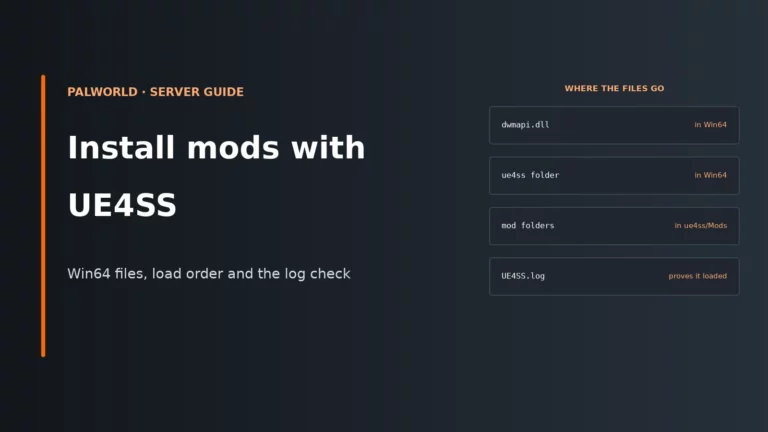
If you are already running a modded Windows server, the install side is covered in our guide to installing mods on a Palworld server.
Versions after patches: when the server is fine but consoles are behind
After a major patch, a healthy crossplay setup can still fail because the game versions do not match. Console updates are certified on their own schedule, so for a day or two after a big patch, console players may be behind an updated server. That is not a port problem or a crossplay setting problem; it is a version gate.
Since v1.0.4, the version mismatch error shows the version of the server you tried to join, which makes diagnosis much faster. The server list can also filter to servers with matching versions, so use that before you start changing ports or ini lines.
Read the error to see which side is behind. If the server is older than the players, update it. If the consoles are behind an updated server, nothing on the server fixes that; they have to wait for their patch, and Steam and Mac players carry on meanwhile.
steamcmd +login anonymous +app_update 2394010 validate +quit
Back up first. If only one platform suddenly fails after a patch day, compare versions before touching anything else.
Troubleshooting: server is up, but someone still cannot see or join it
Work from the player who has the most limited join path. If Xbox, PS5 or Microsoft Store/Game Pass PC cannot get in, treat the server list as the first dependency, not the IP route.
| Symptom | Likely cause | First fix |
|---|---|---|
| Steam friend joins by IP, but Xbox or PS5 cannot find the server | -publiclobby is missing, so the server is not a community server |
Restart it as a community server or enable the host’s community-server toggle |
| Microsoft Store/Game Pass PC player cannot find the server | Server is not listed publicly, or Xbox was removed from CrossplayPlatforms |
Enable community mode and restore Xbox in the allow-list |
| Server appears in the list, but joins fail from outside the network | UDP 8211 or the chosen -port= is not open, or the advertised public address is wrong |
Open/forward the listening port and correct publicip/publicport if auto-detection failed |
| Outside friends can join, but a console on the same home network cannot | Hairpin NAT is not supported by the router | Test the console from a different network, or change the network/server setup |
| One platform gets blocked after someone edited the ini | That platform name was removed from CrossplayPlatforms |
Stop the server and restore the platform entry, then start it again |
| Join attempt shows a version mismatch after a patch | Server and client versions differ | Update the server or wait for the console patch; use the matching-version filter in the server list |
| PC mod users join, but console players stop joining after mod changes | A client-required mod is now part of the setup | Remove the client requirement or go back to server-only Windows mods |
| Friends keep picking the wrong server entry | The listing still uses "Default Palworld Server" or the wrong password is being shared |
Set a distinctive ServerName and confirm the ServerPassword, not the AdminPassword |
For broader timeouts, disconnects and crash-related join failures, use our Palworld connection-error fixes.
Palworld server FAQ
Does Palworld have crossplay on dedicated servers?
Yes. Current official support covers Steam, Xbox Series, Microsoft Store/Game Pass PC, macOS and PS5 on dedicated and community servers, and it is enabled by default. The usual problem is not the crossplay flag itself, but making the server a community server so list-only platforms can find it.
Why can’t my Xbox or PS5 friend join my Palworld server?
The most common reason is that the server is running as a plain dedicated server instead of a community server, so it never appears in the in-game list. After that, check CrossplayPlatforms and then check for a version mismatch after patches.
Can console players join a Palworld server by IP?
No. Xbox and PS5 need the server to be deployed as a community server and joined from the in-game list. Microsoft Store/Game Pass PC players are also list-only, while Steam and Mac players can use either IP or the list.
How do I turn crossplay off or limit platforms?
Edit CrossplayPlatforms in PalWorldSettings.ini with the server stopped, then remove the platform names you do not want. Use CrossplayPlatforms, not AllowConnectPlatform, and remember that Xbox also covers Microsoft Store/Game Pass PC.
Does Palworld have cross-progression?
No. Characters, Pals and inventory stay on the platform where they were created, so joining the same server across different platforms does not merge account progress.
More Palworld server help
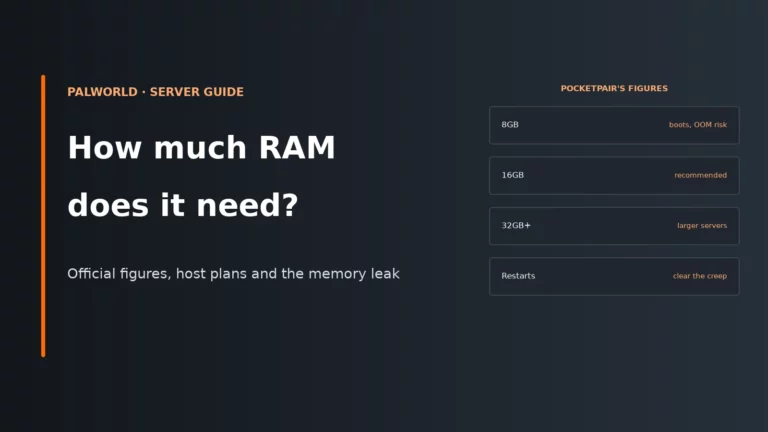
Set up the server, size its memory, or compare hosts that list your server for console players.
Platform support, launch options and setting names come from Pocketpair’s Palworld server documentation for version 1.0.4 and its patch notes; host details come from each host’s Palworld page and help docs as of November 2026. Panels get relabelled, so follow your host’s current layout where it differs.