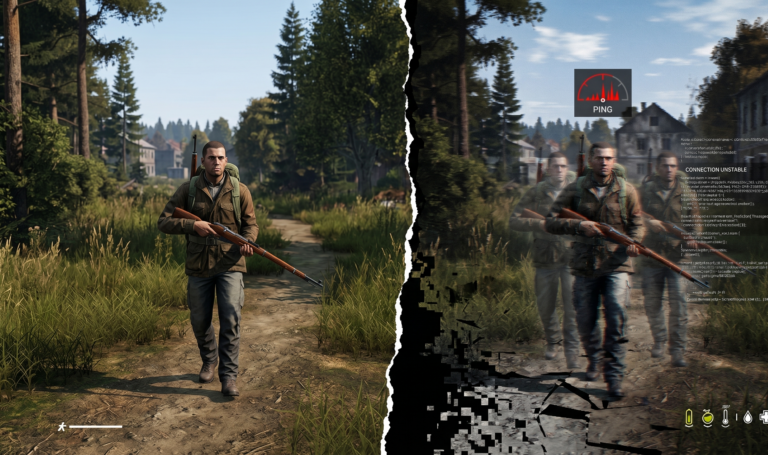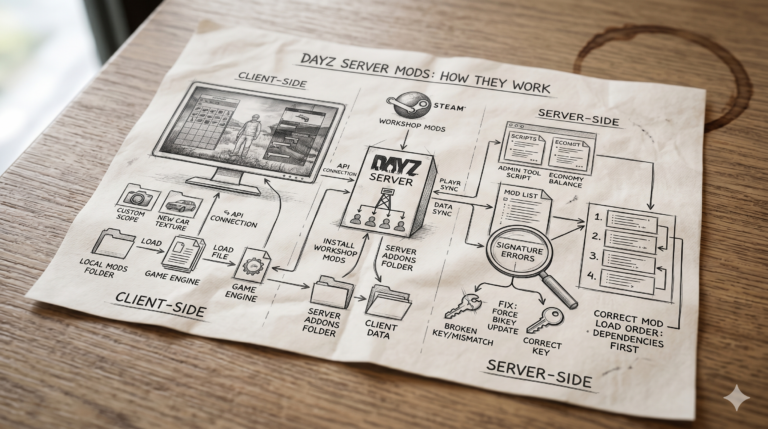

With Palworld 1.0’s surge of returning and new players since 10 July 2026, two issues dominate every server owner’s support requests: RAM climbing until the server crashes, and players getting stuck on “Session Not Found” when trying to join. Neither is your hardware’s fault — both are known, well-documented issues with real, working fixes. This guide covers both in full, plus the less common but still frequent problems. If you would rather run your world on a managed host, see our best Palworld server hosting comparison.
| Symptom | Most likely cause | Jump to fix |
|---|---|---|
| Server runs fine, then freezes/crashes after hours | Memory leak (OOM crash) | Memory leak fix ↓ |
| “Session Not Found” when joining via code/IP | Connection/session error | Connection fix ↓ |
| Server doesn’t appear in community browser | Port or public-listing config | Listing fix ↓ |
| Bases exist but character/inventory is gone | Save migration GUID mismatch | Save fix ↓ |
| Players rubber-banding, chests slow to open | Early sign of the memory leak | Memory leak fix ↓ |
The memory leak — why your server crashes after a few hours
This is the single biggest pain point for Palworld server owners, and Pocketpair has acknowledged it as a known issue. The server process gradually allocates more RAM over time and never fully releases it — a textbook memory leak. It affects every dedicated server, regardless of host, hardware or OS. RAM climbs steadily during play until it hits the server’s memory limit, at which point you get rubber-banding, slow chest/inventory access, and eventually an Out of Memory (OOM) crash.
Reality check on hardware: more RAM doesn’t fix the leak — it only buys more time between restarts. Pocketpair officially recommends 16GB minimum, rising to 32GB+ for 10 or more concurrent players, and that’s before accounting for 1.0’s larger world (World Tree, Sky Islands). If you’re on 8GB or less, you will hit this wall fast.
The three-fix playbook
Disable invader enemies — the single biggest win
Pal raid waves spawn high-poly enemies the server holds in memory and never fully cleans up. Disabling them typically cuts RAM usage by roughly half. Stop your server, edit PalWorldSettings.ini, and set:
You’ll still get base raids from wild Pals — only the scripted invader waves are disabled.
Schedule automatic restarts every 3–6 hours
Since RAM can’t be reclaimed mid-session, a restart is the only complete fix — it clears memory entirely and starts fresh. Most managed hosting panels (Nodecraft, XGamingServer, East Gate and others) have a scheduling feature under something like “Automated Tasks” or “Schedules” — set a Power Action → Restart on a cron pattern like 0 */4 * * * for every 4 hours. If you’re managing your own systemd service, a cron job calling a graceful shutdown + restart script works the same way. Consider adding a warning broadcast 5 minutes before each restart so players aren’t caught mid-fight.
Clean up entities and inactive bases
Two settings help the server actually release resources it no longer needs:
bAutoResetGuildNoOnlinePlayers=True // clears bases from long-inactive players
AutoResetGuildTimeNoOnlinePlayers=604800 // seconds — 7 days shown here, adjust to taste
Optional extra tuning if you’re still seeing climbs: lower PalSpawnNumRate to around 0.8, and reduce save-spike pressure by increasing AutoSaveSpan slightly from its default. After applying all three main fixes, watch memory over 2–3 hours in your host’s panel — usage should stabilise rather than climb, with the scheduled restart resetting it before any drift becomes a problem.
“Session Not Found” / Error 91 — connection problems
This error means the client couldn’t establish a session with the server — it can appear when joining by invite code, direct IP, or the community browser. Since 1.0 launched, reports of this error have spiked due to sheer connection volume, but the underlying causes are well understood. Work through these in order:
Type the invite code, don’t paste it
This sounds strange but is one of the most consistently reported fixes: pasting a copied invite code frequently returns “Session Not Found” even when the code is correct, while manually typing the same code connects successfully. Try typing it character by character before assuming the server itself is broken.
Confirm Multiplayer is actually enabled
If you’re hosting via invite co-op rather than a true dedicated server, double-check the Multiplayer toggle is on. A closed world, a session that ended, or multiplayer being off all produce this exact error for anyone trying to join.
Rule out the network path
Switch from Wi-Fi to a wired connection if possible, restart your router/modem, and try flushing DNS. If you’re behind CG-NAT or a restrictive ISP, the connection may never complete no matter how the server is configured — a VPN tool or renting a server sidesteps this entirely.
Try a different server as a control test
Attempt to join a different community server or an official server. If that works but your friend’s server doesn’t, the problem is specific to that server’s configuration or network — not your client. If nothing connects anywhere, the issue is local to your network or installation.
Reinstall to internal storage
A recurring but less obvious fix reported by multiple players: if Palworld is installed on an external drive, moving the installation to internal storage resolved persistent Session Not Found errors that survived every other fix. Worth trying if you’ve exhausted the steps above.
If you’re the one hosting and everyone gets this error, revisit port forwarding — UDP 8211 needs to be open in both your OS firewall and router. Full walkthrough in our Palworld setup guide.
Server not showing in the browser
Two checks resolve almost every case:
PublicIP=“your.server.ip”
PublicPort=8211
Then confirm UDP 8211 is open in your router and OS firewall, plus UDP 27015 specifically for the public community listing — 8211 alone gets you a working server, but 27015 is what makes it appear in the browser. Palworld uses its own community server browser rather than Steam’s server list, so Steam-specific server tools won’t show it either way. As a fast sanity check, direct-connect by IP:port — if that works, the server itself is fine and it’s purely a listing/port issue.
Bases are there but my character is gone
This happens specifically when migrating a co-op save to a dedicated server — the world and bases transfer correctly, but a player’s individual character and inventory don’t appear. It’s a known GUID mismatch between the co-op save’s player ID and how the dedicated server expects that data to be structured.
Player save data lives at Pal/Saved/SaveGames/0/<WorldUUID>/Players/. If one specific player’s data is corrupted or mismatched, you can usually resolve it without affecting anyone else on the world: have that player rejoin fresh so a new player file generates, then if needed, manually restore their old inventory via admin commands. Always take a full backup of the SaveGames folder before attempting any manual fix here — this is exactly the kind of edit that’s easy to make worse.
Palworld crashes & connection errors — FAQ
Tired of manually restarting a crashing server?