
How to Set Up a Project Zomboid Dedicated Server (Build 42)
Hosting a Project Zomboid world means picking between the in-game Host button, your own dedicated server and a rented one. Here is what each really costs, then the full Windows and Linux setup, ports, first-run files and the settings to get right before anyone joins.
Fastest to start, same settings logic as a dedicated server, but the save only runs while the host is in game. Good for ad-hoc sessions, poor for a persistent community world.
Best value if you already have suitable hardware and a stable connection. You manage SteamCMD updates, heap size, firewall rules, port forwarding, restarts and backups.
Works well if you want an always-on box under your control. It adds terminal administration, file permissions and session management, but keeps the game separate from your daily PC.
Least fuss for a group organiser. Someone else keeps the machine online and you work through a panel, with a fixed address and usually easier backup handling.
Pick the hosting route before you install anything
The biggest mistake is treating all three hosting options as if they differ only by convenience. They do not. They change when the world exists, who owns the admin work, and what kind of failure knocks everyone offline.
If you use the in-game Host button, the game launches a server process tied to that player session. It uses the same basic ideas as a dedicated server, including memory allocation, but it still depends on that player being in game. If they quit, update Steam, crash, or want to play something else, the world stops.
A self-hosted dedicated server removes that dependency, but it moves the cost onto you: hardware wear, electricity, upload capacity, router configuration, Windows or Linux maintenance, and security. If the machine reboots for updates, or your router changes state, your players feel it immediately. A rented server flips that round. You lose some low-level control, but you gain fixed availability and less housekeeping.
Look at the trade-offs side by side, especially if someone in the group is hoping for a “free” permanent server. Free and always-on usually means compromises in uptime, RAM headroom, or file access, which matters once the world grows and the server needs room to save, stream and simulate cleanly.
| What you need | In-game Host | Self-hosted dedicated | Rented server |
|---|---|---|---|
| World stays up when the organiser logs off | No | Yes | Yes |
| No port forwarding at home | No | No | Yes |
| Your own PC, power and upload speed not involved | No | No | Yes |
| Full control of files and Java memory | Yes | Yes | Partly |
| Updates, restarts and backups handled for you | No | No | Partly |
| No monthly bill | Yes | Yes | No |
| Route | What it really costs | Best fit |
|---|---|---|
| In-game Host | The organiser must be online and playing; the world stops with them. | Short private sessions |
| Dedicated on your own PC or home box | Your machine, power, bandwidth, port forwarding, updates, security and backups. | Small group with someone happy to administer it |
| Dedicated on a VPS or rented game server | Monthly spend instead of home admin overhead; less direct control over the underlying box. | Persistent group world that needs regular uptime |
Windows self-hosted dedicated server setup
On Windows, install the dedicated server with SteamCMD, not through the normal Steam client. The dedicated app ID is 380870. SteamCMD keeps the server files separate from your game install and makes updating straightforward.
login anonymous
force_install_dir C:\pzserver
app_update 380870 validate
quit
If you ever need Build 41 for an old group, use app_update 380870 -beta legacy41 validate instead; for Build 42 stable the line above is all you need. Once installed, open StartServer64.bat and check the Java heap settings. The batch file ships with 16 GB set, which is too high for many home machines and will stop the server starting with memory errors if Windows cannot reserve it.
".\jre64\bin\java.exe" -Djava.awt.headless=true -Dzomboid.steam=1 -Dzomboid.znetlog=1 -XX:+UseZGC -XX:-CreateCoredumpOnCrash -XX:-OmitStackTraceInFastThrow -Xms6g -Xmx6g -Djava.library.path=natives/;natives/win64/;. -cp %PZ_CLASSPATH% zombie.network.GameServer -statistic 0
That is the java line inside the batch file with 6 GB set. Change only the two numbers after -Xms and -Xmx; everything else stays as shipped.
The heap is the Java memory area the game uses for world state, zombie simulation, streamed map data and mods. Too small and the garbage collector works constantly, causing global stutter and eventually OutOfMemoryError. Too close to the machine limit and Windows may kill the process without a clean save because Java also uses memory outside the heap. A practical rule of thumb is to keep heap well below the total RAM available to the plan or machine; many server operators aim around 70-80% of available RAM.
Start the batch file directly. On first run the console asks for an admin password. Set it there, then let the server complete first boot so it writes the default config and save folders. After that, allow the server through Windows Firewall for UDP traffic, then move on to router forwarding if players are joining over the internet.
Linux dedicated server setup
Linux is a good fit for an always-on Project Zomboid server because it keeps the game separate from your desktop, but treat it like a service you administer, not just a game you launch. Do not run it as root. Create a dedicated user such as pzuser, install to a folder like /opt/pzserver, and run it inside tmux or screen so the console stays attached even after you disconnect. The developers discourage running it as a systemd service, so tmux is the safer default.
sudo apt install steamcmd
sudo adduser pzuser
sudo mkdir /opt/pzserver
sudo chown pzuser:pzuser /opt/pzserver
sudo -u pzuser -i
cat >$HOME/update_zomboid.txt <<'EOL'
force_install_dir /opt/pzserver/
login anonymous
app_update 380870 validate
quit
EOL
export PATH=$PATH:/usr/games
steamcmd +runscript $HOME/update_zomboid.txt
tmux
cd /opt/pzserver/
bash start-server.sh -servername servertest
On Debian or Ubuntu you may need to enable the multiverse or non-free repository and the i386 architecture before steamcmd installs. Run the same steamcmd +runscript line whenever you want to update the server. If your SSH session drops, tmux a brings the console back. The launcher accepts -servername NAME if you want a config set other than the default servertest, and -nosteam if you specifically need it.
On Linux, edit ProjectZomboid64.json to change heap size:
"vmArgs": [
    "-Djava.awt.headless=true",
    "-Xmx6g",
    "-XX:+UseZGC",
    ...
]
That setting does the same job as the Windows batch file. If you size heap badly, the symptoms are the same: too low means frequent garbage collection and stutters; too high means the process risks being killed when total memory use exceeds what the box can really supply. First run also prompts for the admin password in the console, so do not daemonise it away before initial setup.
Port forwarding and firewall: why you need both UDP ports
A lot of “can’t connect” reports come from forwarding only one port. By default, a Project Zomboid dedicated server uses UDP 16261 for the main game port and UDP 16262 for direct connection traffic. Open and forward both. If you only pass the first port, the server may look reachable but connection or hand-off steps fail.
Forwarding sends traffic from your router to the internal machine running the server. A firewall rule on that machine is still separate: router forwarding gets the packets to your LAN, while the firewall decides whether the server process may actually receive them. On Windows that means allowing the server through the firewall; on Linux it means permitting the same UDP ports in your host firewall if one is active, for example with UFW:
sudo ufw allow 16261/udp
sudo ufw allow 16262/udp
sudo ufw reload
If you run a second server instance on the same machine, it needs 2 more UDP ports because each instance binds one main game port and one direct connection port. Keep instances on separate save names with -servername so they do not share the same config or world folders. RCONPort 27015 over TCP is separate again and only matters if you want remote console administration.
Opening ports is necessary for public internet play, but it also exposes a service to the internet. That is another reason not to run as root on Linux and not to neglect OS updates on a home-hosted machine.
First run: what the server creates and where it lives
Let the server complete a first boot before you start editing files. That initial run creates the configuration set, the multiplayer save, account databases and logs you will need to manage the server properly.
servertest_SandboxVars.lua
servertest_spawnpoints.lua
servertest_spawnregions.lua
players.db (characters)
- server-console.txt: the server log to read first
- backups/: built-in backup zips
- Config folder: on Windows, C:\Users\<you>\Zomboid\Server; on Linux, ~/Zomboid/Server.
- Main config files for servertest: servertest.ini, servertest_SandboxVars.lua, servertest_spawnpoints.lua, servertest_spawnregions.lua.
- World save: Zomboid/Saves/Multiplayer/servertest.
- Accounts and whitelist database: Zomboid/db/servertest.db.
- Characters: players.db inside the save folder.
- Logs: server-console.txt for the server and console.txt for the client.
Back up the whole set that defines identity as well as the world itself. In particular, keep the servertest.ini together with ResetID and ServerPlayerID; if those change, players are forced to create new characters. Built-in backups can help, but they are written under Zomboid/backups on the same disk as the live world, so they do not protect you from disk loss by themselves. For the recovery side, use our backup and restore guide.
First-hour configuration in servertest.ini
Before anyone joins, decide three things: is the server listed publicly, who is allowed in, and how many people you are realistically prepared to simulate at once. These are not cosmetic settings. They change account flow, bandwidth use, map streaming pressure and the amount of support you will end up doing.
PublicName=My Group Server
Public=false
Open=false
MaxPlayers=32
PauseEmpty=true
BackupsOnStart=true
The six lines worth setting first
- PublicName: the label players see if you do list the server. Set it early so people save the right favourite entry.
- Public: false keeps it out of the in-game browser. That reduces random join attempts and support noise, but it does not make the server secure by itself.
- Open: false means only accounts created by admins can join. That is stronger than relying on obscurity. Since 42.13.2, servers with Open=false also need players added with /addsteamid <steam_id>.
- MaxPlayers: default is 32. Higher numbers raise bandwidth, map streaming and simulation pressure, especially when players scatter across towns and keep several areas active.
- PauseEmpty: true is sensible for small private worlds because it stops time progressing on an empty server and reduces pointless simulation work.
- BackupsOnStart: keep it enabled so every clean restart gives you a restore point before the server writes more state.
If you want a private server, the stronger model is Public=false and Open=false, then explicitly add the people who should be there. A shared password can be an extra layer, but do not assume an unlisted server with Open=true is enough.
You can apply many servertest.ini changes to a running server with the admin command reloadoptions. Use showoptions to confirm the active values. That works because the server can re-read listing, access and some runtime options without rebuilding the world state. SandboxVars are different: zombie population, day scaling and similar simulation rules affect the world model, so those need a restart.
How players connect, and the usual reasons they cannot
Players normally join through Join, then Favorites or manual add server, using the server’s public IP and port 16261. Clients store downloaded map data for each server in an ip_port named folder, which is useful to know when one player has stale local data that nobody else is seeing.
| Symptom | Likely cause | First fix |
|---|---|---|
| Server only works while one player is in game | You are using the in-game Host option, not a dedicated server | Move the world to a proper dedicated install |
| Connection failed or timeout from outside your home network | UDP 16261 or 16262 is missing from port forwarding, or the host firewall is blocking them | Forward both UDP ports and allow the server through the OS firewall |
| Players can see the server but cannot finish joining | Build mismatch between server and client | Make sure every client and the server are on the same Build 42 version |
| Account rejected on a private server | Open=false and the player has not been added correctly | Create the account path you want and, on current B42 builds, use /addsteamid |
| “File doesn’t exist on client” after mods change | Lua checksum mismatch or broken mod set | Check mod load lines, then test with DoLuaChecksum=false if this is the known false-positive case |
If one player still cannot join while everyone else can, check their local branch, then their cached map data, then the mod list. Start with the smallest scope first: a one-player problem is often a client mismatch, while a whole-group problem usually points to ports, firewall or the server build itself.
Build matching, mods and world compatibility
Build 42 is now stable, but compatibility is strict: the server and every client must run the same build. Clients switch branch in Steam under Properties and Game Versions & Betas. Build 41 saves are not compatible with Build 42, and unstable 42.19 saves are not compatible with 42.20; there is a 42.19 beta branch for groups that need to finish those worlds. If you are moving an older community forward, read our Build 42 migration guide.
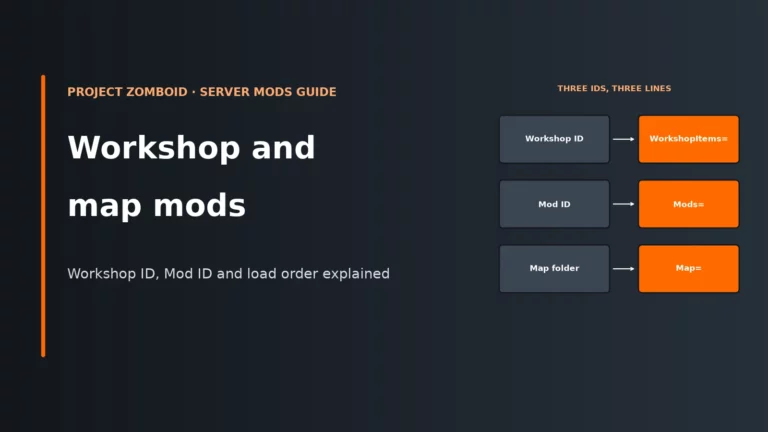
For mods, remember the server uses Mods= for mod IDs and WorkshopItems= for Workshop IDs, separated by semicolons. Workshop downloads on a server land under steamapps/workshop/content/108600/<WorkshopID>. Map load order in Map= runs top to bottom, and where map mods overlap, later entries overwrite earlier ones, so Muldraugh, KY goes last.
Build 42 mods need the newer folder structure with common plus a 42 folder containing its own mod.info. Old B41-only mods without that 42 folder will not load on B42. During Build 42 unstable, some server setups needed backslashes before each ID in Mods=; current guidance varies by build and panel, so the safest approach is to let the game or panel write that line and then check server-console.txt for failures. For a fuller breakdown, use our Workshop and map mods guide.
If a mod pack breaks after changes, bisect it: disable half, test, then keep narrowing. That works because most failures are caused by one conflicting mod or one bad interaction, and halving the list reduces the search space far faster than removing items one by one. Always back up before adding or removing mods from an existing save, because removing tiles or items already present in the world can damage that save.
RAM, world simulation and when to tune instead of upgrade
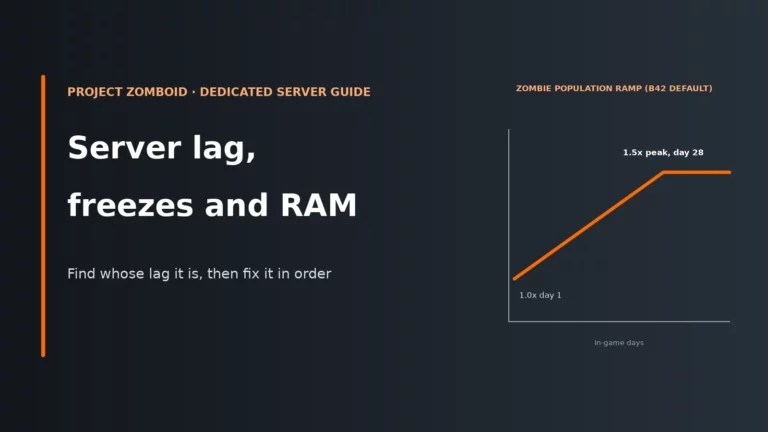
Project Zomboid server performance is not just “how much RAM”. Build 42 also stresses CPU time on simulation and map streaming, especially when players split across several towns and the server has to keep multiple areas loaded at once. Zombie population ramps over time too: default sandbox values rise from PopulationStartMultiplier 1.0 to PopulationPeakMultiplier 1.5 by PopulationPeakDay 28, so a world that felt fine early on can start stuttering later without any hardware change.
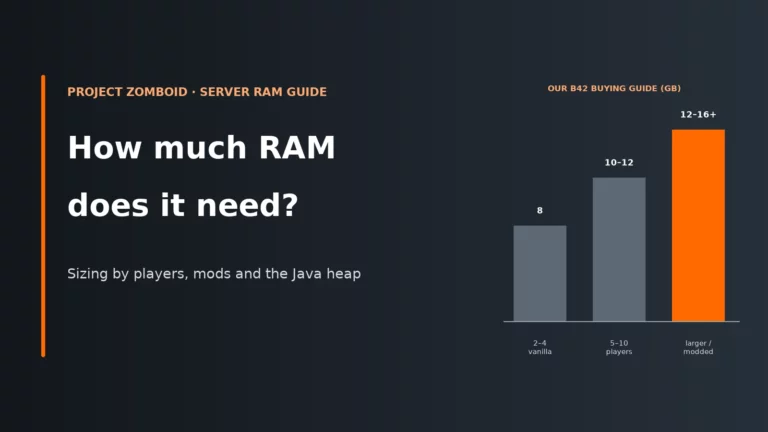
Memory still matters because Java heap is where the server holds active world data. We recommend 8 GB as the floor for a Build 42 server. Host guidance puts a small group at 6-8 GB and larger or modded communities at 12-16 GB. On a home PC, remember the server's heap comes out of the same RAM your game and Windows need. For the deeper memory side, see our Project Zomboid server RAM guide.
| If you see this | Tune it first | Upgrade or move host when |
|---|---|---|
| Stutters worsen as the world gets older | Raise heap carefully, review mod count, keep players less spread out, check sandbox population | The server still hits memory pressure or long pauses with sensible heap headroom |
| Lag spikes mainly when players enter new areas | Reduce map mod complexity, avoid overfilling player slots, keep build and mods clean | The machine cannot cope with normal map streaming for your group size |
| Good local performance but poor remote experience | Check ports, firewall, and your home upload stability | Your residential connection is the bottleneck, not the game settings |
| Server restarts or dies without a clean save | Lower -Xmx so total Java use stays below system limits | You cannot leave safe headroom on the current machine and still run the world smoothly |
The rule is simple: tune first when the issue is clearly caused by heap sizing, bad mods, too many active areas or access settings. Upgrade when your safe settings still leave the server close to its limits, or when the problem is really your home machine or internet rather than the game. For the non-memory side of stutter and desync, our Project Zomboid server lag guide is the next step.
If the server needs to stay up when nobody is home, your router is a recurring problem, or you want panel-based backups and a fixed address, compare hosting options before you move the world.
Compare the best Project Zomboid server hostsWhen self-hosting stops making sense, and what to check when renting
Self-hosting usually stops making sense when the technical overhead becomes the real cost: the organiser’s PC must stay on, reboots interrupt the world, port forwarding becomes a recurring support task, or the group plays across time zones and expects the server to exist independently of one person’s schedule. At that point, a rented server is less about “better performance” and more about cleaner uptime and less admin friction.
Before choosing one, compare panel control rather than marketing language. A Project Zomboid server is easy to install but only comfortable to run if you can actually change the parts that matter. Our Project Zomboid server hosting comparison is the place to weigh those trade-offs.
| Check before you buy | Why it matters | What you want |
|---|---|---|
| Build and branch control | You may need current stable or legacy41 for an older group | A clear way to change branch and update the server |
| Heap memory control | Default memory is not always suitable | A panel or file access that lets you change -Xms and -Xmx |
| Config file access | You will need servertest.ini, sandbox and mod lines | Direct editing of server files, not just a few toggles |
| Backups | Worlds break most often after updates or mod changes | Simple restore points you can trigger before major changes |
| Fixed address | Players should not have to chase a changing IP | A stable address players can save in favourites |
Project Zomboid server FAQ
Can I host a Project Zomboid server for free?
Yes, in the sense that you can use the in-game Host option or run a dedicated server on hardware you already own. The catch is that “free” does not mean always-on or maintenance-free: you still pay in uptime, electricity, admin time, upload capacity and risk of the host PC going offline. Free always-on hosting offers usually cut back on control, memory or uptime, which is exactly what a long-running zombie world needs.
Do I need to port forward both 16261 and 16262?
Yes, for the default setup you should forward both UDP 16261 and UDP 16262. The first is the main game port and the second is used for direct connection traffic, so forwarding only one often produces half-working connection behaviour. If you run another server instance on the same machine, it needs another pair of UDP ports.
Can I run the server on the same PC I play on?
Yes, but it is a compromise. The game client and the server then compete for the same CPU time, RAM and disk activity, and any restart or crash affects both at once. It is fine for a small group if the machine has headroom, but a separate always-on box or rented server is easier once the world becomes persistent.
How do I make my server private?
Set Public=false so it is not listed publicly, and set Open=false so only approved accounts can join. On current Build 42 behaviour, remember to add players with /addsteamid when using Open=false. A password can still help, but the real access control is the closed account model.
How much RAM should I give the server?
Size the Java heap to fit comfortably below the machine or plan limit, because Java uses memory outside the heap as well. For Build 42 we recommend 8 GB as the floor; host guidance puts a small group at 6-8 GB and larger or modded communities at 12-16 GB. If the heap is too small you get garbage-collection stutter; if it is too large relative to the box, the process can be killed without a clean save.
More Project Zomboid server guides
The rest of our Project Zomboid server guides, plus the host comparison.
Written for Build 42 stable (42.21) on Windows and Debian or Ubuntu Linux. On a rented server the same settings live in the host panel or the same files over FTP or SFTP.