
Project Zomboid Build 42 Server Migration Guide
Build 41 saves don’t carry into Build 42, and neither do 42.19 unstable worlds. Here is how to decide between finishing the old world and starting fresh, the safe run order for the move, and how to get mods and players onto the same build.
B41 to B42 is a fresh-world move. Unstable 42.19 to 42.20 stable is also a hard break, so groups on 42.19 should finish on that branch instead of forcing a migration.
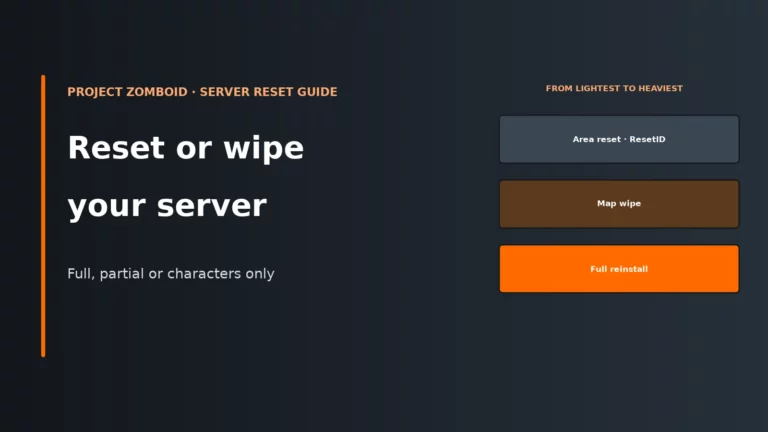
Your world folder, player databases and server .ini files all matter. If ResetID or ServerPlayerID change, players can be forced into new characters even if the map itself survived.
B41-only mods often fail quietly because they lack the Build 42 folder layout. The fastest check is the mod’s files, then the server-console.txt log for what did not load.
A server update is only half the job. Every player has to switch to the same branch in Steam, and Build 42.21 now warns on version mismatch instead of leaving people guessing.
Save compatibility reality before you touch the server
If you only remember one part of this guide, make it this: not every Project Zomboid update is a migration path. The developers have been clear that Build 41 saves are not compatible with Build 42. The unstable to stable handover also had a break at 42.19 to 42.20, so trying to “bring the world forward” there normally just turns a clean decision into a broken one.
Where things stand now: 42.20 became the first Build 42 stable release on 29 July 2026, 42.21 followed as the second stable on 28 September, and 42.22 opened on 27 October on a new Pre-Release branch that replaces Unstable for early testing. That Pre-Release branch is for modders and admins who want an early look; a live community server belongs on stable. The 42.20.1 hotfix also fixed a chunk-unloading problem that caused much of the lag on busy multiplayer servers, so if your group tried early stable and gave up, it is worth another look.
That matters because a dedicated server world is more than map chunks. It includes character data in the save, account and whitelist data in the database, and server identity values in the .ini. Once the game’s world and data format change far enough, the server is not just reading old files more slowly; it is reading a different structure.
| Move | Same save works? | What to do instead |
|---|---|---|
| Build 41 → Build 42 stable | No | Finish it on legacy41, or start a fresh Build 42 world |
| 42.19 unstable → 42.20 stable | No | Finish it on the 42.19 beta branch |
| 42.20 → 42.21 (stable to stable) | Yes | Back up, then update server and clients together |
| Current world | Target build | Carry the same save? | Practical outcome |
|---|---|---|---|
| Build 41 | Build 42 stable | No | Keep the old server on legacy41 to finish the campaign, or start a new Build 42 world. |
| Build 42 unstable 42.19 | Build 42 stable 42.20 | No | Stay on the 42.19 branch to finish that world. Do not update the live save to 42.20. |
| Build 42 stable 42.20 | Build 42 stable 42.21 | Yes, normal path | Back up first, then update server and clients together. |
So the migration question is not “How do I preserve everything from any old build?” It is “Which parts are safe to carry, and which branch must I stay on if the world itself cannot move?” That keeps you from wasting time on repair work that cannot succeed.
Decide now: finish the old world or start fresh
Once the compatibility line is clear, the choice usually makes itself. If your community is on Build 41 or on unstable 42.19, the clean options are to freeze that world on its current branch and finish it, or announce a fresh Build 42 stable reset. Trying to preserve an incompatible save tends to cost more admin time than a planned restart, and players still lose confidence when characters or map state break.
A fresh world is also the safer choice if your old setup depended on B41-only mods. Build 42 can change mod loading, map order expectations and item definitions at the same time, so stacking a build jump on top of a mod conversion is how you create errors you cannot easily separate.
Back up the old one first and keep it.
- Finish the old world if the group is mid-campaign, attached to existing characters, or waiting for key mods to receive proper Build 42 versions.
- Start fresh on Build 42 stable if you want the stable branch now, your essential mods already have B42 support, or you would rather reset cleanly than troubleshoot an unstable-era setup.
- Update within stable if you are already on a stable Build 42 save. That is the ordinary maintenance path, not a full world migration.
Be explicit with players about which of those three situations you are in. Most migration complaints come from admins using the word “update” when they actually mean “new world”.
Run the migration in this order
The safest migration is a controlled sequence: stop changes, make a full copy, then change one variable at a time. That matters because if you update the server, shuffle mods and let players join all at once, you lose the ability to tell which change caused the break.
- Freeze the server. Stop the server and tell players not to reconnect while you work. This prevents last-minute writes to the save and database.
- Take a full backup. Copy the whole world folder, the server database, and the server config files together. For the default server name
servertest, that means the save folder atZomboid/Saves/Multiplayer/servertest, the account database atZomboid/db/servertest.db, and the config set inZomboid/Serversuch asservertest.ini,servertest_SandboxVars.lua,servertest_spawnpoints.luaandservertest_spawnregions.lua. - Keep the identity values with the backup. Back up
ResetIDandServerPlayerIDinside the .ini as part of the same snapshot. If they change, players can be pushed into new characters even if the map data still exists. - Decide the world outcome. Either keep the old branch and old world, or create a fresh Build 42 stable world. Do not move on until that is settled.
- Update the server branch. Switch the dedicated server to stable Build 42, or stay on
legacy41or42.19if that old world must continue. - Update, replace or remove mods carefully. Build 42 needs Build 42-ready mods. Change the mod list before opening to players.
- Have clients switch branch too. The server and every client must run the same build.
- Do first boot checks. Watch the log, confirm the right save loaded, verify mods actually mounted, then let one admin account join before reopening fully.
Built-in backups are worth keeping enabled, especially BackupsOnStart=true and BackupsOnVersionChange=true, but remember what they are and are not. They write backup_N.zip into Zomboid/backups on the same disk as the world itself, so they help against a bad update or bad edit, not against the disk or host storage failing. If you need a refresher on what to copy and how to restore cleanly, use our backup and restore guide.
Update the server branch without losing the right files
On self-hosted servers, the dedicated server uses Steam app ID 380870. Stable Build 42 is the default branch, while Build 41 uses the legacy41 beta branch. That branch choice controls the game binaries; it does not replace the need to preserve the correct save, config and database files around it.
login anonymous
app_update 380870 validate
app_update 380870 -beta legacy41 validate
If you are moving to stable Build 42, update the server installation but keep the backed-up Zomboid data separate and safe first. On Windows, do not launch the dedicated server through Steam itself. On Linux, run it under a dedicated user rather than root, launch start-server.sh inside tmux or screen, and avoid turning it into a systemd service because the developers discourage that pattern.
The launcher supports -servername NAME, which decides which config set and save to use. That matters during migration because an accidental server name change can look like “my world is gone” when the server has really just created a fresh set of files under a different name.
Useful file locations are predictable. Configs live in C:\Users\<you>\Zomboid\Server on Windows or ~/Zomboid/Server on Linux. Logs matter too: server-console.txt in the Zomboid folder is your main server-side truth during first boot. If you need the wider install layout or startup details, use our dedicated server setup guide.
On first run, the server asks for an admin password in the console. Make sure you are watching that console, not only the host panel, because a migration that stalls at first-run prompts can look like a crash if you only check a status light.
Mods and maps on Build 42: what changed and why some old mods vanish
The biggest mod mistake during a Build 42 move is assuming “installed” means “loaded”. A server can download Workshop content and still fail to mount a mod if that mod is only built for B41. Build 42 mods use a new folder layout with a Build 42-specific folder and its own mod.info.
mods/
  MyMod/
    common/
    42/
      mod.info
If the mod only has older B41 files and no 42 folder, the server has nothing valid to load for Build 42. That is why B41-only mods often appear to fail silently: the Workshop download succeeded, but the game never found compatible Build 42 content inside it.
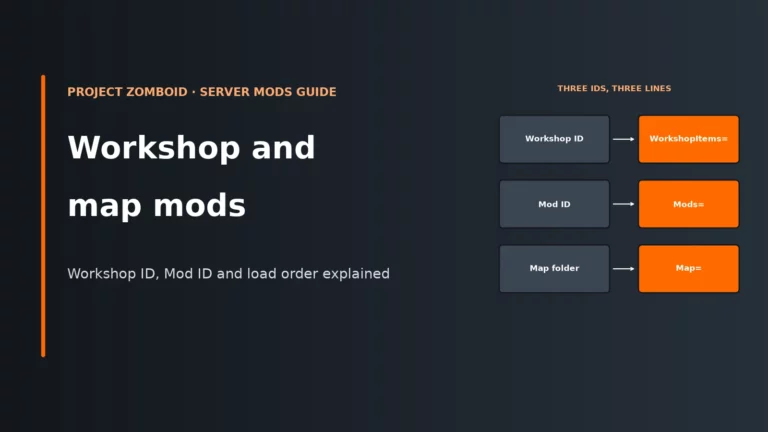
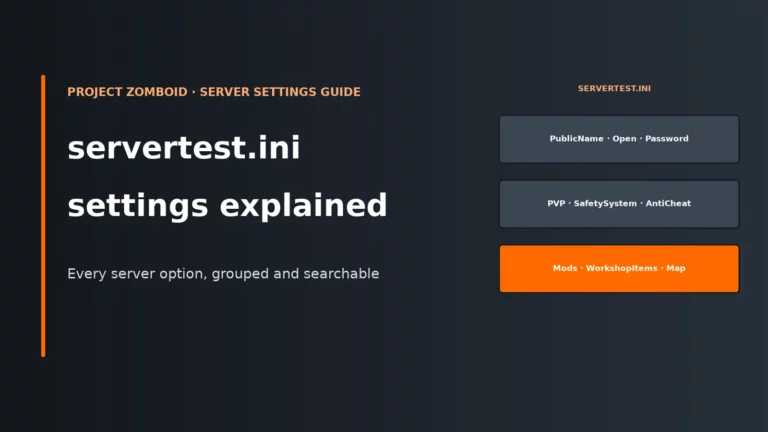
The other common trap is the server config itself. Mods= takes mod IDs from the id= line inside each mod’s mod.info. WorkshopItems= takes Workshop IDs. Map= takes map folder names, and map order runs top to bottom, with later entries overwriting earlier ones where they intersect. Muldraugh, KY belongs last so the base map stays as the fallback instead of overwriting custom map definitions.
During unstable Build 42 from 42.13 onward, many servers needed a backslash before each mod ID in Mods=. Guidance now varies by build and by host panel, so the safest approach is not to hand-type clever variations from memory. Let the in-game Host or Workshop settings write the line where possible, or match exactly what your host panel writes, then read server-console.txt for mods that fail to load. That log tells you what the server actually parsed, which matters more than what the panel field looked like.
When a mod list is broken, use a bisect. Disable half, test, then narrow down. It is faster because you are reducing variables in large chunks rather than guessing one favourite mod at a time. Always back up the world before adding or removing mods on an existing save, because taking away a mod whose items or tiles already exist in the world can leave missing objects behind. For more detail on IDs, map order and Workshop handling, see our Workshop and map mods guide.
Get every client onto the same branch before reopening
A successful server migration still fails if clients stay on the wrong branch. Players switch branch in Steam under Properties and Game Versions & Betas: legacy41 for Build 41, or no beta branch for current stable. The server and every client must match exactly.
This is more visible now because Build 42.21 added a notification when a player connects with a different game version. That does not fix the mismatch by itself, but it shortens diagnosis. Instead of assuming a password, mod or network issue, you can tell the player to check branch selection first.
Ask players to join through Join and then Favorites, using the public IP and port 16261. If you also use direct connection, the default UDPPort is 16262. First-join validation after a migration should be simple: one admin joins, confirms the expected world or expected new world, then one ordinary player tests account creation and spawning before you reopen to everyone.
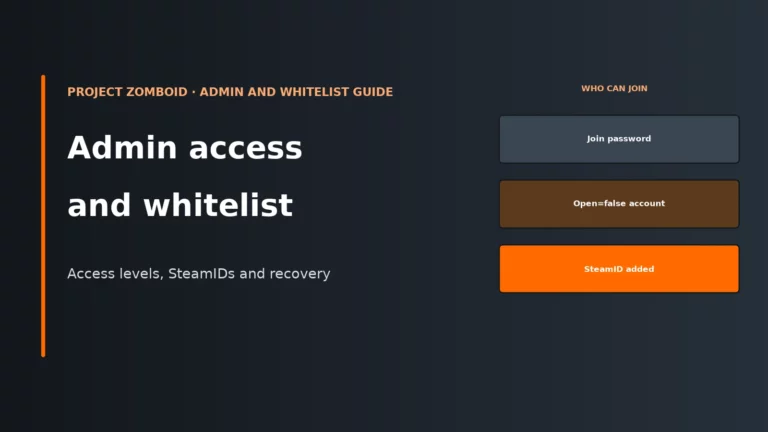
If you run a closed server with Open=false, the rules are stricter than many admins remember. With that setting, only accounts created by admins can join, and since 42.13.2 players also need to be added with /addsteamid <steam_id>. That ties each permission to a specific Steam identity, so nobody can create their own account and walk in.
Common Build 42 migration errors and the first fix to try
| Symptom | Likely cause | First fix |
|---|---|---|
| Server start fails with “Assertion Failed: Illegal termination of worker thread” | Old B41-era local data or wrong steam_appid.txt content confusing the server startup |
Back up first, then make sure steam_appid.txt contains only 108600 and remove the old Zomboid user folder |
| Players get “File doesn’t exist on client” | Lua checksum mismatch, often a false positive on Linux hosts, or a mod package mismatch | Set DoLuaChecksum=false, restart, and retest before isolating mods |
| Players cannot join a closed server | Open=false without Steam IDs added by admin |
Add each player with /addsteamid <steam_id> |
| Client gets version mismatch warning or fails to connect after update | Server and client are on different branches or different stable builds | Switch every client to the same branch as the server, then restart the client |
| Mods appear installed but do not load | B41-only mod, wrong Mods= syntax for the current build or panel, or missing map order |
Check for a 42 folder in the mod, let the panel write Mods=, then read server-console.txt |
For the worker-thread assertion, start with the app ID file because it is a clean binary check. The file should be exactly this:
108600
The app ID file tells Steam which game the server belongs to, and removing the old user folder (after backing it up) clears files left behind by earlier builds. The trade-off is obvious: if you delete first and back up later, you have thrown away the evidence and possibly the configs you still needed.
DoLuaChecksum=false works by disabling Lua file hash enforcement between server and client. That can get B42 servers past known false positives, especially on Linux hosts, but the trade-off is less protection against real Lua mismatches. You know it helped if the same clients can now connect and play normally; if they still fail, the problem is more likely a broken mod package or version mismatch than checksum enforcement itself.
For Open=false, adding Steam IDs fixes the issue because the server is enforcing identity-based access before account creation. You can tell it worked when the player moves from immediate refusal to normal login or account flow.
After the move: tune it, or admit the server needs more resource
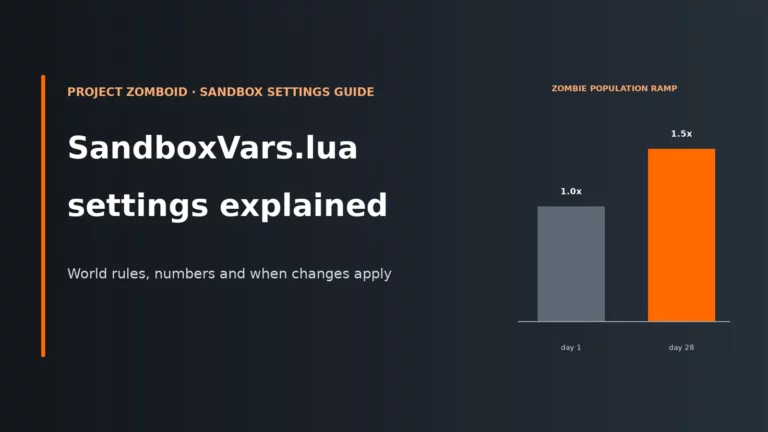
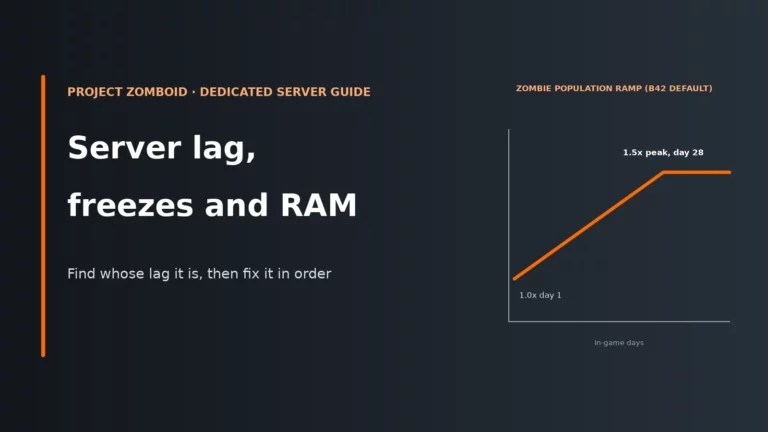
Build 42 migrations often expose limits that were already close on the old setup. World growth, heavier mod packs, and players spreading across several towns all mean the server is keeping more simulation active at once. Population also ramps from PopulationStartMultiplier 1.0 to PopulationPeakMultiplier 1.5 by PopulationPeakDay 28, so a world that felt fine early on can become harsher on CPU later without any branch change at all.
Server memory is the Java heap set by -Xms and -Xmx: StartServer64.bat on Windows, or ProjectZomboid64.json on Linux. The shipped Windows batch file uses 16 GB, which is too high for many rented plans and can stop the server starting with memory errors. The in-game Host menu’s Server Memory option is the same setting in a friendlier wrapper. The rough rule used by operators is to keep heap around 70-80% of the plan’s RAM, because Java also needs memory outside the heap.
| What you see | What the server is probably spending | Tune first | Upgrade when |
|---|---|---|---|
| Stutters for everyone that worsen as the world grows, then memory errors | Heap pressure and constant garbage collection | Raise -Xmx within safe plan limits |
You are already near the safe heap share of plan RAM and still see repeated garbage collection or OutOfMemoryError |
| Server is fine in one town, then rough when players spread out | Main thread CPU simulating several loaded areas at once | Reduce active world load where sensible: lighter mod list, saner population, avoid splitting across the map during busy events | The play style is staying spread out and the machine cannot keep up even after trimming mod and sandbox load |
| Desync after pushing player slots too far | Map streaming and network state under too much load | Keep expectations realistic: default MaxPlayers=32 already carries a warning, and unstable B42 guidance was not to exceed 20 |
You need a larger community than the current setup can serve cleanly, even after lowering slot pressure |
How do you tell if tuning helped? Watch for simpler symptoms first: shorter restart recovery, fewer global stutters, cleaner joins, and less drift as the world ages. Use showoptions to confirm live option values, and reloadoptions for ordinary servertest.ini changes; sandbox changes still need a restart. For broader performance diagnosis, see our Project Zomboid server lag guide and our Project Zomboid server RAM guide.
If you are moving to stable Build 42 and your current panel makes branch switching, restore work or memory edits awkward, compare the admin features first instead of buying on headline promises.
Compare the best Project Zomboid server hostsWhat to ask a host for before you commit to Build 42
For rented servers, the difference between an easy Build 42 move and a messy one is usually panel control. You want the branch choice, backup timing and file access to be obvious, because migration work is mostly operational. If you are comparing options, our Project Zomboid server hosting comparison focuses on those practical admin points rather than sales copy.
Here is how the hosts in our comparison handle the Build 42 move, in our ranking order:
| Host (our rank) | Build 42 / branch support | Backups and restores | Moving an existing world |
|---|---|---|---|
| 1. Indifferent Broccoli | Build 42 plus legacy hosting | Download backups from the control panel | Full file access |
| 2. LOW.MS | Build 42 Stable | Cloud backups | Free migration from another host |
| 3. Host Havoc | Workshop installer in the panel | Offsite backups, easy restores | Full file access |
| 4. Kinetic Hosting | Explicit Build 42 and version controls | Automatic backups, 5 backup slots | Save uploads, SFTP |
| 5. DatHost | Build 42 live | Daily backups | Wipes that keep your configuration |
| 6. GTX Gaming | Build 42 Stable plus Build 41 Legacy, with switching | Scheduled offsite backups | Migration help for an existing world, SFTP |
| 7. Shockbyte | Build 42 available | Automatic backups and updates | FTP access |
| 8. Apex Hosting | Managed updates | Automatic backups | FTP access |
If keeping a Build 41 world alive next to a new Build 42 one matters to your group, the hosts that list both branches make that far easier. Either way, these are the questions to ask:
- Can I switch branches myself? You need current stable Build 42 as the normal target, but also access to
legacy41if you must keep an old world alive. - Can I take and download a manual backup before updates? Built-in backups help, but they sit on the same storage as the live world.
- Can I reach the important files? You need access to
servertest.ini, the save folder,servertest.db, and logs such asserver-console.txt. - Can I control startup memory? Build 42 is not forgiving if the heap is set too low or too close to the plan limit.
- Does the panel write Workshop and mod lines cleanly? That matters because the
Mods=line behaved differently during unstable and some panels still reflect older habits. - Can I control ports for more than one instance? The defaults are
16261/UDPfor the game,16262/UDPfor direct connection, and27015/TCPfor RCON. Each extra server instance on the same machine needs2more UDP ports.
For memory, we recommend 8 GB as the floor for Build 42. Host guidance follows the same pattern: 6-8 GB for a small group, 12-16 GB for larger or modded communities. The point is not the label on the plan; it is having enough headroom to keep heap below the hard limit so the process is not killed without a clean save.
Project Zomboid server FAQ
Can I move my Build 41 save to Build 42?
No. Build 41 saves are not compatible with Build 42, so the server path is either to keep that world on the legacy41 branch or start a fresh Build 42 stable world. You can still carry over your admin habits, config choices and mod list planning, but not the world itself.
Do Build 41 mods work on Build 42?
Not automatically. Build 42 mods need the Build 42 folder structure, including a 42 folder with its own mod.info, so many B41-only mods simply do not load on a B42 server. Check the mod files first, then the server log, instead of assuming the Workshop download means the mod is live.
Do players need to switch branch too?
Yes. The server and every client must be on the same build, so updating only the dedicated server is not enough. In Steam, clients use Properties and Game Versions & Betas to select legacy41 or no beta for current stable.
Should I still run a Build 41 server?
Only if you need to finish a Build 41 world or key mods still have no proper Build 42 version. It is a sensible short-term holding branch, not a migration bridge into Build 42. Once the group is ready for stable Build 42, treat it as a clean world move unless you are already on a compatible stable Build 42 save.
Do I need the backslash in the Mods= line?
Sometimes older unstable Build 42 setups did, but current guidance varies by build and host panel. The safest approach is to let the Host screen or panel write the line, then confirm in server-console.txt whether the server actually loaded the mods. Trust the log over memory.
More Project Zomboid server guides
The rest of our Project Zomboid server guides, plus the host comparison.
Written for Build 42 stable (42.21) and the legacy41 branch. Host panels sometimes label the same setting differently; the branch, save and config choices above stay the same.