
How to Join a Project Zomboid Server (Build 42)
Joining a Project Zomboid server takes an IP, a port, the right game branch and the right account details. Here is each way in, how to pick a server with low ping from the UK, and what to check when the join fails.
Use Favorites with the server’s public IP and port. It works even when the server is not listed publicly.
On open servers, the username and password you enter become your account. On whitelisted servers, the admin must create it for you first.
Build 42 clients cannot join a Build 41 server, and the wrong Steam branch is a common reason for failed joins.
For UK players, favour a UK server if possible. A lower, steadier ping matters more than anything in the server name.
The three ways to join a dedicated server
If you want the least faff, use Favorites with the server IP and port. The browser methods are useful, but they depend on how the admin has set the server up.
| Works for… | Favorites (IP and port) | Server browser | +connect launch option |
|---|---|---|---|
| Unlisted servers (Public=false) | Yes | Partly | Yes |
| Joining without typing the address | No | Yes | Yes |
| Seeing ping before you join | No | Yes | No |
| -nosteam servers | Yes | No | Yes |
| Method | Works when | Best for | Main limitation |
|---|---|---|---|
| Favorites with IP and port | Any dedicated server with the correct public IP and join port | Private groups, rented servers, self-hosted servers, and anything not showing in the browser | You need the exact address details from the admin |
| In-game browser or Steam server browser | In-game browser needs Public=true; Steam-enabled servers appear in the Steam browser |
Finding public communities and checking rough ping before joining | Private, hidden, or -nosteam setups may not appear where you expect |
+connect and +password launch options |
You know the server address already | One-click joining for regular players or a launcher shortcut for friends | You still need the right build, password, and account details |
The launch option route is handy for a group that always joins the same server. It tells the client where to connect as the game starts, so there is less chance of typing the wrong port.
+connect 127.0.0.1:16261 +password ServersPassword
That 127.0.0.1 address is only an example. Replace it with the real server IP and port you were given.
How to join through Favorites: the method most people should use
Project Zomboid’s dedicated server join flow is simplest when the admin sends you the public IP and port. The default join port is 16261, and clients join through Join > Favorites.
- Get the server’s public IPv4 and the join port from the admin.
- Launch Project Zomboid and open Join.
- Go to the Favorites tab and add the server.
- Enter the server name, IP address, and port.
- Enter your account details.
- Save the entry, select it, and join.
What username and password should you enter?
That depends on the server’s Open setting.
- Open=true: the username and password you type on first join become your account on that server. They are not just temporary login details. Use the same ones next time or the server will treat you as a different account.
- Open=false: the server is whitelisted. The admin must create your account before you can log in. Since 42.13.2, the admin also needs to add your SteamID on these servers. If you are helping run the server, the exact commands are in this admin and whitelist guide.
If the server also has a join password set with Password=, every player needs that as well. That password is separate from your own server account. A common mistake is to mix up the two and keep retyping the wrong one in the wrong box.
Favorites is also the best fallback if the browser list is slow, crowded, or not showing the server at all. Public listing is optional; direct joining is not.
Before you join: build, branch, mods, and passwords
The client and server must run the same game build. For most Build 42 servers that means the current stable branch in Steam, while Build 41 servers still use the legacy41 beta branch. If your group is moving worlds between branches or trying to continue an older save, check this Build 42 migration guide first so everyone is on the same version.
As of 42.21, the game shows a notification when you try to connect with a different version. That is useful, but it does not fix the mismatch for you. You still need to switch to the correct Steam branch under Properties > Game Versions & Betas.
- Stable Build 42: use the current main branch in Steam.
- Build 41 server: switch your client to
legacy41. - Server with a password: get the join password from the admin before you try to connect.
- Modded server: expect a longer first join while Workshop items download.
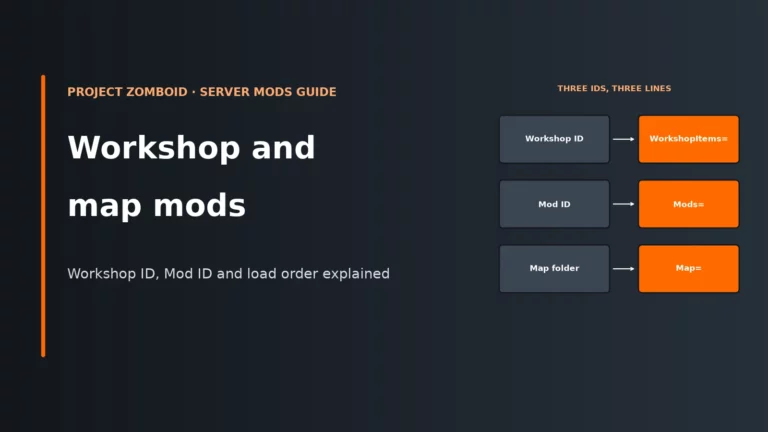
Workshop mods listed on the server are downloaded automatically when you connect. So a heavily modded server can take noticeably longer to enter even when the ping looks fine. If the admin is still sorting out map load order or Build 42-compatible mods, point them to this Workshop and map mods guide.
One more thing: Build 41 saves are not compatible with Build 42. If a group says they “updated the server” but kept the same old world, ask which build the world actually belongs to before anyone starts switching branches.
Choosing a UK server: why ping and location matter
Ping is the round-trip delay between your PC and the server. In practice, it affects how quickly your movement, actions, and world updates reach the server and come back to you. Lower is better, but steadiness matters as much as the headline value.
For UK players, a UK-located server is usually the safest choice. Distance adds network delay because packets physically have farther to travel, and no amount of spare RAM on the server can remove that basic route length. A badly overloaded server can also feel laggy, but that is a separate problem from distance.
If you are choosing a rented server for a UK group, these are the hosts in our comparison that offer a London location, in our ranking order:
| Rank in our comparison | Host | Location | Worth knowing |
|---|---|---|---|
| 2 | LOW.MS | London | Cloud backups |
| 3 | Host Havoc | London | Offsite backups |
| 5 | DatHost | London | Daily backups, and wipes that keep your config |
| 6 | GTX Gaming | London | Offsite backups |
The full comparison, including our top pick, is in our best Project Zomboid server hosting guide.
How to judge ping before you commit
If the server appears in the browser, look at the listed ping there first. A lower, more stable reading usually means a better route. If the number jumps around hard between refreshes, that points to an unstable path, local Wi-Fi trouble, ISP routing swings, or a server under load.
If the server is private and only the IP is known, you can do a rough ICMP test from your own machine. This is only a guide: some servers do not answer ICMP at all, and the game itself uses UDP rather than ICMP. Even so, a poor ICMP result rarely turns into a great game connection.
Windows: ping -n 10 203.0.113.10
macOS/Linux: ping -c 10 203.0.113.10
Read that test for consistency, not just the best line. If replies are missing, wildly uneven, or simply fail, treat it as a warning sign and ask the admin for the in-game browser ping instead.
What PingLimit does
PingLimit is a server setting that kicks players whose ping goes over the chosen threshold. A value of 0 means it is off. Admins use it to keep very delayed connections out of close-quarters play. It doesn’t make the server faster; it only decides who may stay connected.
The catch: a strict PingLimit can block a distant friend, a player on weak Wi-Fi, or anyone with a shaky route even when the server machine itself is fine. If you want the admin-side detail behind this and related connection settings, see our servertest.ini settings reference.
If you are picking the server as well as joining it
Sometimes the real question is not “how do I join?” but “is this the right server?” Whether you are picking a community to join or a host to rent from, get these answers before you commit.
| Check before you commit | Why it matters | What a sensible answer looks like |
|---|---|---|
| Server location | Distance drives ping. A server near the UK usually gives UK players the lowest delay. | A UK location if most of the group is in the UK or nearby Europe. |
| Game build and Steam branch | A mismatch stops players joining, regardless of how good the network is. | Clear wording on whether the server is current stable Build 42 or legacy41. |
| How players should join | Browser listing depends on Public=true and Steam. Favorites works more reliably. |
The admin can send a public IP and join port, not just a server name. |
| Password, whitelist, and SteamID policy | Access rules change what players must type and whether the admin has to create accounts first. | Clear instructions on password, account name, and whether Open=false is in use. |
| Mod list and map mods | Mods auto-download, but broken lists cause join failures and file mismatch kicks. | A Build 42 ready mod list and map order the admin can share. |
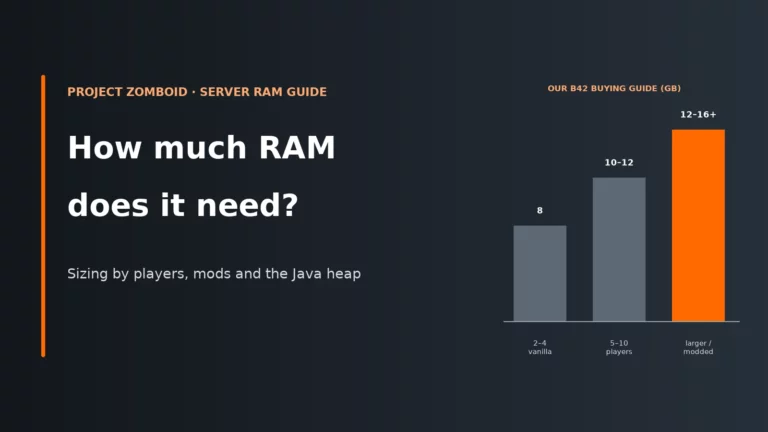
| Enough memory headroom | Too little heap means constant garbage collection, stutters, and eventually memory errors. That feels like lag even though it is not a ping problem. | For Build 42 we recommend 8 GB as the floor, with more for larger or modded groups. Our server RAM guide has the full sizing. |
| PingLimit and queue behaviour | Strict limits can kick distant players; overload protection can delay logins. | The admin can tell you if a ping cap or login queue is active. |
If players complain that performance gets worse as the world grows or when the group spreads across several towns, that points less to distance and more to what the server is simulating at once. That is a CPU and heap problem first, not a location problem.
Pick one close to your players and make sure it runs the build you need. A powerful server still feels slow from the wrong country.
Compare the best Project Zomboid server hostsSpecial cases: LAN, VPN, same-machine hosting, and non-Steam servers
Not every connection uses the public internet in the same way. These cases catch people out because the right address or client mode changes.
LAN or VPN play
If you are on the same local network as the server, or connected through a VPN, use the local IPv4 or VPN address the admin gives you. The public address may not work from inside the same network.
Joining a server hosted on the same machine
Since 41.65, a host playing on the same machine can usually join on the public IPv4. If that fails, put the machine’s local IPv4 from ipconfig in the Local IP field on the server screen.
-nosteam servers
A server started with -nosteam needs non-Steam clients. If you own the game on Steam, add -nosteam to the game’s launch options before connecting. If your client doesn’t match the server’s Steam mode, the join fails even with the correct IP.
Second server instance on the same machine
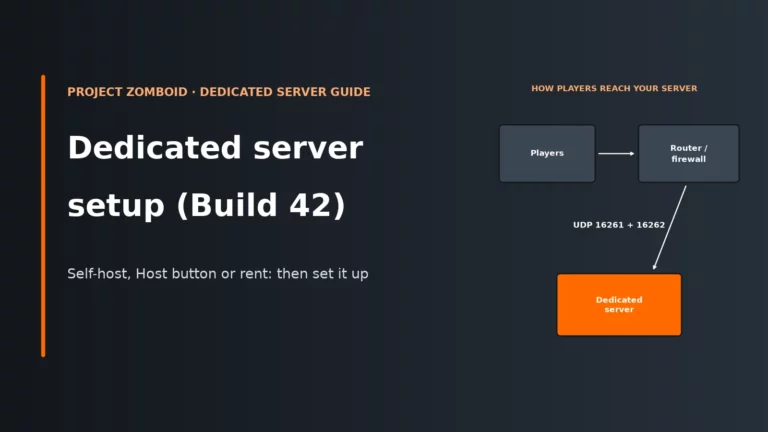
Extra server instances need two more UDP ports each. The default pair is UDP 16261 for the game and UDP 16262 for direct connection, so a second instance cannot just reuse them. If your group has multiple worlds on one machine, make sure the admin gives you the right instance port, not simply “the same IP as usual”.
Connection troubleshooting: symptom, likely cause, first fix
When a join fails, the symptom usually tells you where to look first. Start with the basics below before changing settings at random.
| Symptom | Likely cause | First fix |
|---|---|---|
| Can’t find the server in the browser | Public=false, the server is -nosteam, or you are looking in the wrong browser |
Use Join > Favorites with the public IP and port instead of relying on listing |
| Connection fails or times out | Wrong port, or on a self-hosted server one or both UDP ports are not forwarded/open | Confirm the join port with the admin and make sure both UDP 16261 and UDP 16262 reach the server, or the correct pair for that instance |
| Version mismatch or refusal to connect | Your client is on the wrong build or Steam branch | Match the server’s branch exactly: current stable for Build 42, or legacy41 for Build 41 |
| Kicked for mod or file mismatch | Broken mod list, B41-only mod on B42, stale client data, or DoLuaChecksum=true false positive |
Ask the admin to verify the mod list and server log, then clear the matching server folder under your Zomboid/Saves client data and reconnect |
| Wrong password or account rejected | Join password is wrong, you used different account details than before, or the whitelist/SteamID entry is missing | Re-enter the correct join password, or ask the admin to create or fix your account and SteamID on Open=false servers |
| Server full or waiting to get in | MaxPlayers is reached, login queue is active, or overload protection is delaying logins |
Wait for a slot or ask the admin if the queue is enabled; remember admins do not count toward MaxPlayers |
The port check comes first because a self-hosted server needs both UDP ports forwarded and open in the firewall. With only one of them reachable you get the half-working server: it appears, but joins fail. That is a forwarding problem, not a bad password.
The checksum fix works for a different reason. DoLuaChecksum compares client and server Lua files to stop mismatched scripts, but it can also create false positives on some Linux-hosted setups. Turning it off can get players in, but the trade-off is weaker protection against clients running altered Lua files, so it is a deliberate admin choice, not something to switch off and forget.
For players, moving or renaming that server’s folder in Zomboid/Saves (it is named after the IP and port, like 123.45.0.12_16261_…) clears the stale map data your client keeps for it. You lose your explored map for that server, which is exactly what you want after a world reset. If the server is self-hosted and you need the file locations, logs, or port basics, use this dedicated server setup guide. The two logs that matter most are console.txt on the client and server-console.txt on the server.
For admins: what to send players before first join
A short, complete message saves far more time than a long back-and-forth after people start failing to log in. Send this checklist before the first session:
- Public IP and join port: tell players the exact IP and the correct port for that instance.
- Build and branch: current stable Build 42,
legacy41, or anything else specific. - Join method: Favorites by IP and port, browser listing, or a prepared
+connectshortcut. - Join password: include it if
Password=is set. - Account rules: say clearly whether the server is
Open=trueorOpen=false. - Whitelist details: if
Open=false, confirm that you created the user account and added the player’s SteamID. - Mods and map mods: warn players if first join will be longer because Workshop items must download.
- Steam mode: tell players if the server uses
-nosteam, because Steam users then need-nosteamon the client too. - Ping expectations: if the server is in the UK and a friend is far away, warn them that distance and any active
PingLimitmay matter.
If you send only the server name and leave out the build, port, and access rules, players will usually create the wrong account, pick the wrong branch, or try the wrong browser first. Clear join details save more admin time than any server setting.
Project Zomboid server FAQ
What port do I use to join a Project Zomboid server?
For direct joining, players normally use the server’s public IP and the game port, which is 16261 by default. If the admin runs more than one server on the same machine, the port may be different, so always use the one they give you. The right IP with the wrong port is one of the most common join failures.
Why can’t I see the server in the browser?
The in-game browser only shows servers listed publicly with Public=true, and -nosteam setups do not behave like normal Steam-enabled servers. Even a healthy private server may never appear there. If in doubt, use Favorites with the public IP and port.
Do I need to download the server’s mods first?
No. Workshop mods on the server download automatically when you connect. Expect the first join to take longer on a big mod list.
What ping is good for Project Zomboid?
Lower is better, and a steady connection matters more than a single best result. UK players usually get the lowest ping from a UK-located server. Also remember that the admin may have set PingLimit, which can kick players whose connection is too slow or unstable for that server’s rules.
Can I join a Build 41 server on Build 42?
No. The client and server must run the same build. If the server is on Build 41, switch your Steam branch to legacy41; if it is on current Build 42 stable, switch back to the normal current branch.
More Project Zomboid server guides
The rest of our Project Zomboid server guides, plus the host comparison.
Written for Build 42 stable (42.21), with Build 41 (legacy41) differences noted. Ports shown are the defaults.