
Project Zomboid Server Admin and Whitelist Guide (Build 42)
Running a private Project Zomboid server comes down to two things: who can join and what they can do once inside. Here is how to become admin, set access levels, lock the server down with a whitelist and SteamIDs, and get back in when the admin password is lost.
Password=, Open=false, and SteamID allow-listing control who can get through the front door.
/setaccesslevel controls what a player can do after they are inside, from ordinary user up to full admin.
If admin login breaks, use the server console first. It bypasses the need to already be logged in as staff.
Back up the accounts database, add users and SteamIDs together, and apply option changes with reloadoptions instead of a restart.
The access model: who can join vs what they can do
Think of two separate layers. Join control is the gate at the front of the server. Access level is the set of keys a player gets once inside. Mix them up and “I’m not admin” starts to look like “my whitelist is broken”, when they are different problems with different fixes.
A password server and a whitelisted server are not equivalent. A password server uses one shared secret for everyone, so any approved player can pass it on, write it in Discord, or keep using it after you meant to remove them. A whitelist server with Open=false is stronger because the server stops creating new accounts on demand. Only accounts created by an admin can log in, and since Build 42.13.2 each player’s SteamID has to be added as well.
The cost of a whitelist is admin time, not server power: collecting names, creating accounts, resetting passwords and fixing typos. For a private group it is worth it, because it closes the biggest gap in a password-only server: anyone who knows the password can make an account.
- Open server: players create their own account the first time they join. Lowest admin effort, weakest control.
- Password-only server: everyone needs the join password, but can still create their own account if
Open=true. - Whitelisted server:
Open=false; accounts must already exist in the server database. - Whitelisted + SteamID list: what Build 42 servers with
Open=falseuse since 42.13.2. Each player needs both an account and an added SteamID.
The symptom tells you which layer failed. “Wrong password” points to join control. “I joined but I can’t use staff commands” points to access level. “I was staff yesterday but not today” usually means you logged in with a different username.
Becoming admin on a dedicated or rented server
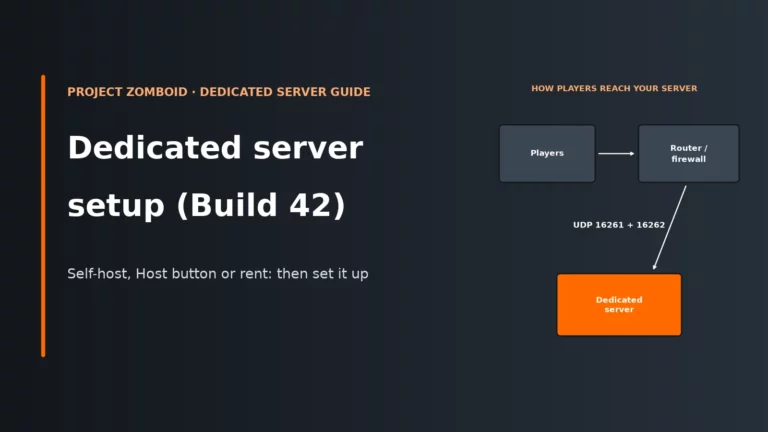
On first run, the dedicated server creates a default admin account with the username admin and asks for its password in the server console. If you are still setting up the machine itself, the install, ports and launch basics are covered in our dedicated server setup guide.
Two startup parameters set this up without the prompt: -adminpassword sets the default admin’s password automatically, and -adminusername gives the default admin a different name. A new name doesn’t remove an earlier admin account, so change its password too. Most rented panels have a field for extra startup parameters.
StartServer64.bat -servername servertest -adminusername staffowner -adminpassword StrongPasswordHere
-servername matters because it switches the whole config set and save name. If your server is not called servertest, replace that name everywhere in this guide, including the database file.
How to log in as admin from the game client
Join the server using the same username and password as the admin account. Do not join as your everyday player name and expect admin rights to follow you. In-game admin commands need a leading slash; the server console uses the same commands without the slash. If you need the connection steps themselves, use this how to join a server guide.
To check, send a harmless admin command such as /servermsg "Admin online". If it goes through, you are admin. If not, check the exact username you logged in with before changing anything else.
Using the server console instead
The server console is the safest place to recover access because it doesn’t need anyone logged in as staff. Use it when the admin password is lost or an account has the wrong access level.
If you have lost the admin password, reset it from the console with setpassword "admin" "newpassword". That changes the existing account directly. -adminpassword is built for the first run, when the default admin is created, so the console command is the one to use afterwards.
For the wider command set, keep a full admin command list handy. Some arguments are case-sensitive (Base.Axe works, base.axe does not), so copy names exactly.
Access levels and what they are for
Access levels do not decide who can join. They decide what a connected account may do. Set them from the console or in-game chat with /setaccesslevel "username" "level".
| Level | Typical use | Who gets it |
|---|---|---|
| user | Normal player account | Default for ordinary members; no staff authority. |
| priority | A step above a normal player | Trusted regulars, if your rules need the distinction. |
| observer | Oversight role | Staff who watch rather than act. |
| gm | Game master role | Event runners and storytellers. |
| moderator | Staff account for community management | Good for trusted friends who need to help players but should not own the whole server. |
| admin | Full server control | Reserve for owners and a very small number of senior staff. |
Give each person the lowest level that covers their job. Every extra admin is another person who can change settings, ban the wrong player or wipe the wrong area by mistake.
HideAdminsInPlayerList (default false) hides admins from the player list. It is a privacy setting, not a security one: it cuts down on players playing around staff, but also makes it less obvious when help is online. Admins don’t count towards MaxPlayers, which is handy in an emergency, but the server still has to carry those extra connections.
setaccesslevel "alex" "moderator"
setaccesslevel "alex" "admin"
If nothing changes for the player, check the username: setting the level on the wrong account is the usual cause.
Making the server private: password, whitelist, and SteamID allow-list
There are three tiers of privacy. Pick the one that matches your group, knowing what each costs you in admin time.
| Password only | Open=false whitelist | Whitelist + SteamID | |
|---|---|---|---|
| Strangers can’t join without being told | Yes | Yes | Yes |
| A leaked password isn’t enough | No | Yes | Yes |
| Players can’t make their own accounts | No | Yes | Yes |
| Needed on Build 42 with Open=false | – | No | Yes |
| No admin work per player | Yes | No | No |
Level 1: password only
Set Password= in the ini. Every client must know that join password. It takes no ongoing admin work, but it is only as private as the least careful player who knows the password.
Level 2: whitelist accounts with Open=false
Set Open=false. That tells the server to stop letting strangers create their own account at first login. Instead, you create each account in advance with adduser. This is the big step up, because leaking the shared password is no longer enough on its own.
Level 3: add SteamIDs as well
Since 42.13.2, a server with Open=false also needs the player’s SteamID added with addsteamid. It means a leaked username and password alone are not enough to get in.
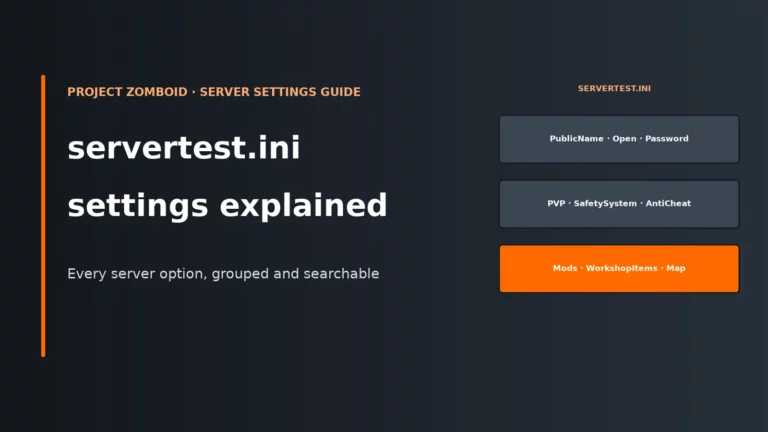
For the full meaning of related options, keep this servertest.ini settings reference nearby.
# Defaults
Open=true
Password=
MaxAccountsPerUser=0
DropOffWhiteListAfterDeath=false

# Private whitelist server example
Open=false
Password=SharedDoorCode
MaxAccountsPerUser=1
DropOffWhiteListAfterDeath=false

# Hardcore variant
DropOffWhiteListAfterDeath=true
Change the ini, then apply it on the running server with reloadoptions, and check the result with showoptions. (Sandbox changes are different and need a restart.) MaxAccountsPerUser=1 here means one account per Steam user.
adduser "alex" "TempPassForAlex"
addsteamid "76561190000000000"
setpassword "alex" "BetterPassForAlex"
setaccesslevel "alex" "moderator"
The SteamID above is an example; players can copy their own 17-digit SteamID64 from their Steam account details page. Once this is in place, strangers can no longer make accounts, and nearly every failed join becomes one of three things: account missing, SteamID missing or wrong username.
Managing the whitelist day to day
Once private access is enabled, routine account management matters more than the initial setup. The core commands are simple:
adduser "username" "password"creates an approved account.removeuserfromwhitelist "username"removes its ability to join.setpassword "username" "newpassword"resets a forgotten password.
Two ini settings shape how strict that system is. MaxAccountsPerUser limits how many accounts one Steam user may operate; 0 means no limit. Setting it to 1 stops one person collecting several accounts. Siblings sharing one Steam account would need you to make an exception.
DropOffWhiteListAfterDeath=true is for hardcore communities only. When enabled, a dead player is removed from the whitelist on an Open=false server, so they cannot simply create a fresh character and carry on. The catch: every death becomes a job for an admin if the player is allowed back.
Accounts and the whitelist live in Zomboid/db/servertest.db. The world save is elsewhere, and characters live in players.db inside the save folder, so do not assume “I backed up the world” also backed up access control. Back up the accounts database before large staff changes, before wipes, and before any host migration; our backup and restore guide covers the safe routine.
This separation is also why a world wipe does not have to remove your whitelist. If you want a fresh map while keeping the same approved members, wipe the world save only and leave the database intact. If you need the world-side details, this map reset and wipe guide explains what gets deleted and what should stay.
Bans, kicks, SteamID bans, and RCON safety
Whitelist access does not replace moderation. You still need direct tools for players who are already on the server or who abuse a trusted account. Use kickuser to remove someone immediately, then ban if the problem is not a one-off.
banuser "username" -ip -r "reason"bans the account and, with-ip, also catches the current IP.banid SteamIDbans by Steam identity.banip IPbans only the IP address.kickuser "username" -r "reason"removes a player without a permanent ban.
Always add the -r reason. It leaves a record for the rest of your staff and stops “why was I banned?” turning into guesswork days later. The real trade-off is precision. IP bans can catch the wrong person on a shared connection, while account-only bans are easier to evade if the server is too open.
Update to 42.21 or later if you rely on SteamID bans: it fixed a Steam authentication bypass that affected them. For a live nuisance on a public or semi-private server, banuser ... -ip is still a sensible first response because it acts on the account and the connection you already have in front of you.
RCON is separate from normal admin login. If you use it, set a strong RCONPassword. If you do not use remote console tools, leave RCONPassword empty. RCON is a convenience; it gives you nothing the server console can’t.
Host and panel checklist before you rely on staff workflows
On rented servers, most access headaches are not command problems. They come from panels that hide the console or the database file, or make startup parameters awkward. Check these before you grow a private community.
| Checklist item | Why it matters | What good looks like |
|---|---|---|
| Live console access | Needed for first admin setup, setpassword, and safe recovery when in-game admin is broken. |
You can send commands directly and read server responses without waiting for a reboot. |
| File access to ini and db | Whitelist mode depends on both servertest.ini and servertest.db. |
You can edit the ini and back up the database separately from the world save. |
| Custom startup parameters | Useful for -servername, -adminusername, and initial unattended setup. |
The panel exposes startup flags or lets support apply them cleanly. |
| RAM headroom | A Java process that runs out of memory can be killed without a clean save. | The -Xmx heap sits below the plan limit, not at it. Our server RAM guide explains why. |
| Backup access | Access control is only trustworthy if you can restore the accounts database after mistakes. | You can fetch backups off the box, not just trust copies written to the same disk. |
If your current panel makes any of that awkward, our Project Zomboid server hosting comparison shows which hosts handle this well.
Look for a live console, startup parameter support and easy file access to the ini and database. For a private community, those matter more than extras.
Compare the best Project Zomboid server hostsTroubleshooting private access and admin login
When a player cannot get in, follow the access layers in order: join password, account existence, SteamID, then access level. This separates a real whitelist problem from a simple wrong login.
| Symptom | Likely cause | First fix |
|---|---|---|
| I’m not admin when I join | You logged in with a different username from the admin account. | Reconnect using the actual admin username, or use the server console to set the access level on the account you did use. |
| I lost the admin password | The admin user exists, but you no longer know its password. | In the server console, run setpassword "admin" "newpassword" for the existing admin account. |
Players cannot join after Open=false |
No approved account, no approved SteamID, or both. | Create the account with adduser and add the SteamID with addsteamid. |
| Strangers are still joining | Open=true, or you only set a shared join password. |
Set Open=false, reload options, and stop handing all access to one shared secret. |
| The whitelist vanished after a reset or migration | The db folder or servertest.db was deleted or not copied. |
Restore the database from backup; world saves alone do not restore account access. |
| A player says the password is right but still gets refused | The username is wrong, the SteamID is missing, or the client is on the wrong game build. | Check the exact login name, verify the SteamID entry, and confirm server and client build match. |
| An admin can join a full server | This is normal behaviour. | Nothing to fix: MaxPlayers doesn’t count admins. |
If you need evidence, read server-console.txt on the server side and console.txt on the client side. They show where the login failed.
Short admin-team checklist for communities
- Keep only one or two full admins. Everyone else should be moderator or lower unless they truly need broader control.
- Create accounts and add SteamIDs in the same session so you do not forget the second half of the whitelist.
- Back up
Zomboid/db/servertest.dbbefore staff promotions, mass removals, wipes, or host moves. - Use reasons on kicks and bans so the next staff member can see what happened without guessing.
- Write down the exact admin usernames in your staff notes. Most “lost admin” reports are really “logged in as the wrong account”.
- If you hide admins from the player list, give staff another way to see who is on duty.
- Leave
RCONPasswordempty unless you actively use remote console tools.
Project Zomboid server FAQ
How do I make myself admin on a Project Zomboid server?
Use the default admin account created on first run, or log in with whatever username you set through -adminusername. If you are already on the server with a normal account, an existing admin can promote it with /setaccesslevel "username" "admin". If no in-game admin works, use the server console instead.
How do I whitelist a player?
Set Open=false, then create the player account with adduser "username" "password". On Build 42 servers using Steam, also add that player’s SteamID with addsteamid. Since 42.13.2 both are needed.
What is the difference between a password and a whitelist?
A password is a shared front-door secret that every approved player knows. A whitelist with Open=false stops the server from creating new accounts unless an admin has already added them. Whitelist mode is stronger because a leaked password alone no longer gets anyone in.
I lost the admin password, how do I get back in?
Use the server console and reset it with setpassword "admin" "newpassword", or target the exact admin username if you changed it from the default. It changes the existing account directly, without needing anyone logged in.
Do admins count towards MaxPlayers?
No. Admins are excluded from MaxPlayers, so they can still join when ordinary slots are full. The server still has to carry those connections, so treat it as a convenience, not free capacity.
More Project Zomboid server guides
The rest of our Project Zomboid server guides, plus the host comparison.
Written for Build 42 stable (42.21). Swap servertest for your own -servername if you use one.