
How to Install Mods on a Path of Titans Server
Adding mods to a Path of Titans server takes three switches in two files: the Mod ID in GameUserSettings.ini, the map name in Game.ini for map mods, and the species whitelist for modded creatures. Here is how to set each one, the order that keeps a custom map loading, and how to keep every player able to join after game updates.
EnabledMods loads the modIf the Mod ID is not under [PathOfTitans.Mods], the server will not fetch or load that package at boot.
ServerMap starts the mapMap mods need a second switch in Game.ini. If the name is missing or wrong, the server falls back to Panjura.
AllowedCharacters can hide creaturesA creature mod can be installed correctly and still be unplayable if your whitelist does not include its species name.
Map mods do not stack, stat mods can conflict, and some mods block mobile or other platforms even when the server itself is online.
How Path of Titans mods work on a server
Path of Titans uses Alderon’s own mod system, not Steam Workshop. Every mod has a Mod ID shown in the in-game Mod Browser, and that ID is what tells the server which package to fetch. On every boot, the server checks its listed mods, looks for newer versions, downloads anything missing or outdated, then loads that set before it can accept joins. Edits to the mod list only take effect after a restart, and a restart is also how the server picks up mod updates.
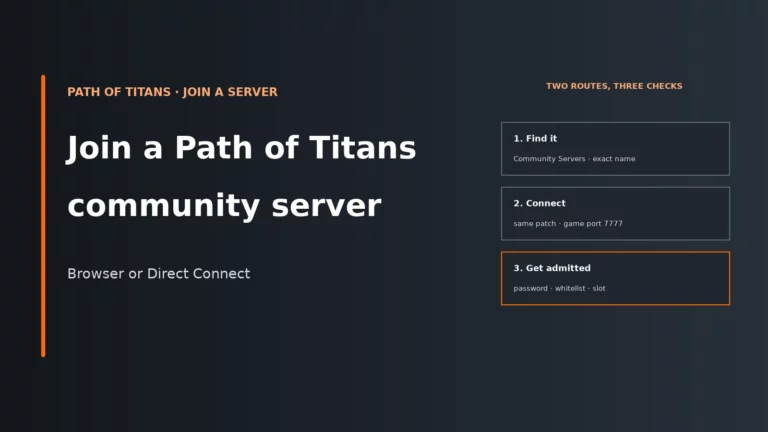
Players do not install these mods by hand. If the server is set up properly, the client sees the required list, can inspect it in the server browser’s Details panel, and downloads the files during join; the player side of that process is the same one shown in this guide on joining a Path of Titans community server. That is why a server can look healthy in a panel but still fail for players if one required mod is missing, out of date or unsupported on their platform.
Think of a modded server as three switches in two files, plus one compatibility rule set:
GameUserSettings.ini→[PathOfTitans.Mods]→EnabledMods: decides what the server downloads and loads.Game.ini→ServerMap: decides which world starts. Map mods need this as well as the Mod ID.Game.ini→AllowedCharacters: if you use it, it becomes a whitelist of playable species. Modded creatures stay hidden unless listed.- Stacking rules and platform support: decide which mods can coexist and which devices can still join.
The diagram shows which file holds each switch and what you see when one is missing.
GameUserSettings.ini[PathOfTitans.Mods]one
EnabledMods= line per Mod IDGame.ini, IGameSession sectionServerMap= exact map nameGame.ini, only if you run a species whitelistAllowedCharacters= modded species name- Even with all three switches set:
- Stacking: skins, creatures and Creator Mode items stack; stat mods only if they edit different creatures; one map at a time.
- Platforms: most creature and skin mods run on mobile, many map mods do not.
- Panels: if your host has a Mod ID field, it rewrites the mod section on every start, so use the field.
Before you install: plan the mod list first
Do the planning before you paste anything into the config. In Path of Titans, most mod trouble is not “the file path was wrong”; it is “this type needs another setting”, “two mods edit the same data”, or “the server is now no longer joinable from mobile”. Because community servers are crossplay, one mod choice changes the join rules for PC, console and mobile together.
| Mod type | Stacks with others? | Extra Game.ini line needed? |
Mobile players |
|---|---|---|---|
| Creature | Yes | Only if you use AllowedCharacters; then add the modded species name too |
Most are mobile compatible, but confirm with the author |
| Skin | Yes | No | Most are mobile compatible, but confirm with the author |
| Creator Mode item or food | Yes | No for basic install; saved Creator Mode states can have limitations with modded items | Check author support |
| Stat change | Only if the mods do not edit the same creatures | No for basic install | Check author support |
| Map | No; only one can run at a time | Yes, set ServerMap to the exact map name |
Often the mod type most likely to block mobile joins |
The quick matrix below is useful when you are deciding what can sit together cleanly.
| Mod type | Stacks with its own type | Needs a Game.ini line | Generally runs on mobile |
|---|---|---|---|
| Creature | Yes | Partly | Yes |
| Skin | Yes | No | Yes |
| Creator Mode item | Yes | No | – |
| Stat change | Partly | No | – |
| Map | No | Yes | Partly |
The practical rule is simple: if you want the widest crossplay access, be conservative with custom maps first and ask the mod author which platforms are supported. Creature and skin packs are usually the safest starting point; map packs are the first thing to check when mobile or Switch users suddenly cannot join.
Step 1: find the Mod ID in the in-game Mod Browser
- Open the game client and go to the main menu’s Mod Browser.
- Open the page for the mod you want.
- Find the field labelled Mod ID.
- Copy the ID exactly as shown, character for character.
- Double-check the middle of the string for the common typo: the number
0and the letterOare easy to confuse.
This matters because the server is not searching by title or guessing what you meant. It requests a specific package ID at boot. One wrong character means no download, no load and no update tracking for that mod. If a mod “vanishes” later, checking the copied ID is still worth doing before you assume the author removed it.
If you are building a longer pack, keep a plain text list of Mod IDs and what each one does. That makes later conflict checks far easier, especially with stat mods that may both target the same species.
Step 2: add the mod to GameUserSettings.ini
- Stop the server first.
- Open
PathOfTitans/Saved/Config/LinuxServer/GameUserSettings.inion Linux, or the same path underWindowsServeron Windows. - If the header
[PathOfTitans.Mods]is missing, add it on its own line. - Add one
EnabledModsline for each mod you want to load. - If you want labels for yourself, add comment lines starting with
;. - Save the file, then start the server.
[PathOfTitans.Mods]
;TheGrimExpanse
EnabledMods="UGC_M_DYV7XYEGX2_SK"
;German Shepard Mod (this is a example of mod stacking)
EnabledMods="UGC_M_DYV0XMY7GX_SK"
Alderon’s rule is to stop the server before you edit its files and restart afterwards, because the mod list is read when the server boots. That costs one restart of downtime, and you get something back for it: on the way up, the server downloads anything new and checks every listed mod for updates in the same pass.
You can tell this step worked if the server comes back, the mod appears under Details in the browser, and players are prompted to download it on join. If your host panel has its own Mod ID field, use that instead of editing the file directly. Those panels often rewrite the [PathOfTitans.Mods] section on every start, which is why a manual edit seems to “disappear” after a restart.
Step 3 for map mods: set ServerMap in Game.ini
A map mod needs two separate things: its Mod ID in EnabledMods and the active map name in ServerMap. Open Game.ini in the same server config folder and set the map under [/Script/PathOfTitans.IGameSession] using the exact name from the mod files.
[/Script/PathOfTitans.IGameSession]
ServerMap=TheGrimExpanse
The map name has to match exactly because this is the world package the server tries to start after it has loaded mods. If the name is wrong, or if you only added the Mod ID and never set ServerMap, the server falls back to Panjura. That is why “the mod is installed but my server still boots the default map” nearly always comes down to this second switch.
Only one map can run at a time, so map mods are not stackable. They also make the first boot the slowest, because the server has to download the map package and load it before anyone can join. On the first boot after adding a map, restart once and then leave it alone for 10-15 minutes before trying to join. Repeating restarts during that window just makes the server start that boot cycle again.
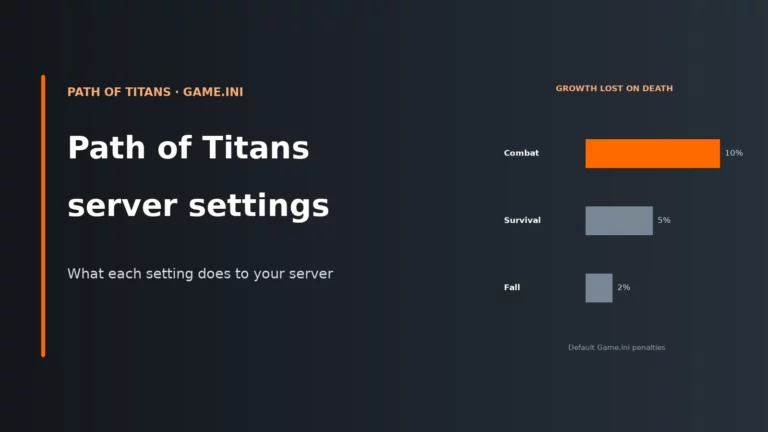
If you need other world and session options in Game.ini, keep this guide focused on mods and use the full Path of Titans server settings guide for the rest.
Step 4 for modded creatures: check the AllowedCharacters whitelist
If you run AllowedCharacters lines in Game.ini, that list is a whitelist. The server will only offer species that appear there, even if a creature mod loaded correctly. So a modded dinosaur can show in your mod list but still be missing from character creation until you add its species name.
[/Script/PathOfTitans.IGameSession]
;Add every playable species on its own line if you use a whitelist
AllowedCharacters=ModdedCreatureName
Use the exact modded species name from the mod description or ask the creator if it is not obvious. Also check for any DisallowedCharacters entry that explicitly blocks the species. This whitelist exists so new official dinosaurs do not appear on your server without permission, but the same rule also hides newly installed modded creatures unless you approve them.
If the creature is still not selectable after that, look at your stat setup. Alderon notes that not all curve overrides (the stat edits you can make without a mod) are compatible with modded creatures. Once the whitelist is sorted, take out any overrides aimed at that creature for one restart and see whether it behaves normally.
The clean install order: map first, test, then add the rest one by one
The safest install order is:
- Add the map mod on its own.
- Set
ServerMapand restart. - Wait for the first full boot and confirm the server is actually on the custom map.
- Add one more mod, restart, and test again.
- Repeat until the full pack is in place.
This order works because it separates the heaviest and least stackable mod type from everything else. If a custom map loads on its own and stops loading only after a later addition, you have narrowed the fault down to the last mod added or an interaction with it. That is much faster than pasting ten IDs at once and then trying to guess which one is fighting the map or which two stat mods touch the same creature.
To remove a mod, delete its EnabledMods line and restart. If your panel uses a built-in mod field, remove it there instead. If the mod you are removing is a map, also point ServerMap back to a base map before the restart: Panjura, Island (that is Gondwa) or Riparia. That way the server boots the map you chose rather than whatever it falls back to.
Keeping mods working after game updates
A main game update touches two things on your server: the game files and the mods that depend on them. A restart makes the server re-check both, so restart once after every main game update before you start chasing problems.
- If a mod author has already updated, a restart usually picks up that new version.
- If the author has not updated yet, the mod may stay broken until they do.
- If the mod has been removed, there is nothing for the server to fetch.
- If only some players can join, suspect a version mismatch first and restart the server before chasing stranger causes.
What to tell players depends on the symptom. If the server browser Details list changed after an update, tell them the mod set has changed and joining will trigger fresh downloads. If only some users can join, tell them to make sure their game is fully updated while you restart the server to force a fresh check. If the issue is a map or platform support problem, be clear that the server is up but that specific mod currently blocks certain devices.
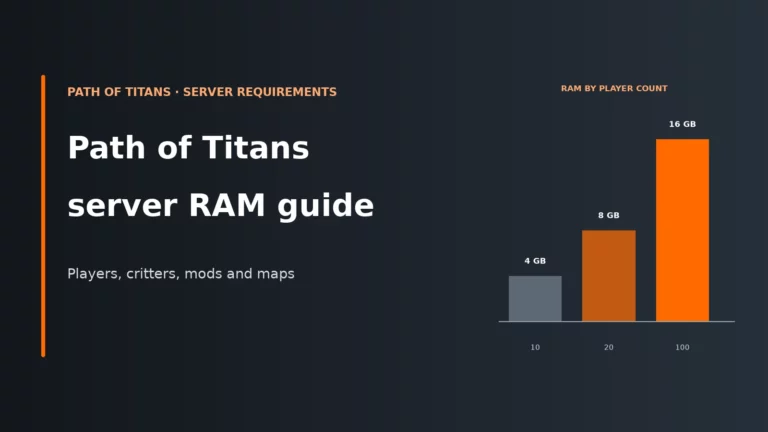
Heavy mod packs and custom maps also make every restart do more work: more file checks, more disk reads and, sometimes, more download time before the server is ready. If you are planning a larger pack, leave some headroom; the guide to Path of Titans server requirements and map-mod boot time explains what to allow for, and our comparison of the best Path of Titans server hosts shows which plans give a modded server room to breathe.
If you are choosing a Path of Titans host for a modded server, look for three basics: a proper file manager, a panel field for Mod IDs, and quick restarts. That combination matters because mod changes and mod updates both apply on boot, not live.
Compare the best Path of Titans server hostsSymptom, likely cause, first fix
Work down the flow until you hit the first no, then find the exact symptom in the table below it.
| Symptom | Likely cause | First fix |
|---|---|---|
Server boots on Panjura instead of the custom map |
ServerMap is missing or the map name is wrong |
Set ServerMap to the exact map name from the mod files and restart |
| Map Mod ID is present but the map still does not load | The map name does not match the mod files exactly, or another mod conflicts with it | Check the exact map name, then test the map mod on its own |
| First boot after adding a map feels stuck | The server is still downloading and loading the custom map | Restart once, then wait 10-15 minutes before touching it again |
| Modded dinosaur is installed but not selectable | AllowedCharacters is acting as a whitelist and does not include the species |
Add the modded species name to AllowedCharacters and restart |
| Creature mod shows in Details but still cannot be used | A DisallowedCharacters entry blocks it, or a stat override is incompatible |
Remove the disallow rule and test again without the relevant override |
| Mobile players suddenly cannot join | The mod, often a custom map, does not support mobile | Check platform support with the author; remove the unsupported mod if crossplay access matters |
| Switch users cannot join after adding a heavy map | The map is too intensive for that platform | Test without the map mod or use a lighter map choice |
| A mod disappeared after a main game update | The author still needs to update it, or the mod was removed | Restart to force update checks, then wait for the author or remove the dead entry |
| Some players can join and others cannot | Version mismatch after an update | Restart the server and make sure players have the current game update |
| Your edited mod list gets wiped on every restart | The panel has its own mod field and rewrites [PathOfTitans.Mods] |
Add and remove Mod IDs through the panel field instead of the file |
| Two stat mods both load but behaviour is wrong | They edit the same creatures and conflict | Keep only one of the overlapping stat mods, or separate changes by species |
| Creator Mode save loads but modded items are missing or odd | DefaultCreatorModeSave has limitations with saved modded items |
Retest without relying on that saved modded state, then rebuild the save if needed |
| A mod will not appear even though the line is present | The Mod ID was copied with a typo, often 0 instead of O |
Re-copy the ID from the Mod Browser exactly and restart |
If a player wants to confirm what the server is currently advertising before they join, the community server browser shows the active mod list under Details. That helps separate a true server-side load failure from a client download problem.
Path of Titans server mods FAQ
Do players need to download Path of Titans mods before joining a server?
No manual install is needed. If the server is configured correctly, the client downloads the required mods during the join process after reading the server’s advertised mod list. Your job on the server side is to make sure the correct Mod IDs are loaded and updated.
Why does my Path of Titans server load Panjura instead of my mod map?
Because adding the map’s Mod ID alone is not enough. You also need ServerMap in Game.ini, and that map name must match the mod files exactly. If that value is wrong or missing, the server falls back to Panjura.
Can I run more than one map mod on a Path of Titans server?
No. Map mods do not stack, because the server can only boot one active world at a time. You can keep several map IDs in your notes, but only one should be the active ServerMap for a given server boot.
Why can’t mobile players join my modded Path of Titans server?
Not all mods support all platforms, and custom maps are the most common reason mobile access breaks. If the map is too graphically intensive or the author did not support mobile, hosting that mod blocks those players from joining. Check platform support before you build the pack if broad crossplay matters.
Why did my Path of Titans mods stop working after an update?
Main game updates can break mods until their authors update them. Restarting your server forces a fresh check for both game files and mod updates, so do that first. If the mod author has not published a compatible update yet, the problem is upstream and you may need to wait or remove that mod for now.
More Path of Titans server guides
Compare hosts, size your server and fine-tune the rest of your config.
Game updates and host panels change. Where your host’s current panel works differently from what is described here, follow the panel.