
How to Set Up a Hytale Dedicated Server
A clear start-to-finish path for your first Hytale dedicated server: get the files the update-friendly way, sign the server in, open the right port so friends can join, and lock it down before you share the address.
For anything you plan to keep running, use the Downloader CLI or bootstrap. Both create the update-friendly folder layout that Hytale expects.
Hytale uses QUIC over UDP on port 5520. A TCP rule or TCP router forward will look right at first glance and still fail.
Edit config.json only with the server stopped. Hytale reads config at startup and can write files again while running, which can overwrite your manual changes.
Update speed and stored authentication. Exact protocol matches are required, so the easier your update path is, the less time friends spend locked out.
Before you start
A Hytale dedicated server can run on Windows, Linux or macOS, on x64 or arm64, as long as the machine has at least 4 GB of memory and Java 25. You also need a Hytale account with access to the game, because the server must authenticate to Hytale’s service APIs before it can accept proper player connections.
Check Java first. Open a terminal or command prompt and run:
java --version
You want the output to begin with openjdk 25. Hypixel recommends Adoptium Temurin for Java 25.
The other decision is where the server lives. A spare PC at home is fine for a private group if you can leave it on and you control the router. A VPS is useful when your home network makes port forwarding awkward or you want better uptime. A rented game server is the same basic job done for you in a panel: Java, auth, startup scripts and updates are handled with less manual work. That hosting choice matters mostly for NAT, firewall access and how much you want to maintain yourself.
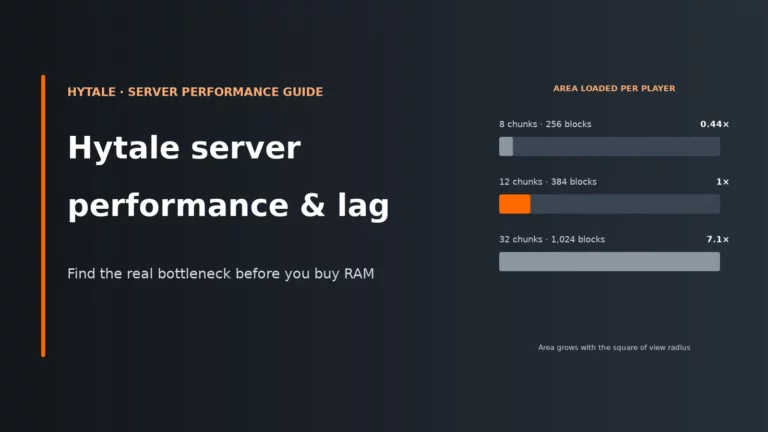
For hardware, the biggest factor is not just “players”, it is loaded world area. View distance is the main driver of RAM, because the server must keep more chunks and world state in memory for every active area. CPU pressure rises more with heavy entity counts and busy worlds. If you want the fuller reasoning, read how game server hardware requirements work.
For a friends server, keep view distance conservative rather than throwing memory at the problem. Hypixel recommends limiting max view distance to 12 chunks, which is 384 blocks. That is already well over double the 10-chunk (160-block) view a Minecraft server uses by default, and because view distance is a radius, the ground the server keeps loaded grows much faster than the number itself.
Choose how you get the server files
This is the decision that affects update pain later. Hytale updates frequently in Early Access, and client and server protocol versions must match exactly. If your layout does not support the built-in updater cleanly, every patch becomes manual work and friends hit version mismatch errors until you catch up.
| Method | Best for | Updates | Needs |
|---|---|---|---|
| Manual copy from launcher install | Quick testing on the same machine as the game | Most awkward. Easy to get running once, annoying to keep current. | An existing Hytale install, then copy the Server folder and Assets.zip |
| Hytale Downloader CLI | Persistent servers and clean repeatable setup | Easiest. Designed around current versions and update checks. | The downloader package and a one-time browser authorisation on first run |
Bootstrap from HytaleServer.jar |
Persistent servers when you already have the server jar | Good. It builds the correct wrapper layout for updates. | An empty folder, the server jar, then in-console auth and update setup |
| What you get | Copy from launcher | Downloader CLI | Bootstrap jar |
|---|---|---|---|
| Fine for a quick one-evening test | Yes | Yes | Yes |
| Works without the game installed on that machine | No | Yes | Yes |
| Builds the auto-update layout for you | No | Yes | Yes |
| Easy to keep on the current version | No | Yes | Yes |
My advice is simple: use the Downloader CLI or bootstrap for anything that will live longer than an evening. Both produce the auto-update layout with game/, Assets.zip, launcher scripts and Server/ in the right places. That matters because Hytale’s update checker expects that structure; if you scatter files somewhere random, the updater is disabled and every patch becomes a manual repair job.
If you do want the quick manual route, the launcher install is in these default locations:
- Windows:
%appdata%\Hytale\install\release\package\game\latest - Linux:
$XDG_DATA_HOME/Hytale/install/release/package/game/latest - macOS:
~/Library/Application Support/Hytale/install/release/package/game/latest
Step 1: install Java 25 and verify it
Hytale will not start on an older Java runtime. If you see the wrong major version later, that is usually not a Hytale problem at all, just the wrong Java on the path. Install a Java 25 build for your platform, then run the version check again.
java --version
Do this on the actual machine that will host the server, not just your desktop. A VPS or rented server can have multiple Java versions installed, and the command that starts Hytale will use whichever one comes first in the environment path unless you specify otherwise.
Step 2: get the files in the right layout
The best outcome here is a folder layout that keeps auth, updates and startup scripts where Hytale expects them. That gives you one simple operating model: start with the wrapper, let the server manage downloads and updates, and keep your hand edits limited to the config files inside Server/.
Downloader CLI
Extract the downloader package, open a terminal in that folder, then run:
./hytale-downloader
./hytale-downloader -print-version
./hytale-downloader -check-update
On first run it will ask you to authorise in a browser with a device code. That gives the tool permission to fetch the correct game files without you copying them out of a launcher install by hand.
You can also use optional flags such as these:
./hytale-downloader -download-path game.zip
./hytale-downloader -patchline pre-release
./hytale-downloader -skip-update-check
Bootstrap from HytaleServer.jar
Put HytaleServer.jar in an empty folder and run:
java -jar HytaleServer.jar --bootstrap
After that first bootstrap launch, authenticate in the server console with /auth login device, then run:
/update setup
The bootstrap process extracts the payload, creates the wrapper layout, moves auth.enc, auth.key and config.json into Server/, makes start.sh executable on Unix, then shuts down. On Linux and macOS it also deletes the installer jar; on Windows, delete that leftover HytaleServer.jar from the top folder yourself. Your sign-in carries over, so the next start uses the wrapper scripts below.
Expected layout
However you get there, this is the layout you want for an easy-to-manage server:
game/
  Assets.zip
  start.sh
  start.bat
  jvm.options   (optional, you create it)
  Server/
    HytaleServer.jar
    HytaleServer.aot
    auth.enc
    auth.key
    config.json
If you started from a manual file copy, run /update setup once so the wrapper scripts are written to the parent directory. That one step is what turns a throwaway manual copy into something updateable.
Step 3: first start, boot behaviour and memory
If you have the proper wrapper layout, start with start.sh on Unix-like systems or start.bat on Windows. Use the wrapper rather than launching the jar directly, because the wrapper is what handles update apply, backups and the expected asset path.
./start.sh
start.bat
If you are doing a manual copy and just need a plain launch command, use:
java -XX:AOTCache=HytaleServer.aot -jar HytaleServer.jar --assets Assets.zip
The HytaleServer.aot file is an ahead-of-time cache that ships with the server. Its job is to reduce boot-time CPU work by skipping part of the normal JIT warm-up. That mainly improves startup speed and cuts the “why is this taking so long to come up” phase after restarts and updates.
For JVM memory settings, use a jvm.options file in the same folder as the wrapper script, one option per line. Hypixel’s example is:
# Example jvm.options
-Xms2G
-Xmx4G
-XX:+UseG1GC
-Xmx is the cap Java can use for heap memory. Do not give Java all available RAM on the machine. The operating system still needs memory for itself, file cache and normal background work; if you crowd it out, the box can start swapping to disk, which turns a memory problem into stutters, long pauses and more CPU time wasted on garbage collection. In Hytale, large loaded world area pushes heap use up first, so the right fix is often lower view distance before higher memory.
Step 4: authenticate the server properly
The server must authenticate because it talks to Hytale’s service APIs, and that is part of how abuse is controlled. Until auth is complete, you should treat the instance as not ready for real players.
From the server console, run:
/auth login device
The console prints a device code flow for accounts.hytale.com/device. You sign in, approve the request, and the server waits up to 900 seconds for that approval to complete. A successful login prints Authentication successful! Mode: OAUTH_DEVICE.
Now make the credentials survive restarts:
/auth persistence Encrypted
/auth status
This is the bit many people miss. With persistence left in memory, the server can work until shutdown and then ask you to authenticate all over again on the next boot. Encrypted persistence stores the credentials safely on disk so routine restarts, updates and host reboots do not need another manual sign-in. Hytale currently allows up to 500 servers per Hytale game licence.
Step 5: let friends connect
The default bind is 0.0.0.0:5520, which means the server listens on all interfaces on port 5520. Hytale networking uses QUIC over UDP, not TCP. That one protocol detail is behind a huge share of “it works for me but not for my friends” reports.
First allow the port through the host firewall:
New-NetFirewallRule -DisplayName "Hytale Server" -Direction Inbound -Protocol UDP -LocalPort 5520 -Action Allow
sudo ufw allow 5520/udp
sudo iptables -A INPUT -p udp --dport 5520 -j ACCEPT
Then, if the server is behind a home router, forward UDP 5520 to the server machine’s local address. Not TCP, and not both “just in case” while forgetting UDP. QUIC only cares that UDP is reachable.
If you need another port, change it with --bind, for example:
--bind 0.0.0.0:3500
Then open and forward that UDP port instead of 5520, and give friends the new number.
Friends then add the server in Hytale’s server list with the public IP or hostname and the port, such as 203.0.113.10:5520. SRV records are not currently supported, so do not expect the game to infer the port from a bare name.
If it works on your LAN but not from outside, the host itself is normally fine and the issue is between the internet and your machine: missing UDP forward, wrong public address, or awkward NAT. QUIC handles NAT traversal well in most cases, but symmetric NAT can still make home hosting unreliable. If that is your situation, a VPS or rented server avoids the whole router problem. Players on mobile networks behind carrier-grade NAT are usually fine as clients; the pain point is exposing the server, not joining one.
Step 6: lock it down before you share the address
Do your first security pass before posting the IP in chat. A fresh server is easiest to protect when nobody else is on it yet.
Stop the server before editing config.json. Hytale reads config files at startup and can write files again when admin actions happen in game or from the console. If you edit while it is running, your changes can be overwritten and you will think the file “reverted” for no obvious reason.
Edit the values already present in your own file rather than pasting a full config from somewhere else. Hytale adds and renames settings between updates. Also leave the Version field alone; changing it does not upgrade anything, it just risks breaking the file.
{
  "ServerName": "My Friends Server",
  "MOTD": "Private Hytale server",
  "Password": "",
  "MaxPlayers": 100
}
- ServerName: what players see in the list.
- MOTD: your short message.
- Password: empty means open; set one if you want a simple gate without managing names yet.
- MaxPlayers: the default is 100; cap it at the size of your group.
- MaxViewRadius: view distance in chunks. The default of 32 is also the maximum since Update 7. Hypixel’s recommendation of 12 is the single biggest RAM saver you have.
For private groups, a whitelist is usually cleaner than leaving the server open behind only a password. Add yourself first, then the others:
/whitelist add <name>
/whitelist list
/whitelist enable
Now make yourself operator from the console after you have joined the server once:
/op add YourName
The console has full permissions, so this is safer than enabling shortcuts for anyone in game. Avoid leaving --allow-op on. That launch option lets any player run /op self while it is enabled, which is useful for a one-off bootstrap and a liability if you forget it afterwards.
Finally, keep auth.enc and auth.key private. They are part of the server’s saved authentication state. Do not upload them to screenshots, public paste sites or shared mod packs. If you want broader hardening beyond the first boot, read our game server security guide.
Step 7: keep it updated and backed up
This is the step that keeps a friends server usable. Hytale client and server protocol versions must match exactly. When the game updates, your players on the new version cannot join until the server updates too. Early Access patches come quickly: Update 7 landed on 12 October 2026 and its hotfix nine days later, so update speed matters more than it does on many older sandbox servers.
The built-in update block checks hourly by default, with updates enabled and player notifications on. The setting worth changing for most private groups is AutoApplyMode. Leave it on Disabled if you want to control everything by hand, use Scheduled only if the group has a fixed quiet window, and use WhenEmpty for most friend servers. That option waits until no players are online, which avoids kicking people mid-session, but still applies patches promptly once the server is empty.
/update check
/update download
/update status
/update apply --confirm
/update cancel
/update patchline [name]
/update apply --confirm backs up the server, shuts it down with exit code 8, and the wrapper script then applies the new files and starts the server again. That is why the wrapper matters so much: it is not just a convenience launcher, it is part of the update mechanism.
The wrapper also enables backups by default with --backup --backup-dir backups --backup-frequency 30, so expect a backup every 30 minutes unless you change that behaviour. That costs disk space and a little I/O, but it gives you a recovery point if an update or admin mistake goes wrong. If the server crashes shortly after an update, the wrapper points you to updater/backup/ for rollback. One important limit: the wrapper does not restart the server after a normal crash. It only loops automatically on exit code 8 for update apply.
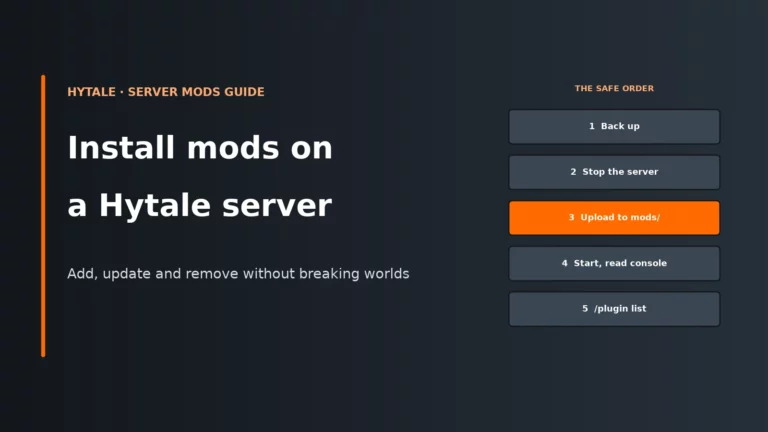
Later on, mods are simple: drop a .zip or .jar into mods/. Players do not need to install them manually on their clients. If you want the full process, see how to install mods on a Hytale server.
Quick symptom table
| Symptom | Likely cause | First fix |
|---|---|---|
| Unsupported class file major version 69 | Wrong Java version | Install Java 25 and confirm java --version starts with openjdk 25 |
| Players see version mismatch | Server and client are on different protocol versions | Run /update check, download and apply the update through the wrapper layout |
| Friend times out | UDP 5520 blocked or forwarded as TCP only | Open a firewall rule for UDP and forward UDP 5520 on the router |
| Works on LAN but not outside | Router forward or NAT issue | Verify the public address, UDP forward and consider a VPS if symmetric NAT is involved |
| Asked to authenticate after every restart | Persistence left in memory | Run /auth persistence Encrypted and keep the auth files safe |
| Config change reverted | You edited while the server was running | Stop the server, edit the existing file, then start again |
| Updater disabled | Wrong folder layout or wrong startup path | Use the wrapper layout with Assets.zip and scripts in the parent of Server/, or run /update setup |
| Anyone can op themselves | --allow-op left enabled |
Remove that launch option and op yourself from the console instead |
Step 8: decide whether to keep self-hosting or move
Once the server is working, the long-term question is not technical so much as operational: do you want to keep looking after the machine, network and updates yourself, or just manage the game? If you want a broader market view of managed options, our Hytale server hosting comparison is a useful next read.
| Choice | Best fit | What you gain | What you give up |
|---|---|---|---|
| Keep running at home | You have a spare PC, control of the router and steady uptime | Full control of files, no panel abstraction, easy local access | You handle power, restarts, port forwarding, firewall rules and update discipline |
| Move to a VPS | You want a public internet host without game-panel limits | Clean public networking, no home NAT problems, flexible OS-level control | You still manage Java, auth, updates, scripts and backups yourself |
| Rent a managed game server | You want the least maintenance for a private group | Panels often handle Java, startup, auth persistence and updates for you | Less low-level control and you work inside the host’s tooling |
If you would rather not babysit Java versions, wrapper scripts and router rules, managed panels can take a lot of the friction out of running a Hytale dedicated server for friends.
Compare the best Hytale server hostsHytale server FAQ
Can I host a Hytale server on my own PC?
Yes, as long as the machine has at least 4 GB of memory and Java 25, and you can leave it running when friends want to play. Home hosting works best when you control the router and can forward UDP 5520 cleanly. The trade-off is that you become the person maintaining updates, auth persistence and uptime.
What port does a Hytale server use?
By default it binds to port 5520. The important part is that Hytale uses QUIC over UDP, so open and forward UDP 5520 rather than TCP. You can change the port with --bind if you need to.
Why do I have to authenticate my Hytale server again after a restart?
That usually means auth persistence was not set to encrypted storage. After the first successful /auth login device, run /auth persistence Encrypted so the credentials survive restarts. Keep auth.enc and auth.key private, because they are part of that saved state.
Why can’t my friends join my Hytale server?
The first thing to check is UDP 5520, because the most common mistake is allowing or forwarding TCP only. If local players can join but internet players cannot, look at the router forward, firewall rule, public address and NAT type. If players see a version mismatch instead of a timeout, update the server immediately so the protocol matches the client.
How do I update a Hytale dedicated server?
Use the built-in update commands from the server console: check, download, then apply with confirmation. The wrapper scripts are what make apply work cleanly, because the server exits with code 8 and the script performs the file swap and restart. For a private group, AutoApplyMode set to WhenEmpty is usually the best balance between staying current and not interrupting a session.
More Hytale server help
Add mods once it runs, or compare hosts that handle Java, sign-in and updates for you.
Written for Hytale Early Access Update 7 (version 0.7). Commands, ports, folder layouts and update settings come from Hypixel’s official Hytale Server Manual (updated 12 October 2026), with the config.json and admin commands taken from current host documentation.