Abiotic Factor Dedicated Server Requirements and RAM Guide
Abiotic Factor is a light server to host: a full group of six runs comfortably on 4-8GB, and fast CPU cores matter more than a big memory plan. Here is what actually uses RAM and CPU as your team opens up the facility, how much to buy for your group, mods and progress, and which hitches a bigger plan will not fix.
Use 2-4GB for very small groups, 4GB for most progressing co-op servers, and 4-8GB for a full group. Go to 8GB+ for mods or experiments, not by default.
Abiotic Factor leans on single-core speed more than big memory pools. A plan with 4 fast cores is the sensible target.
The dedicated server installs at about 3.3GB. Leave extra room for the world save, the mod cache and backups, which all grow over time.
The server supports 1-24 players, but more than 6 is not recommended and joining players get a warning. Extra slots do not automatically buy more performance.
The official docs do not give a server RAM requirement
The first thing to clear up is the common mix-up between the game client and the dedicated server. The Steam store lists 8GB minimum and 16GB recommended RAM for players’ PCs, plus the usual Windows and storage requirements, because that machine is running the full game client. It is rendering the world, loading assets for the player, and handling local simulation. A dedicated server does not do the graphics side, so those store numbers are not the figure to size a rented server by.
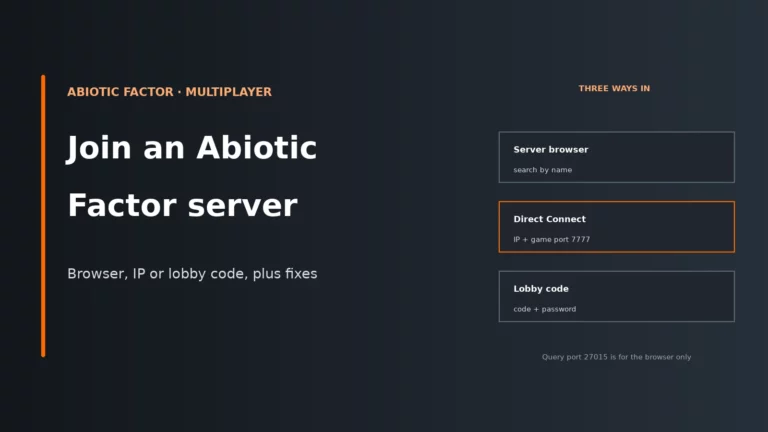
The official dedicated server documentation is much more useful for server buyers, and it says different things. The dedicated server is Windows-only, installs through SteamCMD with app 2857200, uses the normal game port 7777 and a query port 27015 for Steam advertising, and allows 1 to 24 players with more than 6 specifically not recommended. There is no official developer-published RAM target for the server itself.
login anonymous
app_update 2857200 validate

AbioticFactorServer-Win64-Shipping.exe -log -newconsole -useperfthreads -NoAsyncLoadingThread -MaxServerPlayers=6 -PORT=7777 -QueryPort=27015 -ServerPassword=... -AdminPassword=... -SteamServerName="..."
That lack of an official RAM figure is why host listings look so inconsistent. Some sell tiny plans, some sell oversized ones, and some label plans by slots instead of resources. Hosts measure an empty Abiotic Factor server at about 1.5GB right after it starts, but that is only an idle starting point. It tells you the process is lightweight at launch; it does not tell you what happens once the group has spread through the facility, opened more sectors, spawned more enemies and filled the world with deployables.
The chart below is the comparison worth keeping in mind: player-PC RAM on one side, actual dedicated-server RAM on the other.
If you are self-hosting, note one more detail from the docs: for LAN discovery the game uses 14001, while internet hosting still revolves around 7777 and, ideally, 27015.
What actually uses the resources as your run progresses
Abiotic Factor stays fairly light because the server is mostly simulating world state, enemy behaviour, inventory and player actions. The important part is that the cost does not rise from player count alone. It rises from what the server has to keep active at the same time.
Use the matrix below as the quick read on what each driver costs most heavily.
| What grows | RAM | CPU | Disk and saves | Network |
|---|---|---|---|---|
| Players online | Partly | Yes | Partly | Yes |
| Team spread across sectors | Yes | Yes | Partly | Yes |
| Enemies (difficulty, spawn rate) | Partly | Yes | No | Partly |
| Base deployables | Partly | Partly | Yes | No |
| Mods | Yes | Partly | Yes | No |
| Uptime since restart | Yes | Partly | No | No |
Players online
More players mean more character movement, more inventories, more interactions, and more world updates to send out. That raises CPU time and bandwidth use. On its own, a jump from a tiny group to a full group is still manageable; the bigger issue is what those extra players are doing to the rest of the world simulation.
How spread out the team is
This is the hidden resource driver. The server keeps sectors of the facility loaded around active players, so a close group often behaves like a small, tidy workload while a scattered group forces the server to keep much more of the map alive at once. That costs RAM for loaded state, CPU for ticking actors and AI across those sectors, and more save work later.
Enemies and sandbox settings
GameDifficulty changes how many enemies may be present in some areas. On Normal, dynamic difficulty can also step up pressure when more players are present; harder modes override that. EnemySpawnRate pushes respawns faster, and MaximizeEnemySpawns turns on all spawn points regardless of difficulty or player count. All of that lands mainly on CPU, because enemy AI and pathing are recurring simulation work on the server’s main loop. The player trade-off is obvious: fewer active enemies usually means smoother server behaviour, but it also makes the world less busy and less dangerous.
Base deployables and loot respawn
Every deployable is extra world state to keep, replicate and save. LootRespawnEnabled also increases how much the world can repopulate over time. These settings cost some RAM and some save-time disk work, and they can stretch restart times as the save grows. Players usually feel this less as a single dramatic lag spike and more as a slow drift towards a heavier world.
Mods and uptime
Mods add files to load, sometimes more assets to keep available, and occasionally more scripted behaviour. That raises disk use at startup, can raise RAM use during play, and gives you more moving parts to troubleshoot. Long uptime matters too: server owners regularly find the process gets hitchier after being left up for days, which is why a scheduled daily restart is common.
RAM guide by group size
If you are renting for a normal co-op group, buy for the world you will actually run, not the most expensive label in the list. For Abiotic Factor, RAM is a floor, not usually the main ceiling.
| Group | RAM | CPU note | What to watch |
|---|---|---|---|
| 1-2 players | 2-4GB | Fast single-core speed still matters more than extra RAM. | If it only pauses on sector or portal travel, that is not a RAM signal. |
| 3-4 players | 4GB | A sensible vanilla baseline with enough room for a progressing save. | Watch what happens when players split up, not when everyone stands in one room. |
| 5-6 players | 4-8GB | Start at at least 4GB and prioritise a plan with decent CPU. | Check live memory with the full group online and the facility partly opened up. |
| Mods or experiments | 8GB+ | Useful when the world is more complex, the mod set is larger, or you plan to push beyond the recommended group size. | Longer starts, steady memory growth and heavier saves are the usual warnings. |
A vanilla server for up to 6 does not need 16GB. The process simply is not that memory-hungry in normal use, and the pain points people describe most often are CPU-side simulation pressure and dedicated-server loading pauses between sectors. Buying far more RAM than the server can meaningfully use does not make the main thread faster and does not remove portal hitches.
Where 8GB+ does make sense is when you deliberately move away from a normal vanilla co-op setup: mods, a heavily explored and built-up world, ignoring the recommended player count, or a self-rented Windows VPS where the operating system takes a slice of the same memory pool before the game even starts. The right way to size RAM is to watch the server with players online in a mature save, not to read the idle figure on a fresh boot.
CPU matters more than big RAM plans
Abiotic Factor is one of those servers where single-core speed matters more than piling on extra cores. The reason is simple: a lot of the important work has to be coordinated in order. Keeping loaded sectors in sync, stepping AI, resolving player interactions, updating inventories and streaming world state out to clients all lean heavily on the server’s main simulation thread. Extra cores help with supporting work, but they do not turn the whole workload into a perfectly parallel one.
The official launch line includes -useperfthreads, which forces the server to use performance threads on the CPU and is currently recommended. That can help the process make better use of the processor overall, but it does not change the core buying rule: choose fast cores first. As a practical target, plan around 4 fast cores.
- CPU trouble usually looks like: combat or busy areas getting rougher as more enemies are active, trouble appearing when players spread across the facility, and slow-down that tracks with activity rather than with total memory use.
- RAM trouble usually looks like: the server feeling fine early on, then growing heavier as the world expands or the mod list grows, with memory staying high through the session.
- Sector-loading behaviour looks different again: short pauses tied to portal or sector travel, even when CPU and RAM are not obviously maxed out.
The official server build is Windows-only. If you rent a Windows VPS yourself, the operating system lives inside the same plan: Microsoft’s minimum for Windows Server 2022 is 512MB of RAM for Server Core or 2GB with the Desktop Experience, plus 32GB of disk, all before the game starts. That is why a self-rented Windows VPS can feel tighter than a game server plan with the same headline RAM. There is no native Linux build, so on Linux the server only runs through Wine. For a broader view of how to compare light and heavy server workloads, see our general game server hardware requirements guide.
A GPU is not part of the server equation here. The dedicated server is not rendering the game world, so spend the budget on CPU quality, enough RAM headroom and a sensible storage setup instead.
Player slots do not tell you how big the server is
-MaxServerPlayers allows anything from 1 to 24, but the documentation also says increasing the count above 6 is not recommended and players see a warning when they join. That should tell you how to read slot plans: a higher slot number is a limit on who may connect, not proof of more CPU or RAM behind it.
This is where buyers overspend. A 12-slot or 24-slot plan can look like the “serious” option, but Abiotic Factor does not suddenly become a better server because the plan label shows more spaces. If the underlying CPU is the same and the server still only needs a modest memory pool, those extra slots are mostly a pricing choice, not a performance upgrade. Our explainer on slots versus RAM pricing is useful if you are choosing between those two plan styles.
There is no official per-player bandwidth figure. What you can say is that more players and more active sectors mean more world state to send, while a group staying close together is usually lighter than the same group scattered across the facility. If only one player lags while everyone else is fine, that points to their connection rather than the server.
Disk space, saves and mods
The dedicated server install is about 3.3GB, with a download under 1 GB, so raw install size is not the problem. Disk planning matters because the world save grows, the mod cache grows, and backups grow. That is why “enough disk” for Abiotic Factor really means enough room for the install plus the lifecycle around it.
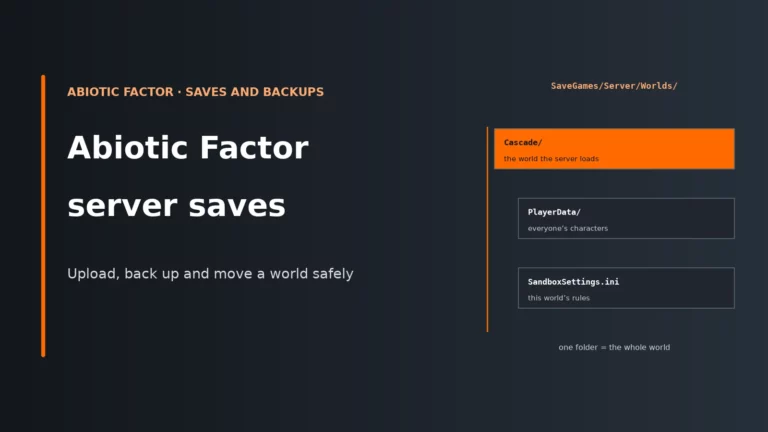
The default world save name is Cascade. Sandbox settings are created per world, while admin settings sit in the server save area. If you are managing files directly, these are the key paths:
AbioticFactor/Saved/SaveGames/Server/Worlds/<world>/SandboxSettings.ini
AbioticFactor/Saved/SaveGames/Server/Admin.ini
AbioticFactor\Saved\mod.io
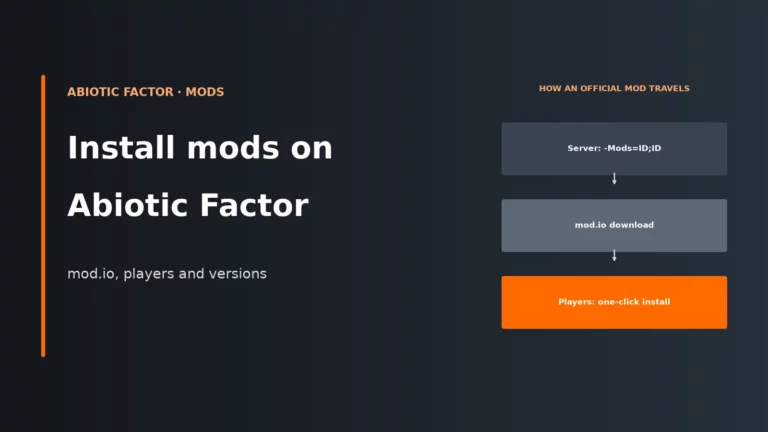
Mods are handled through mod.io parameters such as -Mods= and -ModioToken=. The token matters because, without it, the server re-downloads the mods every time it starts. That wastes startup time, disk activity and bandwidth for no gain. The default -ModInstallTimeout is 900 seconds, which is there to stop a bad or slow mod install from hanging forever; if a large mod set keeps colliding with that timeout, the issue is the mod startup process, not your in-game performance.
The trade-off with a larger mod set is straightforward: more convenience or more content for players, but longer restarts, more storage churn and a bigger memory footprint. Keep the mod list lean unless the group genuinely wants those additions. For the setup steps themselves, use our Abiotic Factor server mod guide.
Backups are part of disk planning too. A healthy backup routine protects a growing save, but it also means extra copies of that save taking up space over time. If you are deciding how many backups to keep and where, our game server backups guide covers the trade-offs. One useful bonus from the official docs: Steam single-player or player-hosted saves can be moved to a dedicated server, but PS5, Xbox and Game Pass saves cannot.
Loading pauses that a bigger plan will not fix
One of the most important expectations to set is this: some Abiotic Factor dedicated-server hitches are not a hardware shortage. Community reports repeatedly describe pauses when moving between sectors or through portals even when CPU and RAM usage are low. That points to world streaming and synchronisation behaviour, not a simple lack of memory.
The setting that comes up most often here is -NoAsyncLoadingThread. When used, it forces the server to pause and load new assets or level sectors instead of loading them gradually in the background. The quickstart example line still includes it, but the developers’ own parameter notes now say it is optional and not recommended after feedback from server owners. If your launch line has it and players complain about long freezes when they enter new areas, remove it and restart.
- With it: the server stops and loads the new sector in one go, so everyone feels a clear pause.
- Without it: the server loads new sectors gradually in the background. The loading work is the same, it is just spread out.
The best practical mitigation is to keep the group closer together. That reduces how many sectors the server has to keep active at once and cuts down the amount of world state being streamed and swapped around. It does not “fix” the engine-side behaviour, but it reduces how hard you lean on it.
A scheduled daily restart is also worth it. Owners regularly find that the longer the process stays up, the more memory drifts and the hitchier the server becomes. The trade-off is a short planned interruption, but that is much better than unexplained roughness building up during prime play time.
Self-hosting, renting, and deciding when to tune instead of upgrade
The Steam store notes slightly higher CPU needs for the player who hosts a multiplayer session from inside the game, especially with several players. The same logic applies if you run the dedicated server on the same gaming PC you play on: the game client and the server share CPU time and RAM. That can work for a small group, but it makes resource spikes more obvious because both processes want the same machine at once. If you are weighing that against renting, our self-hosting guide lays out the trade-offs.
Before paying for a bigger plan, tune the workload you are creating. Abiotic Factor often responds better to a cleaner setup than to a huge RAM jump.
| Situation | Tune first | Upgrade when | Why this order works |
|---|---|---|---|
| The server only feels rough when players spread all over the facility. | Regroup and avoid exploring too many sectors at once. | Only upgrade if it still struggles when the group stays relatively close. | Spread-out play increases loaded sectors, which drives both CPU work and memory use. |
| Combat gets messy as the group grows. | Reduce enemy pressure through difficulty or spawn settings. | Choose stronger CPU if the group wants to keep higher pressure. | Enemy AI load is mostly CPU-side, not a RAM problem. |
| The save ran well at first, then got heavier later. | Check live memory with players online and review mods or excessive build clutter. | Move from 4GB to 8GB if the mature save is clearly memory-hungry. | Growth over time usually comes from world state, not from the base server install. |
| Restarts take too long on a modded server. | Add a mod.io token and trim the mod list. | Add more RAM or storage headroom only if the modded setup is a deliberate choice. | Mod startup is often a file and download issue before it becomes a runtime issue. |
| The server gets hitchy after being left up for days. | Schedule a daily restart. | Upgrade only if the problem returns quickly even after clean restarts. | Long uptime causes drift; a restart removes that variable cheaply. |
| A self-rented Windows VPS feels cramped before anyone joins. | Leave room for the OS or use a leaner Windows option. | Take a larger plan if the operating system is already eating too much of the available memory. | Windows overhead comes out of the same VPS resources as the server. |
For Abiotic Factor, compare CPU quality, real RAM allocation, backup options and mod handling before you pay for extra slots or oversized memory you do not need.
Compare the best Abiotic Factor server hostsWhat a plan for a full group costs
For a normal vanilla group of up to 6, the sensible end of the market is usually a plan with at least 4GB, not an oversized package built around slot count or headline RAM.
The full comparison on this site is the place to check how those suitable plans differ on backups, control panels and mod support once the basic hardware question is settled.
Symptom guide: RAM, CPU, sector loading or something else?
If players cannot connect at all, start with our guide to joining an Abiotic Factor server and fixing connection problems. The flow below and the table after it are for servers that already start and accept players.
| Symptom | Likely cause | First fix |
|---|---|---|
| Everyone gets a short freeze on portal or sector travel. | Dedicated-server loading behaviour, not necessarily missing hardware. | Keep the group closer together and do not assume a bigger RAM plan will cure it. |
| The server felt fine early on, then slowly got heavier as progress continued. | More loaded world state from exploration, building or mods. | Check live memory with players online; trim mods or move from 4GB towards 8GB if needed. |
| Problems appear when players split up across the facility. | Too many sectors loaded at the same time. | Regroup and reduce simultaneous exploration. |
| Busy fights feel worse as more players join. | CPU pressure from AI and dynamic difficulty increasing enemy load. | Lower difficulty or spawn pressure, and leave MaximizeEnemySpawns off. |
| The server gets hitchier after being up for days. | Uptime drift and memory growth. | Schedule a daily restart. |
| Mods re-download on every restart. | No mod.io token set. | Add -ModioToken= so the server keeps its mod cache. |
| Modded startup takes too long or stalls. | Large mod install workload or timeout pressure. | Trim the mod set and review -ModInstallTimeout, which defaults to 900 seconds. |
| Only one player is rubber-banding while others are fine. | That player’s connection, not the server. | Treat it as a client network issue before changing the server plan. |
| The server works locally but remote players cannot join. | The main game port is not forwarded correctly. | Check 7777 first. |
| The server runs but does not advertise properly on Steam. | Query port missing or blocked. | Open 27015; it is recommended even though it is not strictly required. |
| You bought a 12-slot or 24-slot plan and nothing improved. | Slots are a limit, not a performance resource. | Compare the actual RAM and CPU allocation instead of the slot label. |
| A small Windows VPS shows little free memory before anyone joins. | Windows overhead is consuming part of the plan. | Leave more headroom for the OS or use a larger VPS. |
Abiotic Factor server requirements FAQ
How much RAM does an Abiotic Factor server need?
For a normal co-op server, very small groups can fit into 2-4GB, most groups of 3-4 are fine on 4GB, and a full group of 5-6 usually sits in the 4-8GB range. Mods or experiments are the main reason to move to 8GB+. There is no official developer-published server RAM figure, so size by your live save and group behaviour rather than by the game’s PC store specs.
Is 2GB enough for an Abiotic Factor server?
It can be enough for a small, light setup, especially early on and with very few players. It is not the safe default for a full progressing group because the world gets heavier as more sectors are explored and more state has to be kept loaded. For a full co-op group, at least 4GB is the more sensible floor.
How many players can an Abiotic Factor dedicated server hold?
The server supports 1-24 players through -MaxServerPlayers. The important detail is that more than 6 is not recommended, and players get a warning when joining above that point. Raising the slot limit also does not automatically increase RAM or CPU capacity.
Does an Abiotic Factor server need a GPU?
No. The dedicated server is not rendering the world for a player, so a GPU is not part of the server requirement. Put the budget into CPU speed, enough RAM headroom, and sensible storage for saves, mods and backups.
Why does my Abiotic Factor server pause when players go through portals?
This is a known dedicated-server behaviour around sector and asset loading, and community reports show it can happen even when CPU and RAM are low. That is why buying a much bigger plan often changes nothing. Keeping players closer together helps reduce the amount of the facility the server must keep active at once, and removing -NoAsyncLoadingThread from the launch line lets the server load new sectors gradually instead of pausing.
More Abiotic Factor and server sizing guides
Compare Abiotic Factor hosts, set up mods and get your group connected.
Game updates, defaults and host panels change. Where your host’s current panel works differently from what is described here, follow the panel.