
How to Join Your The Isle Server
Evrima has no box for typing an IP, so getting onto a community server means passing three gates: finding it in the browser, reaching it on the right build and ports, and getting past the password, whitelist and queue. Here is how to join, and how to tell from the symptom which gate is stopping you.
All players must be on the evrima branch, the browser filter must be on Unofficial, and the exact server name matters because Evrima lists community servers by name through EOS, not by a typed IP.
A visible server can still reject joins if the client and server are on different patch builds, if the game port is blocked, or if QueryPort does not equal the actual game port.
Passwords only work when the password flag is on, whitelists only work when the correct SteamID64s are in the correct section, and a full server only admits new players through a working queue or a free slot.
Not in the list points to Gate 1. A join that dies after about 20 seconds points to Gate 2. A rejection after connecting points to Gate 3. Start there and stop changing the wrong thing.
The three gates to joining an Evrima server
Evrima has no box for direct IP join in the game menu because it asks Epic Online Services for a server list, then shows servers by name. That is why the name has to be exact and distinctive, and why the order matters: if EOS never lists the server, no password fix will help; if EOS lists it but the client is sent to the wrong port, whitelist edits will not help. Work the gates in order and each symptom becomes much easier to read.
evrima branchserver registered with EOS
Session Filter: Unofficial, exact name
UDP game port open
QueryPort = game port, queue port reachableSteamID64 in
WhitelistIDs, if the whitelist is ona free slot, or a place in the queue
- Not in the list: gate 1. Check the branch, filter and name before anything else.
- Listed, but the join dies after about 20 seconds: gate 2. Check the build and ports.
- Connects, then gets turned away: gate 3. Check Game.ini access settings.
Use the gate order as a rule: first confirm the server can be found, then confirm the client can actually reach it, then check the rules that decide who gets in.
Before anyone joins: what the owner should send players
Owners do not need to send a packet of technical details. Players only need the few bits that affect what they can see in the browser and what they can type when they click Connect.
| Item | Where the owner finds it | Why players need it |
|---|---|---|
| Exact server name | ServerName in Game.ini or the host panel’s server-name field |
Evrima searches by name in the browser. If the name is slightly wrong, players often assume the server is offline when it is not. |
| Password, if set | ServerPassword in Game.ini, but only if bServerPassword=true |
Players are prompted for it when they click Connect. A passworded server shows a lock icon. |
Branch: evrima |
The owner already knows which branch the server is running; players check it in Steam betas | A Legacy client and an Evrima server cannot see or join each other. A hordetesting client also cannot join a normal community Evrima server. |
| Community Discord, if any | The owner’s own community details | Useful for password changes, whitelist checks, restart notices and patch-day warnings. |
Do not send the RCON password to players. RCON is for admin access only. Also, players never type the game, queue or RCON ports into Evrima; ports matter to owners and hosts, not to the person clicking Join.
Step 1: put the game on the evrima branch
The Steam default branch called public is still Legacy for The Isle, and that old line was last updated in 2022. That catches people out because the game launches normally, but they then see the wrong server list, usually a mostly dead one or an empty one. hordetesting is also the wrong branch for a normal community server: that public test branch is for the developers’ official test servers, so a hordetesting client will not join a standard community Evrima server.
- Open Steam Library.
- Right-click The Isle.
- Open Properties.
- Open Betas or Game Versions & Betas.
- Select
evrima. - Wait for Steam to finish downloading the branch before launching the game.
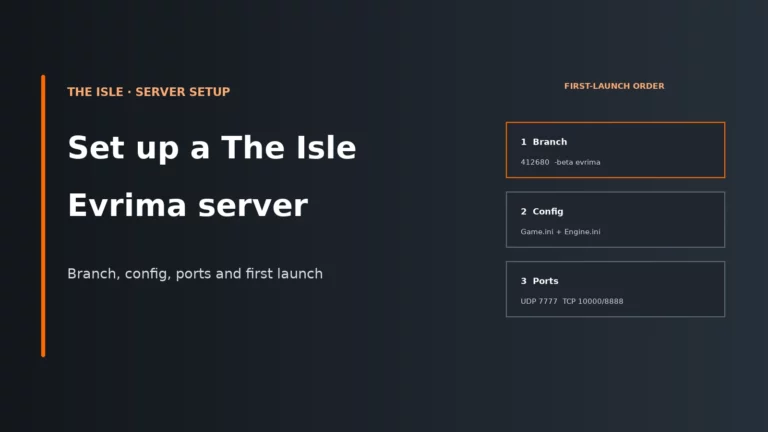
For owners, the same branch rule applies to the dedicated server app. If a self-hosted server was installed or updated without -beta evrima, it stays on Legacy and Evrima players get an instant version mismatch. If you need the full file locations, branch selection and EOS setup, use the dedicated server setup guide rather than redoing those steps from memory.
Step 2: find the server in the browser
This is the Gate 1 check. Since Evrima does not offer direct IP join in the menu, the browser entry itself matters. If the server never appears by name, the client cannot move on to anything else.
- Launch The Isle on the
evrimabranch. - Click Play.
- Open Session Filter and choose Unofficial.
- Type the exact server name in Filter By Name.
- Click Refresh.
- Select the server, click Connect, then enter the password if prompted.
Three small browser habits solve a lot of false alarms. First, clear any other filters, because a brand-new private server is often both empty and passworded, and some filters hide one or both states. Second, sort by Ping if the list is crowded; there is no max-ping slider in Evrima’s browser. Third, if a friend is already inside, the Steam friends list Join Game option and the in-game Friends filter are often quicker than a broad search.
A fresh restart is usually invisible for 2-5 minutes. The first part of that delay is the server loading the map; the second part is EOS registration. The process can be running and still not be listable yet, so restarting again during that window only resets the wait.
Pick a distinctive ServerName. Because EOS lists thousands of community servers by name, a generic name gets buried, while a unique one is easy to search exactly. If you change ServerName, the server needs a full stop, edit and start before players will find the new name.
If the list loads half-empty, Steam’s Server browser pings / minute setting under In Game can help; raise it or leave it on Automatic. If your self-hosted server starts but never appears at all, the usual cause is the missing or broken [EpicOnlineServices] block in Engine.ini, which the setup guide covers. If every server vanishes at once, that points to an EOS outage instead; there is nothing useful to change on your own server while that is happening.
Step 3: connect and get admitted
Once players can see the server and click Connect, the final gate is admission. Four things decide who is let in: the password, the whitelist, the player cap and the queue. All four live in Game.ini, and a single wrong flag or a SteamID64 in the wrong section is enough to block every join, so this is where to look when players can see the server but the server turns them away.
For a password to work, both parts must agree: bServerPassword=true and a matching ServerPassword value. If the flag is false, the password value is ignored. If the flag is true but players were given an old value, they get a lock prompt and then a rejection.
Whitelisting uses two places, not one. The switch bServerWhitelist=true belongs in [/script/theisle.tigamesession], while the actual WhitelistIDs belong in [/script/theisle.tigamestatebase], one SteamID64 per line. If the switch is on and the list is empty, everyone is refused. If the IDs are placed in the wrong section, the server silently ignores them.
When the server is full, MaxPlayerCount sets the cap and bQueueEnabled decides what happens next. With the queue on, players wait and see a queue position. With the queue off, they are simply refused until someone leaves. VIPs skip the queue, but they do not become admins. The official starter template sets MaxPlayerCount=100 and warns that going above 100 is unstable territory.
Edit Game.ini only while the server is stopped, because the server rewrites the file on shutdown. The file lives under TheIsle/Saved/Config/WindowsServer/Game.ini or TheIsle/Saved/Config/LinuxServer/Game.ini.
[/script/theisle.tigamesession]
ServerName=My Evrima Server
MaxPlayerCount=100
bQueueEnabled=true
QueuePort=10000
bServerPassword=true
ServerPassword="ChangeMe"
bServerWhitelist=true
QueryPort=7777

[/script/theisle.tigamestatebase]
AdminsSteamIDs=76561198000000001
WhitelistIDs=76561198000000002
WhitelistIDs=76561198000000003
VIPs=76561198000000004
The matrix shows who gets in under each rule, so you can separate a password problem from a whitelist or capacity problem before touching ports or branches.
| Server state | Regular player | Whitelisted player | VIP |
|---|---|---|---|
| Free slot, no password or whitelist | Yes | Yes | Yes |
| Password on, player has it | Yes | Yes | Yes |
| Whitelist on | No | Yes | – |
| Full, queue on | Partly | Partly | Yes |
| Full, queue off | No | No | – |
Two details trip owners up. A whitelist outranks the password: someone who knows the password but is not in WhitelistIDs is still refused. And the queue is not a slot reservation: with it switched off, a full server simply turns new players away until someone leaves.
If you need a connected player’s SteamID64 for whitelist or VIP entries, the RCON setup guide shows how to use playerlist safely. For the rest of the available keys around slots, queue and access, use the full The Isle server settings guide.
When the server shows but will not connect
Client Disconnected or a timeout after about 20 seconds
This is almost always Gate 2. The most common cause is patch mismatch: the player’s game app 376210 updates through Steam, while the dedicated server app 412680 stays on old files until the owner updates it. The browser entry can still exist, so players click, wait, and then get a timeout or Client Disconnected. Use the update and version mismatch guide to bring the dedicated server onto the same evrima build.
The other big cause is QueryPort not matching the actual game port. In Evrima, the browser can list the server but then hand the client the wrong socket address for the join, which leads to a dead wait and then a disconnect. Keep QueryPort equal to the bound game port from ?Port or -Port; Evrima ignores -QueryPort on the command line, so fixing only the launch line is not enough. For self-hosters, a blocked or unforwarded UDP game port does the same thing: the list entry exists, but the join traffic cannot reach the server.
Data Acquisition Failed
This usually points to the queue, not the world itself. With bQueueEnabled=true, the server runs its join queue on a separate TCP port, QueuePort, normally 10000, and the client has to reach that port before it is let in. If the port is closed, forwarded to the wrong place or not the one your host allocated, the client reports Data Acquisition Failed. Open or forward the queue port, use the mapped port shown by your host, or turn the queue off if you do not need it.
A server that has only just restarted can show it briefly too, and the backend has the occasional hiccup. If the queue port is fine, wait a minute and press Connect again before you rewrite any config files.
Player-side resets after a patch
If the owner has already updated the server and only some players still fail, have them let Steam finish, fully restart Steam, then verify the game files. Restarting Steam reinitialises Easy Anti-Cheat, and verifying replaces any file the update left half-written. Setting the PC clock to update automatically and allowing The Isle plus Easy Anti-Cheat through the firewall matter too: the login to the game backend fails if the clock is off, and a firewall that blocks the anti-cheat blocks the join.
Self-hosting owners only: ports, firewall and the home-network trap
If you rent a server, use the ports shown in the panel rather than assuming the defaults below. Rented services often remap them. If you self-host, these are the ports that matter on the router and firewall side.
| Service | Protocol and port | Who uses it | Why it matters |
|---|---|---|---|
| Game traffic | UDP 7777 (7777-7779 if you run several servers on one machine) | Every player’s game client, automatically | Players never type it, but all gameplay traffic arrives on it. Closed, and the server can be listed yet every join times out. |
| Queue | TCP 10000 | Players’ clients, when the queue is on | Needed when bQueueEnabled=true; if unreachable, queued joins fail with Data Acquisition Failed. |
| RCON | TCP 8888 | Admin tools only | For remote admin commands, never for ordinary players and never something they should be given. |
Forward these to the host PC’s static LAN IP and allow the same ports through Windows Firewall. If the forwarding points at the wrong local address, the server may seem fine inside the house while friends outside cannot reach it, or the reverse. More RAM or a faster CPU will not fix this; it is purely a network path problem.
The common home-network trap is NAT loopback, also called hairpinning. Without it, the PC or local network hosting the server cannot always come back in through the public address path that outside players use, so the owner thinks the server is broken while friends can join normally. Test from another machine or another network, such as a phone hotspot, before changing game settings.
If you are deciding between providers, panels that clearly show the selected branch, the mapped ports and a proper Game.ini file manager remove most of this friction. Our comparison of the best The Isle server hosts looks at exactly those panel details.
A control panel that exposes the branch, mapped ports and editable Game.ini values cuts out the usual join failures: wrong branch, hidden remapped ports and whitelist lines in the wrong place.
Symptom to gate: stop changing the wrong thing
Work down the flow until you hit the first no, then find the exact symptom in the table below it.
| Symptom | Gate | Likely cause | First fix |
|---|---|---|---|
| Server not in the list at all | Find | Player on Legacy instead of evrima |
Switch the client branch to evrima and let Steam finish downloading it. |
| Server not in the list at all | Find | Player on hordetesting |
Leave the test branch and select normal evrima. |
| Server not in the list at all | Find | Browser still filtered to Official | Set Session Filter to Unofficial and refresh. |
| Server not in the list at all | Find | Name search wrong or too generic | Search the exact ServerName; owners should use a distinctive name and restart after changing it. |
| Server not in the list right after a restart | Find | EOS registration still in progress | Wait 2-5 minutes and refresh; do not restart again inside that window. |
| Server never appears after self-hosting | Find | Missing or broken [EpicOnlineServices] block in Engine.ini |
Recheck the EOS block from the setup guide and restart once. |
| Every server disappears at once | Find | EOS outage | Wait it out; there is nothing local to repair. |
| Server is listed but join ends in Client Disconnected or timeout after about 20 seconds | Reach | Server is still on the older patch build | Update the dedicated server to the current evrima build. |
| Server is listed but join ends in Client Disconnected or timeout after about 20 seconds | Reach | QueryPort does not equal the game port |
Set QueryPort to the same value as ?Port or -Port, then restart. |
| Server is listed but join times out for outside players | Reach | UDP game port blocked or not forwarded on a self-hosted server | Forward the correct UDP port to the host PC’s static LAN IP and allow it in the firewall. |
| Data Acquisition Failed | Reach | Queue enabled but queue TCP port unreachable | Open or forward QueuePort, use the panel’s mapped port, or disable the queue. |
| Password prompt rejects the player | Admit | Wrong password, or password flag and value out of step | Check bServerPassword and confirm players were given the current ServerPassword. |
| Player has the right password but is still refused | Admit | Whitelist enabled and their SteamID64 is missing or in the wrong section | Check bServerWhitelist and the WhitelistIDs entries under tigamestatebase. |
| Server is full and player cannot get in | Admit | Queue disabled | Wait for a free slot or enable the queue if you want a waiting room. |
| Server is full and one player skips ahead | Admit | That player is in VIPs |
Nothing is wrong; VIPs skip the queue but do not gain admin rights. |
| Owner cannot join their own self-hosted server, but friends can | Reach | Router lacks NAT loopback | Test from another device or another network before changing any server config. |
The Isle joining FAQ
Can you direct connect to a The Isle Evrima server by IP?
Not from the normal Evrima menu. Community servers are listed through Epic Online Services, so players find them by name in the in-game browser instead of typing an IP and port. That is why the exact ServerName matters so much.
Why can’t I see my The Isle server in the server browser?
Start with Gate 1: check that the player is on evrima, the filter is set to Unofficial, and the exact name is being searched. If the server was just restarted, wait 2-5 minutes for map load and EOS registration. If it never appears after self-hosting, the EOS block in Engine.ini is the first server-side thing to recheck.
What does Data Acquisition Failed mean in The Isle?
Most of the time it means the server’s join queue is enabled but the queue TCP port is not reachable. The client can see the server entry, but it cannot complete the queue handshake on QueuePort. Less often, it is just a brief restart or backend hiccup, so one clean retry after a short wait is sensible.
How do I join a password-protected or whitelisted The Isle server?
For a passworded server, click Connect and enter the current password when prompted; the lock icon in the browser is the clue that a password is active. For a whitelisted server, the owner must have your SteamID64 under WhitelistIDs in the correct Game.ini section. Having the right password does not bypass a whitelist.
Why can’t I join my own The Isle server from the PC that hosts it?
If friends can join but you cannot from the same home network, the usual cause is NAT loopback on the router rather than a broken game server. Your outside path and your inside path are being handled differently. Test from another machine or a phone hotspot before editing ports or access settings.
More The Isle server guides
Compare hosts, set the server up properly, get through patch day and fine-tune who can join.
Game updates, Steam menus and host panels do change. If a label or button differs slightly, follow your host’s current panel and branch wording where it does the same job.