
How to Set Up and Use RCON on a The Isle Evrima Server
RCON is how you run a The Isle: Evrima server without joining it: restart warnings, kicks and bans, saves, AI and growth changes, whitelist control. Here is how to switch it on, which tools actually connect to Evrima’s own protocol, every command worth knowing, and what to check when the password is refused or commands do nothing.
Evrima uses a custom TCP RCON protocol, not Source RCON. A client can connect to the port and still fail because it is sending the wrong packet format.
RCON login checks only the password. AdminsSteamIDs is a separate in-game admin list under a different section of Game.ini.
Some RCON changes survive a restart and some do not. Treat Game.ini or your panel as the startup truth, then confirm what was written back after a clean stop.
Use harmless test commands first, moderate by SteamID64 rather than name, run save before restarts, and keep the plain-text RCON port locked down.
What RCON does on Evrima, and why your usual client will not connect
Evrima has no in-game admin console like Legacy had. If you want to announce a restart, read the player list, kick or ban, save the world, adjust AI, change growth, or toggle the whitelist without joining the game, RCON is the route the server exposes for that work.
The reason so many admin guides break down is that Evrima does not use Source RCON. Generic clients built for Source, Rust, ARK and similar games expect a different packet structure, so they either fail to log in, sit there with no reply, or claim success but never trigger anything on the server.
In plain terms, Evrima expects a very small custom TCP conversation: your client opens a TCP connection, sends a login message marked with 0x01 plus the password, and the server replies Password Accepted if that password matches. After that, each command is its own message marked with 0x02, followed by the command byte and any arguments separated by commas. That is why an Evrima-aware client matters.
One more common mix-up: the RCON password is not tied to Steam. The login message carries no SteamID, so AdminsSteamIDs and RCON solve different jobs. This is the in-game admin list, not the RCON login:
[/Script/TheIsle.TIGameStateBase]
AdminsSteamIDs=76561198000000000
So adding someone to AdminsSteamIDs does not let them use RCON, and removing them from it does not lock them out of RCON either. The RCON password is the only key, which is why it needs changing whenever an admin leaves.
Enable RCON in your panel or in Game.ini
There are two routes: use your host panel if it exposes RCON fields, or edit Game.ini directly if you self-host or your panel expects file edits. With rented servers, use the panel first if it offers RCON settings, because many panels write their own values back into Game.ini on every start. If you change the file only, the panel can quietly overwrite it.
The keys you need sit under [/Script/TheIsle.TIGameSession]:
[/Script/TheIsle.TIGameSession]
bRconEnabled=true
RconPassword=VeryLongUniqueRconPassword
RconPort=8888
Panel route: look for RCON enable, password and port fields, often on a Startup page or server settings page. Save there, restart if required, then copy the server IP, the RCON port and the password from the panel’s server details. Do not assume the port is 8888 on a rented machine; some hosts offset the RCON port from the game port.
Game.ini route: stop the server first, edit the file, save it, then start the server and wait until it has fully finished booting before you test. Evrima rewrites Game.ini on shutdown, so edits made while it is still running can be lost. On Linux the path is TheIsle/Saved/Config/LinuxServer/Game.ini. On Windows it is TheIsle/Saved/Config/WindowsServer/Game.ini.
| Port | Players need it | Admin tools need it | Open to the whole internet |
|---|---|---|---|
| Game: UDP 7777 (7777–7779) | Yes | No | Yes |
| Queue: TCP 10000 | Yes | No | Yes |
| RCON: TCP 8888 | No | Yes | No |
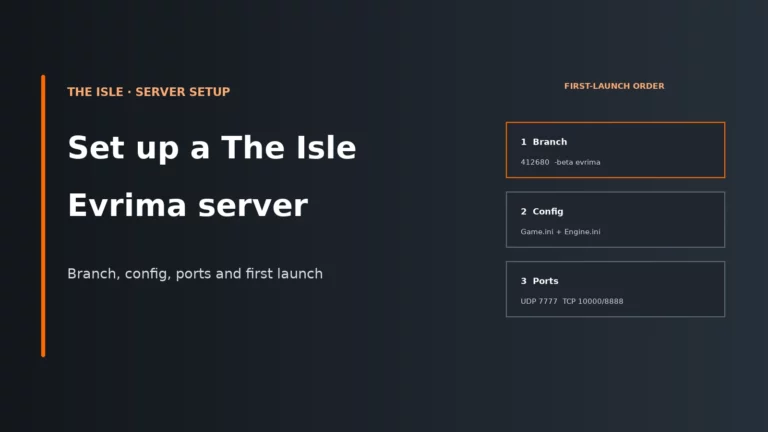
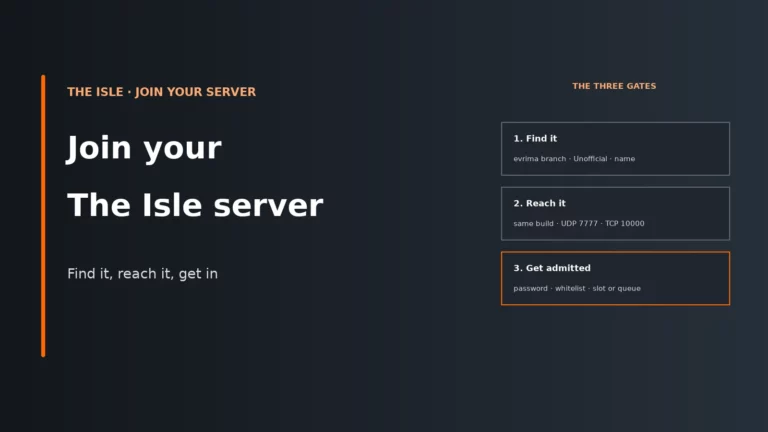
If you self-host, remember the split between ports. The game traffic is UDP on 7777 and the 7777-7779 range, the queue uses TCP on 10000, and RCON is its own TCP port. Mixing up the game port and the RCON port is one of the quickest ways to chase the wrong fix. For broader configuration work beyond RCON, keep a copy of your known-good file and compare it with the The Isle server settings guide.
Pick an Evrima-compatible client
You need a client that understands Evrima’s protocol, not just one that has “RCON” in the name. In practice there are four useful types.
- Desktop client: best if you want direct control from a Windows PC, a clear connection window, and a quick way to send one-off commands. Community tools such as The Isle Evrima Server Tools are built for this job.
- Browser-based panel: useful if multiple admins need access from different devices, but it means a third-party service is storing or relaying your RCON password.
- Discord bot: handy for routine announcements, staff workflows and quick moderation, as long as the bot itself is trusted and kept under a small admin group.
- Host panel console: simplest when your provider includes one, because the IP and port are usually pre-filled and version changes are easier for the host to smooth over.
The trade-off is security versus convenience. A local desktop client keeps the plain-text password in fewer places. A browser tool or bot makes access easier, but each extra service is one more place that password can leak or be forgotten when staff change. If you use a third-party panel or bot, give it a dedicated RCON password and rotate that password when an admin leaves.
Connect and test safely before you rely on it
Your client needs exactly three things: the server IP, the RCON port and the RCON password. It never needs the player join password or the game port.
- Wait until the server is fully started.
- Connect and look for
Password Accepted. - Send
serverdetails. - Then send
playerlist.
Those two test commands are harmless. serverdetails confirms the session is talking to the right server and can return current settings such as the name, map and player count. playerlist proves that command handling works and gives you the SteamID64 values you need for moderation.
If your commands work, build a restart routine around them: announce first, save before the stop, and only then perform panel actions or maintenance. That order reduces the risk of silent rollbacks because save forces a data write before you disturb the process.
RCON command reference for Evrima
Use lowercase command names exactly as your client expects them. They are case-sensitive, arguments are comma-separated, and there should be no spaces around commas. Players are addressed by SteamID64, not by character name. The example ID below, 76561198000000000, is the kind of identifier you should be using in live admin work.
| Group | Command | What it does | Example |
|---|---|---|---|
| Messages | announce |
Sends a server-wide message in a large text box. | announce Restart in a few minutes |
| Messages | directmessage |
Sends a private message to one player by SteamID64. | directmessage 76561198000000000,Please move away from the hotspot |
| Players and moderation | playerlist |
Lists connected players with SteamID64 and name, including character select. | playerlist |
| Players and moderation | getplayerdata |
Shows data for players who have spawned in, such as class, growth, health and location. | getplayerdata |
| Players and moderation | serverdetails |
Returns current server details including settings, map and player count. | serverdetails |
| Players and moderation | getqueuestatus |
Shows the queue state. | getqueuestatus |
| Players and moderation | kick |
Disconnects a player. They can rejoin unless other rules stop them. | kick 76561198000000000,Rule break warning issued |
| Players and moderation | ban |
Bans by SteamID64 with a reason and a length. Common tools use 0 for permanent, but field order and units differ by client. |
ban 76561198000000000,Serious rule breach,0 |
| Whitelist | togglewhitelist |
Turns the whitelist on or off live. | togglewhitelist |
| Whitelist | addwhitelist |
Adds one or more SteamID64 values to the whitelist. | addwhitelist 76561198000000000 |
| Whitelist | removewhitelist |
Removes a SteamID64 from the whitelist. | removewhitelist 76561198000000000 |
| World and AI | toggleglobalchat, togglehumans, toggleai, togglemigrations |
Toggles a live state. The reply ends with On or Off, which tells you the new result. |
toggleai |
| World and AI | aidensity |
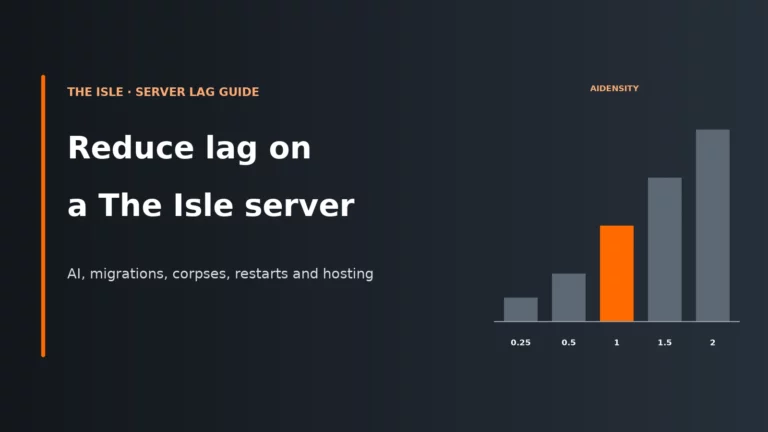
Sets the AI density multiplier. Lower values reduce AI simulation load; higher values increase it. | aidensity 0.5 |
| World and AI | disableaiclasses |
Blocks listed AI classes from spawning. Typos are silently ignored. | disableaiclasses Boar,Deer,Goat |
| World and AI | wipecorpses |
Removes all corpses immediately. | wipecorpses |
| Growth and species | getplayables |
Lists the current playable species set. | getplayables |
| Growth and species | updateplayables |
Replaces the whole playable species list. Unknown names are refused. | updateplayables Tyrannosaurus,Triceratops,Carnotaurus,Stegosaurus |
| Growth and species | setgrowthmultiplier |
Sets the growth multiplier. | setgrowthmultiplier 2.0 |
| Growth and species | togglegrowthmultiplier |
Turns the custom growth multiplier on or off. | togglegrowthmultiplier |
| Server | save |
Saves game data immediately. Use before restarts or risky changes. | save |
| Server | pause |
Toggles pause on the server. | pause |
| Server | toggleailearning |
Official servers only. | toggleailearning |
Two rules prevent a lot of wasted moderation time. First, use SteamID64, never names, because names change and can be duplicated. Second, ignore old Legacy admin lists that mention commands such as teleport, goto, bring, spawn or slay; those are not Evrima RCON commands.
Kicks, bans and the whitelist in real admin work
The reliable flow is simple: run playerlist, copy the SteamID64, then act on that ID. If you need more context on someone already spawned in, use getplayerdata. The difference matters because playerlist includes people still sitting on the character select screen, while getplayerdata does not.
Kick or ban?
kick is the low-risk moderation tool. It ends the current session, costs almost nothing beyond a short disconnect, and lets you intervene fast while you confirm reports. ban is stronger, and Evrima’s RCON list does not include an unban command, so do not treat permanent bans casually. If you are unsure, a timed ban is safer: it lifts itself, while a permanent ban has no RCON command to undo it.
Whitelist toggles need discipline
togglewhitelist flips state live, which is useful for events or a short maintenance lock, but it also makes mistakes easy because the command does not ask “are you sure?”. Send it once, confirm the reply, then immediately add or remove the required IDs. If you are preparing for an event, set the list first and only then enable the whitelist, otherwise players can be locked out before the approved list is ready.
Which live changes last, and when to go back to Game.ini
Think of RCON as a live control layer and Game.ini or your panel as the startup layer. Some live changes are written back by the server and some live only in memory until the next restart. Because that behaviour is not uniform, the safe rule is this: after any live change you want to keep, perform a clean save, stop the server normally, then inspect the panel or Game.ini before your next session.
| Change made through | Takes effect now | Still there after a restart |
|---|---|---|
| Game.ini edited while stopped | No | Yes |
| Game.ini edited while running | No | No |
| Host panel field | No | Yes |
| RCON command | Yes | Partly |
This matters most for settings you may tweak under pressure, such as AI, growth, playable species and whitelist state. If the new value is not present after a clean stop, the next restart will revert it even if the server appeared to accept the command earlier. The reverse is also true: if a panel rewrites startup settings, it can undo a live change the moment the process starts again.
Keep your own saved copy of a known-good configuration, especially before patches. Updates can reset or alter Game.ini, so it is worth comparing the file against your expected settings after major changes. If you want the wider context of what lives in the config file, the settings guide for The Isle servers is the right companion piece.
Keep RCON secure, because Evrima sends it in plain text
Evrima’s RCON protocol is not encrypted. The password travels in plain text, so the main defence is not a clever setting inside the game; it is reducing who can see or relay that password and where the port is exposed.
- Use a long, unique RCON password. Do not reuse the player join password. Anyone who knows the join password has a reason to share it; that should never also open admin control.
- Restrict the TCP RCON port if you self-host. The best setup is a firewall rule that allows only your own IP, or use the same machine or local network so the port never needs broad public access.
- Rotate the password when staff change. Browser dashboards, Discord bots and old screenshots all become liabilities once a former admin still knows the current password.
- Be wary of public brute-force attempts. Password-guessing scripts aimed at open RCON ports are openly shared, so a short or reused password is an avoidable risk.
If you rely on a third-party panel or bot, assume the password exists outside your direct control. That does not make those tools unusable, but it does mean you should treat the password as a service credential: unique, rotated and given only the access it needs.
Troubleshooting RCON failures in the right order
Do not start by changing random ports or rewriting half the config. Check in this order: confirm you are using an Evrima-compatible client, confirm the exact IP and RCON port from the panel, confirm RCON is enabled and the server has fully started, then confirm the password and any firewall rules. Only after that should you look at command syntax.
| Symptom | Likely cause | First fix |
|---|---|---|
| Connection refused or timeout | RCON disabled, wrong port, server not fully started, TCP blocked by firewall, or panel values overwrote the file | Check the panel’s RCON details first, then confirm bRconEnabled=true and wait for full startup before reconnecting |
| Password rejected | Case-sensitive mismatch, stray spaces or quotes in Game.ini, panel field overriding the file, or no restart after changing it |
Re-enter the password exactly as stored in the panel, then restart and test again |
| Connects but commands do nothing | Source RCON client instead of an Evrima client | Switch to an Evrima-compatible desktop tool, bot, browser panel or host console |
| Command accepted but no effect | Wrong casing, player name used instead of SteamID64, typo in a species or AI class, or a Legacy-only command | Run playerlist for the correct ID, then retry with exact lowercase command names and known class names |
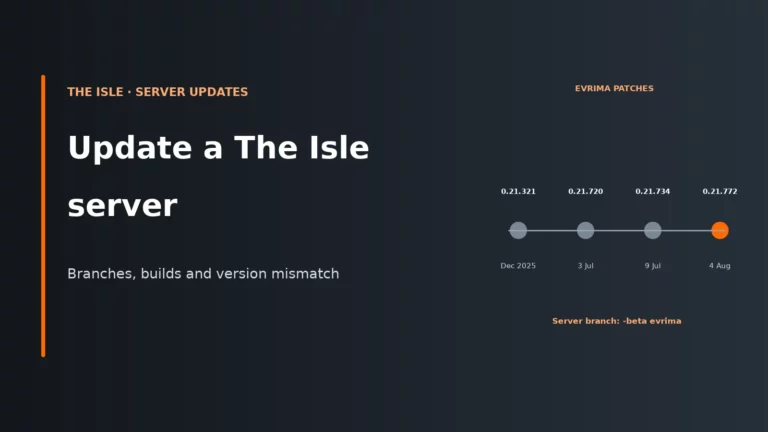
| Commands broke after a patch | Command names or forms changed, or the client tool is out of date | Update the client and compare your server version with a current The Isle update and version mismatch guide |
Short patch-day routine
After an update, expect three failure points: the game server version, the client tool version, and config values being reset or rewritten. Confirm the server is updated, re-check the panel’s RCON details, then test with serverdetails and playerlist before opening up fully. If players are reporting mismatch or queue issues, work through the version mismatch guide for The Isle before assuming RCON itself is broken.
Short busy-night routine
If the server is struggling at peak time, cut AI work first, because AI is the biggest load you can change live. A practical sequence is a short announce, then aidensity 0.5, then wipecorpses, then save. Halving AI density means fewer AI creatures for the server to simulate, wiping corpses clears objects the server is still tracking, and saving protects progress before you change anything else. Players pay for it with fewer AI encounters and no carcasses to scavenge, so tell them why in the announcement. If the rubberbanding reports stop, it worked. For deeper tuning, use the guide to reducing lag on a The Isle server.
What to check in a host if RCON matters to you
If you are choosing between providers, treat RCON support as a practical admin feature, not a marketing bullet. What matters is how clearly the host exposes the values, whether the panel overwrites the config, and how easy it is to run routine admin actions without juggling extra tools.
| Check | Why it matters |
|---|---|
| RCON enable, password and port are visible in the panel | You can verify the live startup values instead of guessing what was written into Game.ini. |
The panel makes it clear when it overrides Game.ini |
This avoids the common loop where file edits vanish on restart. |
| Built-in RCON console or clear support for Evrima-compatible tools | You need protocol compatibility, not just a generic “RCON supported” label. |
| Easy access to server IP and the exact RCON port | Some rented servers do not use the template port, so the displayed value matters. |
| Scheduled announcement or restart tasks | Automated announce messages keep maintenance tidy and reduce last-second player confusion. |
| Firewall or access controls for self-managed instances | RCON is plain text, so limiting who can reach the TCP port is part of basic admin hygiene. |
| Responsive update handling | Patch days are when RCON confusion and version drift show up first. |
If your current setup hides the RCON port, rewrites your config without warning, or leaves you guessing on patch day, it is worth comparing hosts that expose server details properly and make remote admin work simpler.
Compare the best The Isle server hostsThe Isle RCON FAQ
What port does The Isle RCON use?
The template value is 8888 over TCP, set with RconPort under [/Script/TheIsle.TIGameSession]. On rented servers, do not assume that value is still in use; always copy the RCON port shown in the panel’s server details.
Why won’t mcrcon connect to my The Isle server?
Because Evrima does not use Source RCON. Tools such as mcrcon and similar generic clients speak the wrong packet format, so they may time out, reject the login, or connect without any useful command handling. Use an Evrima-compatible client instead.
Do I need to be in AdminsSteamIDs to use RCON?
No. RCON login checks only the RCON password, and the login message does not carry a SteamID. AdminsSteamIDs is a separate list for in-game admin privileges, so a person can have one without the other.
How do I unban someone on The Isle Evrima?
Evrima’s RCON command list does not include an unban command. That is why timed bans are the safer choice when you are not fully sure of the outcome you want. Ban for a set length when you are not certain, and keep permanent bans for clear-cut cheating.
Do RCON changes stay after a restart?
Some do and some do not. Treat live RCON changes as temporary until you have done a clean stop and checked what the server or panel actually wrote back to Game.ini. The startup values in the panel or config file are what the server reads next time it launches.
More The Isle server guides
Compare hosts, tune Game.ini, fix lag or get through patch day.
After every Evrima patch, run serverdetails and playerlist before you rely on RCON for moderation. If either fails, update your RCON tool first: command forms can change between game updates.