
How to Set Up a Space Engineers Dedicated Server
Getting a Space Engineers dedicated server running is the easy part; undoing the wrong early choices can cost you a whole world. This guide walks through the decisions in the order that matters: where it runs, Steam or crossplay, the world, limits and admins, then mods and upkeep.
Own PC in Local/Console mode is simplest but needs manual starts. A Windows service survives reboots. A managed game server removes most Windows admin work but you still choose the world, network type and limits.
Steam network is PC-only and can use Steam Workshop. EOS with Console Compatibility is for PC plus console, but it means mod.io-only mods, a total mod size ceiling and block limits must be enabled.
Mods belong to a world, not to the server as a whole. Create or import the save first, stop the server, then add mods and world-specific settings to the correct file.
Use clean stops, automatic restarts and backups before mod or plugin changes. Most painful server problems are save-related, not install-related.
1) Pick the hosting route that matches your tolerance for admin work
Space Engineers has two broad ways to host online play. A player-hosted world is just a normal game session opened to others; that world stops when the host leaves, and the host PC does the simulation while also rendering the game. A Space Engineers dedicated server is a separate free program that hosts the world without being a player and without rendering graphics, so the machine can spend its effort on simulation instead.
For a group that wants an always-available world, the dedicated server route is the one to use. It is Windows-only, does not need a graphics card, and does not require you to own a game licence to download or run it. If you are comparing rented options rather than managing Windows yourself, our Space Engineers server hosting comparison is the quickest way to narrow that down.
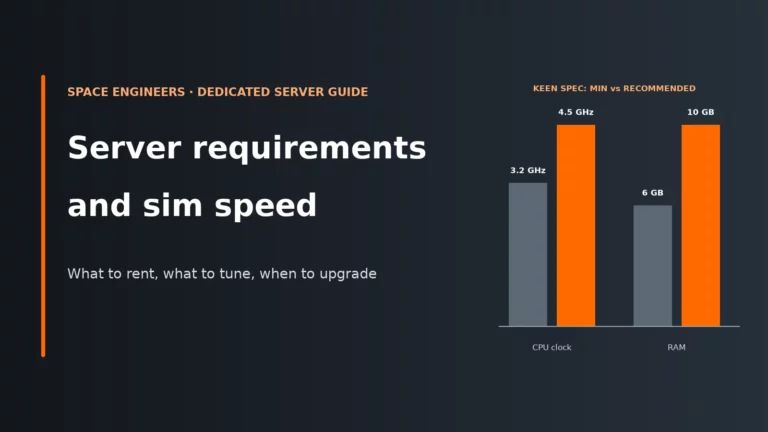
Keen’s own minimum is a 3.2 GHz CPU with 3 logical cores and 6 GB RAM, with a recommended 4.5 GHz CPU, 3 logical cores and 10 GB RAM. Below the minimum the server still runs, but it forces Experimental mode on, which hides it from console players in safe mode. Disk use starts at roughly 8 GB for the dedicated server itself, then grows with logs, saves and mods. For what that hardware means in practice and how simulation speed behaves under load, read our Space Engineers dedicated server requirements and sim speed guide.
Use this route comparison to decide how much uptime you need and how much hands-on work you are willing to do.
| What you get | Own PC: Local/Console | Own PC or Windows box: service | Rented game server |
|---|---|---|---|
| Comes back by itself after a reboot | No | Yes | Yes |
| Several worlds on one machine | No | Yes | – |
| Windows, firewall and ports handled for you | No | No | Yes |
| You choose network, world, limits and mods | Yes | Yes | Yes |
- Own PC, Local/Console instance: fastest first setup, good for learning the menus and checking that the world loads, but it stops when the PC reboots and someone must start it again. Best for temporary use.
- Own PC or rented Windows machine, service instance: more setup, but it runs in the background and comes back after a reboot. Best if you want proper uptime and are comfortable looking after Windows, updates and networking.
- Managed game server with a panel: the host has already installed the dedicated server and usually wrapped the files in a control panel. Least operating-system work, but you still make the important server choices yourself.
2) Decide now: PC-only on Steam, or crossplay on EOS
This is the most common early mistake. People build a world, add Workshop mods, invite friends, and only then realise that console players cannot join it. On a dedicated server, crossplay is not a small toggle you can ignore until later; it changes the network, the server browser, the mod source and the rules the world must obey.
Steam network is the simpler route if your group is entirely on PC and you want the broadest mod choice. The server appears in the Steam server list, and you can use Steam Workshop mods as well as mod.io mods. EOS with Console Compatibility is the crossplay route for PC, Xbox and PlayStation. Players must switch the in-game Join Game list to EOS to see it, and mods must come from mod.io.
The trade-off is not just convenience. Console Compatibility is automatically disabled in the dedicated server GUI if the total mod size goes over 3 GB or if PCU Block Limits are not set. That is why the network choice needs to come first: a crossplay server needs a mod plan and a build-limit plan from day one.
Also note two practical points. First, mods no longer require Experimental mode, so there is less reason than before to force experimental settings just to run a modded server. Second, experimental dedicated servers are hidden from console players in safe mode unless they switch on Experimental mode at their end, so conservative settings make a crossplay server easier to join.
Use the diagram below to follow the right branch before you create the world.
- Choose Steam if everyone is on PC, you want Workshop access, and you do not need console players or EOS listing.
- Choose EOS + Console Compatibility if any player is on Xbox or PlayStation, or if you need one shared server for mixed platforms. Expect mod.io-only mods and make sure block limits are enabled from the start.
- For crossplay mods: console players can still benefit from Programmable Block scripts if in-game scripts are enabled, and from mods with server-side scripts. Mods that need client-side scripts will not work properly for console players.
3) The choices that are cheap now and expensive later
These are the decisions worth slowing down for. None of them is difficult to click through, but changing them after the group has started building often means rework, confused players or save-file surgery.
| Choice | When to decide | What it locks in | Cost of changing later |
|---|---|---|---|
| Hosting route | Before install | Who looks after Windows, restarts, ports and backups | Moving from an own-PC setup to a service or rented host means exporting the world, rebuilding settings and teaching players a new address |
| Network type: Steam or EOS | Before adding mods | Which server list players use and which mod service the world can rely on | Changing later can mean replacing every Workshop mod, rechecking compatibility and guiding players to a different browser list |
| Console Compatibility | Before building for crossplay | Whether console players can see and join the server | If you ignore it, you may need to cut mod size, enable limits and clean up settings after the world already exists |
| World source: scenario or imported save | Before mod setup | The starting map, progression state and existing grids | Switching later usually means abandoning progress or doing a full save import and retest |
| PCU and block limit policy | Before first join | How much protection the server has against runaway building and, for crossplay, whether Console Compatibility stays valid | Raising limits is easy; lowering them later means players must delete ships or stations to fit under the new cap |
| Privacy method | Before sharing the server | Who can find it and how they join | Changing from open to private is simple, but changing from a Steam-group workflow to a crossplay-friendly one can disrupt who can even see the listing |
A managed panel is usually the easiest path if your aim is a stable group world rather than maintaining a remote Windows box yourself. You still control the important game settings, but the host handles the base service setup.
Compare the best Space Engineers server hosts4) Self-managed setup: own PC or rented Windows machine
This route gives you the most control, but it also means you own the boring parts: Windows updates, restarts, firewall rules, backups and remote access. The dedicated server needs Windows, .NET Framework 4.8 and the Visual C++ 2017+ x64 redistributable. Linux only works through unofficial Wine setups, which Keen does not support.
Install the dedicated server
If you own Space Engineers on Steam, you can install the dedicated server from the Tools section of your Steam library. If you want a clean standalone install, use SteamCMD with anonymous login and app ID 298740:
steamcmd.exe +login anonymous +force_install_dir "D:\SEDS" +app_update 298740 +quit
Then run DedicatedServer64\SpaceEngineersDedicated.exe. On a first pass, choose Local/Console, continue to server configuration, set the basics, name the server, then save and start. This is the quickest way to confirm that the program launches and the world can generate before you turn it into a background service.
Why Local/Console is only a first step
Local/Console runs as a normal foreground process. That makes it easy to see logs and test settings, but it stops when the machine reboots and only one can run at a time. If you want reboot survival, run the tool as Administrator, use Add new instance, give it a unique name, and create a service instance instead. A service runs in the background and can come back automatically after a restart.
Each instance must use its own port. The default listen port is UDP 27016, but if you run more than one world on the same machine, each needs a different game port so incoming traffic reaches the right instance instead of colliding at the network layer.
Ports, firewall and what not to expose
For internet players on a home connection, forward incoming UDP 27016 from your router to the server PC, and add a Windows Firewall rule allowing incoming UDP on that same port. A static public IP is optional but useful, because players often store servers by IP in favourites and history. Leave Listen IP at 0.0.0.0 unless you specifically need to bind to one interface; the default tells the server to listen on all available network interfaces, which avoids choosing the wrong adapter on a typical single-connection machine.
The dedicated server also has a Remote API option, with a default port of 8080 and a private security key. Do not enable or open that unless you actively use it. Anyone who obtains the key can control the server, so exposing it “just in case” increases risk without helping normal player joins.
5) Rented game server setup: what the host already did, and what still matters
With a managed game server, the provider has normally done the operating-system side already: Space Engineers Dedicated Server is installed, the service is created, and the machine-level networking is in place. That removes the fiddly Windows work, but it does not remove the choices that shape the world.
You still need to decide the network type, whether Console Compatibility is on, which world to load, how private the server should be, who gets admin rights, and what restart and update behaviour you want. Those are gameplay-server decisions, not host-machine decisions.
The most common beginner mistake on rented servers is assuming the port must be 27016. It often is not. Because every instance needs its own port, hosts usually allocate whatever port belongs to your slot. Always share and join using the full address the panel shows, including its port, even if that looks unfamiliar.
Another common mistake is editing raw files too early. Start by using the panel fields for the first boot, because they usually write the correct places for you. Then stop the server before making manual edits. A running server rewrites its config on save, so changes made while it is live can be silently replaced by the old values.
Most panels expose both SpaceEngineers-Dedicated.cfg and the world’s Sandbox_config.sbc. That distinction matters. The top-level dedicated-server file holds server-level options and only seeds session settings for a new world. Once a world exists, the live session settings come from that world’s own save folder.
6) Create a new world or import an existing save
You can start from a scenario or bring in a single-player save. For a brand-new group, a fresh scenario is usually cleaner because you know exactly which settings the world started with. Importing an existing save is useful if the group has already been playing privately and now wants proper uptime.
To import a single-player world into a self-managed dedicated server, copy it from AppData\Roaming\SpaceEngineers\Saves into the dedicated server’s saves folder. For Steam-client installs, dedicated-server saves and logs live under %appdata%\SpaceEngineersDedicated\. Depending on how the dedicated server was installed, the save may instead live under ProgramData\SpaceEngineersDedicated.
Generate the world first, then add mods. Mods belong to the world, not to the dedicated-server program as a whole. A newly generated world starts without them, so the safe sequence is: create or import the world, confirm it loads, stop the server, then add mods to that world. This avoids the common confusion where people edit the server-level file and wonder why the existing save ignores the change.
Mod references use a service prefix plus the mod ID. Keep that format in mind if you ever inspect the files directly:
<Mods>
  <ModItem FriendlyName="Example Steam mod">Steam:1234567890</ModItem>
  <ModItem FriendlyName="Example mod.io mod">mod.io:1234567890</ModItem>
</Mods>
The IDs above are examples only. On a Steam network world, both formats are possible. On a crossplay EOS world, plan on mod.io-only if you want console players to join.
7) Lock in world limits, privacy and admin access before the first build
The settings below affect stability more than most beginners expect because they govern how much simulation work the server is allowed to accept. More blocks mean more grids, more physics, more inventories and more things for the main simulation thread to process. If you let the world grow without any policy, performance problems arrive later, when changing the rules hurts the most.
PCU and block limits
The default world total PCU is 100000. Block limit modes are NONE, GLOBALLY, PER_PLAYER and PER_FACTION. For crossplay, block limits must be set or Console Compatibility turns off. Raising a limit later is easy because it simply allows more building. Lowering it later is painful because players have already spent that budget and must remove ships or stations to comply.
<SessionSettings>
  <BlockLimitsEnabled>GLOBALLY</BlockLimitsEnabled>
  <TotalPCU>100000</TotalPCU>
</SessionSettings>
If you want to keep console compatibility while effectively avoiding a practical cap, Keen support says the highest Block Limits value you can set is 2147483647. That keeps the compatibility requirement satisfied, but it also removes one of the few hard brakes on oversized builds, so the trade-off is higher long-term risk to sim speed. If performance starts degrading as stations and large ships accumulate, that loose limit is one reason why.
Be careful with manual tuning beyond the values the normal game UI would offer. Keen warns that numerical settings outside the in-game range are untested, unsupported and can seriously affect performance.
Privacy and visibility
A dedicated server cannot be set to friends-only like a player-hosted session. Your tools are a password and, for Steam-only groups, a Steam Group ID. A password controls access without changing which browser list the server appears in. A Steam Group ID restricts visibility to that group, which is useful for a private PC server but not a good fit for console-inclusive groups, because console access depends on EOS and not on Steam group membership.
Admins and saves
Add admins by their 64-bit Steam ID. Your own should be in place before launch so you can reach the admin tools straight away. In game, Alt+F10 opens the admin screen. On a crossplay server, console players can be promoted from VRage Remote Client.
Keep auto-save on. The world is only as safe as its last save, so a crash or a forced stop loses everything built since then.
8) Make the server findable and joinable
A healthy server still fails if players are looking in the wrong place. Steam-network servers appear in the Steam list. EOS servers appear in the EOS list, and players must switch the Join Game browser accordingly. On rented hosting, always give players the exact address and port from the panel. On self-hosting, make sure the public IP and forwarded UDP port point at the machine that is actually running the instance.
For private servers, tell players the join method clearly: open listing with password, or Steam-group visibility for a PC-only group. If you are using Console Compatibility, avoid Steam-group-only assumptions when onboarding players, because that workflow does not map neatly to console access.
Use this flow when the server is missing from the list or players cannot get in.
| Symptom | Likely cause | First fix |
|---|---|---|
| PC players cannot see the server at all | They are browsing the wrong network list | Check whether the server is set to Steam or EOS, then have players use that same list in Join Game |
| Friends can see the server but cannot connect from outside your home | UDP 27016 is not forwarded to the right PC, or Windows Firewall is blocking it | Verify the running instance’s port, forward that UDP port to the server machine, and allow incoming UDP on it in Windows Firewall |
| Console players cannot see a crossplay server | Console Compatibility is off because block limits are not set, mod size is over 3 GB, or the server is experimental and hidden in safe mode | Enable block limits, reduce total mod size if needed, and avoid unnecessary experimental settings for a smoother console join path |
| The server disappeared after a reboot | It was running as Local/Console rather than as a service | Create a named service instance and move the world to that instance so it starts again after reboots |
| Self-hosted server fails to download Steam Workshop mods | The dedicated-server folder is missing Steam client DLLs needed for Workshop download | Copy steamclient64.dll, tier0_s64.dll and vstdlib_s64.dll from your Steam or SteamCMD folder into DedicatedServer64 |
VRageRemoteClient.exe is worth keeping nearby. Its monitoring tab shows simulation speed, and it gives you remote access to admin tools, chat and entity lists without having to log into the game client on the server machine.
9) Keep it healthy: clean stops, updates, backups and optional tooling
Most lasting damage to a Space Engineers server comes from bad shutdowns and risky changes without a rollback point. The world is a live save. When the server stops cleanly, it has time to flush the current state to disk. When it is forcibly killed, you are trusting that the last save happened at a good moment.
taskkill /IM SpaceEngineersDedicated.exe
taskkill /F /IM SpaceEngineersDedicated.exe
The first command asks Windows to close the process normally, which lets the server save the world. Adding /F force-kills it without that clean save path. If you script shutdowns, use the clean version unless the process is genuinely stuck.
Use the Maintenance tab for Auto Restart and Auto Update. Restarting helps with unattended uptime because the service returns after routine reboots or updates instead of waiting for a person to notice. Updating keeps the server version aligned with the client version so players can connect after game patches. The trade-off is that updates can also break mods or plugins, which is why backups matter.
Take a backup before any mod change, before switching network type, and before installing or updating plugins. That backup protects you from two different failures: a save that no longer loads cleanly, and a world that loads but behaves wrongly because a dependency changed.
Torch is an optional third-party community wrapper with its own plugin system. It is not affiliated with Keen. It can be useful if you specifically need that plugin ecosystem, but it adds another layer that can fail, another update cadence, and another source of compatibility problems after patches. Treat it as an intentional extra, not a default requirement, and back up before any plugin install or update.
Space Engineers server FAQ
Do I need to own Space Engineers to run a dedicated server?
No. Keen’s dedicated server is a separate free program, and it does not require a Space Engineers game licence to download or run. You still need Windows, plus the required Microsoft runtimes, but not a playable game copy on that machine.
Can Xbox and PlayStation players join my server?
Yes, if the dedicated server is set to EOS with Console Compatibility enabled. That means the server appears in the EOS list, mods must be suitable for crossplay, and the world must keep block limits enabled. If total mod size goes over 3 GB, Console Compatibility is disabled.
Can I run the server on the same PC I play on?
Yes, and a dedicated server does not render graphics, which helps. But the game client and the server still compete for CPU time, memory, disk access and network handling on the same machine, so heavy worlds leave less headroom for smooth play. Running it as a service improves uptime after reboots, not the machine’s total capacity.
How do I make my server private?
A dedicated server cannot be friends-only. The usual options are a password and, for PC-only Steam groups, a Steam Group ID that limits who can see it. For mixed-platform groups, a password is the cleaner choice because Steam group restriction is a Steam-specific visibility method.
Can I host a Space Engineers 2 dedicated server?
Not at the moment. Space Engineers 2 does not have dedicated servers yet. Keen’s current plan is player-hosted co-op for up to 4 players in early 2027, with dedicated servers later and no date announced.
More Space Engineers server help
Compare hosts, or dig into hardware and sim speed.
The order that saves the most rework: route first, network type second, then the world, then limits, privacy and admins, and mods last. If your host’s panel labels a setting differently, the same order still applies.