
How to Enable Crossplay on a RuneScape: Dragonwilds Server
Let PC, PlayStation 5, Xbox Series X|S and Nintendo Switch 2 players share one Dragonwilds dedicated server: where the setting lives, what each value does, how players find the world, and what to check when a friend on another platform cannot join.
A server on the 1.0 build or later writes PlatformPolicy=Crossplay into its config and lets every platform join unless you change it.
Jagex warns that changes to DedicatedServer.ini made while the server runs are lost. Stop it, edit, then start it.
Server and players must run the same game version. Console patches can land later than the PC build, so a crossplay group sees mismatches first.
Console players can use the invite code from the pause menu instead of typing an exact, case-sensitive world name with a controller.
What crossplay actually changes on a Dragonwilds server
Before 1.0, Dragonwilds was a PC game and every dedicated server only ever saw PC players. The 1.0 update added the console versions, added crossplay, and gave dedicated servers their own crossplay option. Jagex’s launch notes list the supported platforms as PlayStation 5, Nintendo Switch 2, Xbox Series X|S and PC on the Epic Games Store, the Jagex Launcher and Steam.
On a dedicated server, crossplay is not a gameplay setting. It decides which platforms the server will accept, and therefore where its world shows up. A crossplay world appears in the world browser for every platform. A server limited to one platform only accepts players from that platform. The world, the save and the rules on the server are the same either way.
It also does not change who is allowed in once their platform is accepted. That is still controlled by the world password, if you set one, and by who you give the world name or invite code to. Crossplay opens the door to more devices, not to more strangers.
| PlatformPolicy= | PC (Steam, Epic, Jagex Launcher) | PlayStation 5 | Xbox Series X|S | Nintendo Switch 2 |
|---|---|---|---|---|
Crossplay | Yes | Yes | Yes | Yes |
PC | Yes | No | No | No |
PlayStation | No | Yes | No | No |
Xbox | No | No | Yes | No |
Nintendo | No | No | No | Yes |
Player-hosted worlds and dedicated servers work differently
If your group has been playing on someone’s own world, you have already seen a crossplay choice. On a player-hosted world, the host decides whether the world is crossplay each time they host it for multiplayer. In the world’s settings, setting privacy to Friends or Public reveals a crossplay option underneath.
A dedicated server has no host sitting in a menu. The choice lives in the server’s config file instead, and it applies every time the server starts. That is the main reason crossplay groups move to a dedicated server: consoles cannot run a Dragonwilds server themselves, so a server on a PC, a Linux machine or a rented plan is the way to keep a mixed group’s world online when the original host is offline.
How to enable crossplay on your server
On a server that has already started once on 1.0 or later, crossplay is usually already on. Check it rather than assume, especially if the server was set up before the 1.0 release.
- Update the server first. A server still on a pre-1.0 build has no crossplay at all. On a rented server, a restart normally pulls the latest build. On your own machine, update the free “RuneScape: Dragonwilds – Dedicated Servers” tool in Steam or run
steamcmd +force_install_dir C:\MyInstallFolder +login anonymous +app_update 4019830 +quit. - Start it once. On a fresh install, the
PlatformPolicyline only appears in the file after the first start. - Stop the server fully. Wait for it to show as offline. Editing the file while it is running wastes your change.
- Open the config file. On Linux servers, which most hosts use, it is
RSDragonwilds/Saved/Config/LinuxServer/DedicatedServer.ini. On a Windows server it isRSDragonwilds/Saved/Config/WindowsServer/DedicatedServer.ini. - Set the policy. Under
[/Script/Dominion.DedicatedServerSettings], make sure the line readsPlatformPolicy=Crossplay. If the line is missing, add it in that section. - Save and start the server. Then open
RSDragonwilds/Saved/Logs/RSDragonwilds.logand search for “platform policy” or “crossplay” to see the value the server actually started with.
[/Script/Dominion.DedicatedServerSettings]
PlatformPolicy=Crossplay
Some host panels show this as a menu option instead of a file. Shockbyte, Jagex’s official hosting partner, has a Platform Policy dropdown in the RuneScape: Dragonwilds Settings file under the Settings tab, and GPORTAL puts the platform choice in the server’s basic settings. Other hosts leave it in the file and only write the owner ID, names and passwords from their panel, so your PlatformPolicy line survives restarts. If you are choosing a host and want this handled in a panel, our best Dragonwilds server hosting comparison covers the options.
The five PlatformPolicy values
PlatformPolicy accepts exactly five values. They are case-sensitive, so crossplay in lower case or PC Only with a space is not accepted.
| Value | Who can join | When it makes sense |
|---|---|---|
Crossplay | Every platform: PC, PlayStation 5, Xbox Series X|S and Nintendo Switch 2 | Mixed groups. This is the default. |
PC | PC players only, across Steam, the Epic Games Store and the Jagex Launcher | A PC-only group or community that wants its world kept to PC |
PlayStation | PlayStation players only | A group that all plays on PS5 |
Xbox | Xbox players only | A group that all plays on Xbox Series X|S |
Nintendo | Nintendo players only | A group that all plays on Switch 2 |
Get the value wrong and the server will not start. The log then reports that the PlatformPolicy value is invalid and lists the valid ones. Stop the server, fix the spelling and start it again. If the line is missing altogether, the server defaults to Crossplay.
Limiting a server to one platform does not fix version problems. If console players are being refused after a patch, the answer is to line the versions up, not to shut them out.
How players on each platform find the server
There are two ways into a crossplay world, and the second is much kinder to anyone holding a controller.
- By world name. Go to Play, then the Public tab of the Worlds screen, and search for the exact world name. The search is case-sensitive and matches the world, not the server name. If the world file is
Dragonwilds_World1.sav, search forDragonwilds_World1. - By invite code. Anyone already in the world can see its invite code in the pause menu. Friends enter it in the Invite Code box on the world browser screen. The code can change when the server restarts, so take a fresh one from the pause menu rather than reusing an old one from a group chat.
If the server has a world password, players enter it after choosing the world. It overrides any password stored in the world file. Steam invites to a dedicated server do not connect as intended, which is a known issue, so stick to the name or the code.
Keeping PC and console versions in step
This is the part of running a crossplay server that catches people out. The server and every player must run the same game version. That is simple on PC alone, where Steam updates everyone at roughly the same time. With consoles in the mix, platform patches do not always arrive together. Shockbyte notes that some platforms can be a version or two behind the latest PC build for a while after an update.
When that happens, the world either disappears from the browser for the players who are behind, or they get a version mismatch error when they try to join. Nothing is wrong with the server, and no setting fixes it. Wait until the console update is out, make sure the server has restarted onto the same build, then try again. Jagex usually posts about platform update timing on the official Dragonwilds Discord.
To compare versions, look at the top of the server log for the server’s version, and at the top-left corner of the game screen for each player’s client version. If they differ, that is your answer.
Some platform problems have been game bugs rather than settings. The 1.0.1 update on 14 October 2026 fixed Epic Games Store players being unable to see dedicated servers, even ones they had joined before, and fixed PC players with emoji in their names being unable to join PlayStation or Xbox player-hosted worlds. If a problem only affects one storefront or platform, check the latest patch notes before changing anything on your server.
When console friends still cannot join
| What you see | Most likely cause | Fix |
|---|---|---|
| PC players can see the world, console players cannot | PlatformPolicy is set to PC, or the server is still on a pre-1.0 build | Stop the server, set PlatformPolicy=Crossplay, update and start it |
| Players on one platform lost the world after a patch | That platform, or the server, is on a different version | Restart the server onto the latest build, then wait for the platform’s patch |
| The server will not start after you edited the file | A misspelt PlatformPolicy value | Use one of the five values exactly as written, capitals included |
| Your edit keeps reverting | The file was edited while the server was running | Stop the server completely before editing |
| Nobody finds the world by search | Searching the server name, the wrong case, or including .sav | Search the exact world name, case-sensitive, without the file extension |
| The invite code does not work | The code changed after a restart | Read the current code from the pause menu |
| One console player is blocked while others on the same console join | Cross-network play is turned off in that player’s console privacy or family settings | Allow crossplay or cross-network play in the console account settings |
| The world shows up but nobody can join | Port forwarding failed on a home-hosted server | Forward UDP 7777 through the firewall and every router |
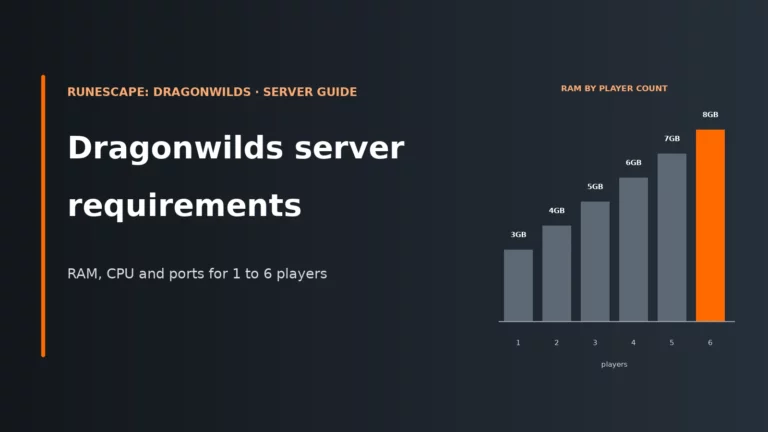
The last row is not a crossplay issue at all, but it looks like one. A home-hosted server can appear in the list and still refuse connections if UDP traffic is blocked on the way in. Our Dragonwilds server requirements guide covers the ports, RAM and CPU a server needs for a full group.
Dragonwilds crossplay server FAQ
Does RuneScape: Dragonwilds support crossplay on dedicated servers?
Yes. The 1.0 release on 15 September 2026 added crossplay and gave dedicated servers their own crossplay option. PC players on Steam, the Epic Games Store and the Jagex Launcher can share a server with players on PlayStation 5, Xbox Series X|S and Nintendo Switch 2.
Where is the crossplay setting for a Dragonwilds server?
It is the PlatformPolicy line under [/Script/Dominion.DedicatedServerSettings] in DedicatedServer.ini, inside RSDragonwilds/Saved/Config/LinuxServer/ on Linux or WindowsServer on Windows. Some host panels show it as a Platform Policy option instead.
Is crossplay on by default?
Yes. Crossplay is the default value, and a server with no PlatformPolicy line at all also defaults to crossplay. Check the line if console friends cannot see the world, because a server may have been set to a single platform.
Can I host a Dragonwilds dedicated server on a console?
No. The dedicated server runs on 64-bit Windows or Linux, either on your own machine or with a host. Console players can host their own player-hosted worlds, but those are only online while the host is playing.
Why can my PS5 or Xbox friend not join after an update?
Usually because their console version and the server’s version differ. Console patches can arrive later than the PC build. Compare the version at the top of the server log with the version shown in the top-left corner of their game, restart the server onto the latest build, and wait for the console update if theirs is behind.
More RuneScape: Dragonwilds server guides
Our Dragonwilds host comparison and the requirements guide for ports, RAM and CPU.
Written for RuneScape: Dragonwilds 1.0 dedicated servers in November 2026. Supported platforms, the crossplay and invite-code features and the 1.0.1 fixes come from Jagex’s official 1.0 and 1.0.1 release notes; the config file location, stopped-server editing rule, version matching, ports, world search and Steam-invite known issue come from Jagex’s dedicated server guide and the official Dragonwilds wiki. The PlatformPolicy values, file paths per operating system and panel options come from host documentation, including Shockbyte, Jagex’s official hosting partner.